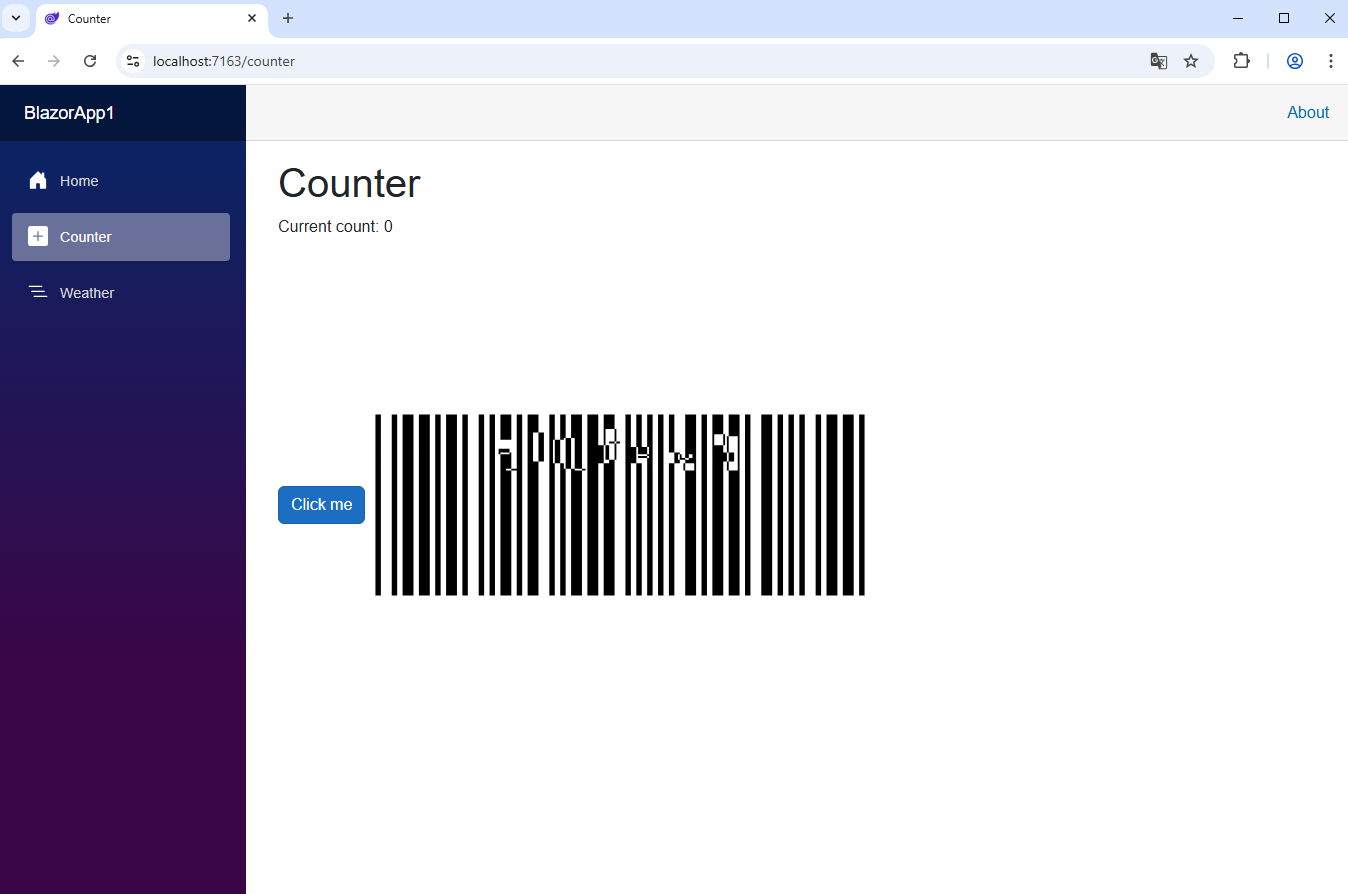
Generate barcode image in Blazor Web application
In This Topic
This tutorial shows how to create a blank Blazor Web application in Visual Studio .NET 2026 and generate barcode image in Blazor Web application.
Here are steps, which must be done:
-
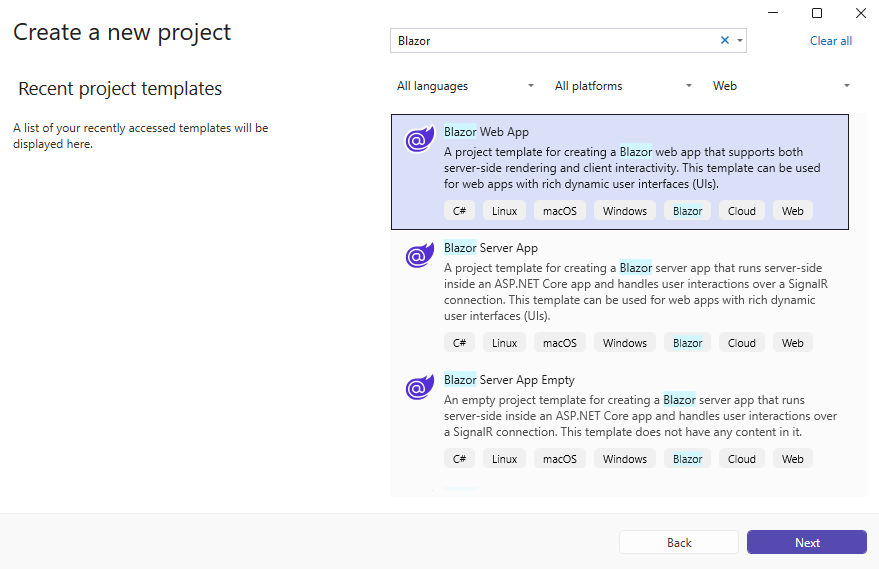
Create a blank Blazor Web application.
Open Visual Studio .NET 2026 and create a new project, of 'Blazor Web' application type:
-
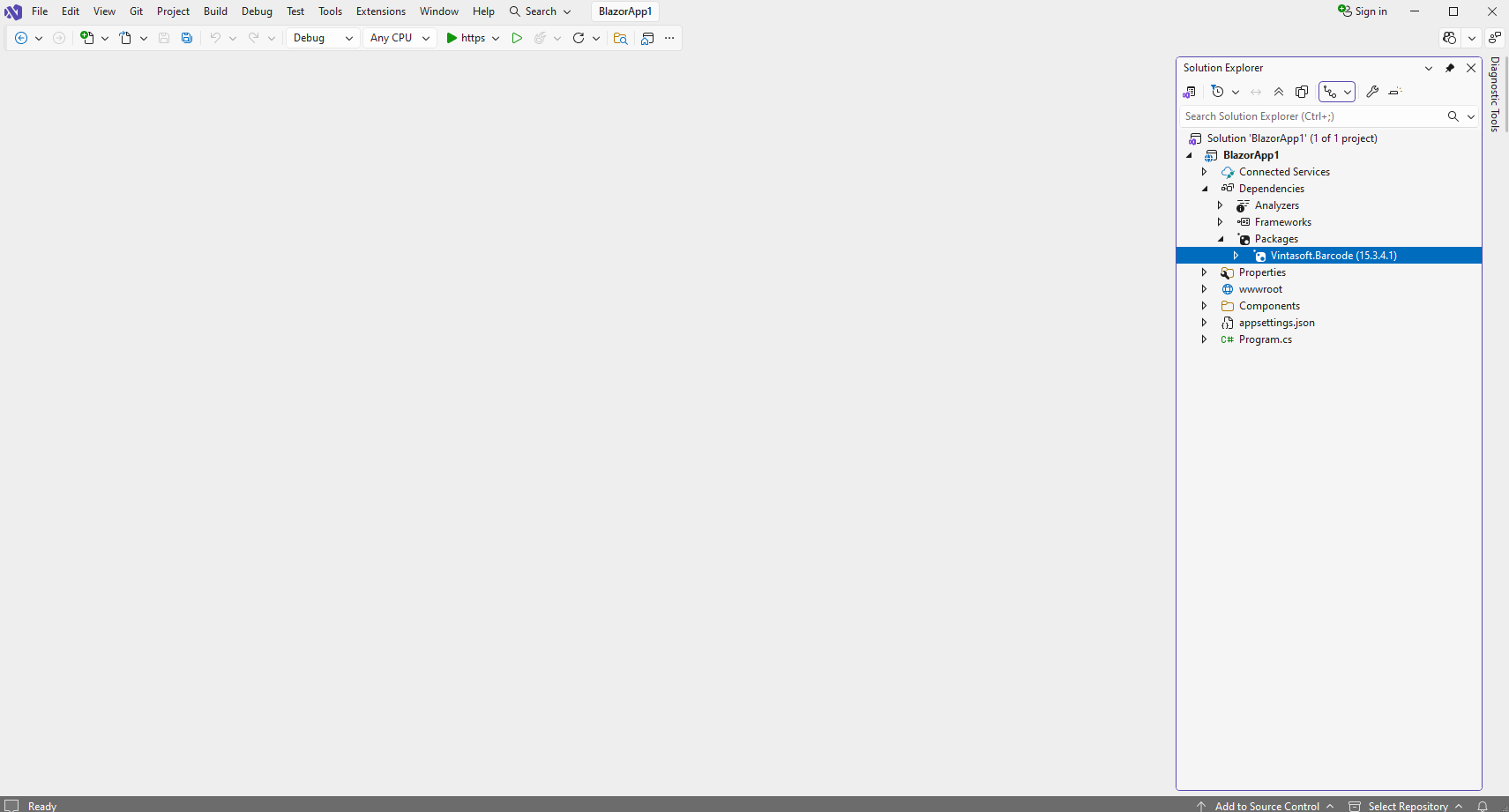
Add references to Vintasoft.Barcode nuget-package to Blazor Web application.
Add reference to the nuget-package Vintasoft.Barcode to the Blazor Web project.
-
Generate barcode image on Razor page.
-
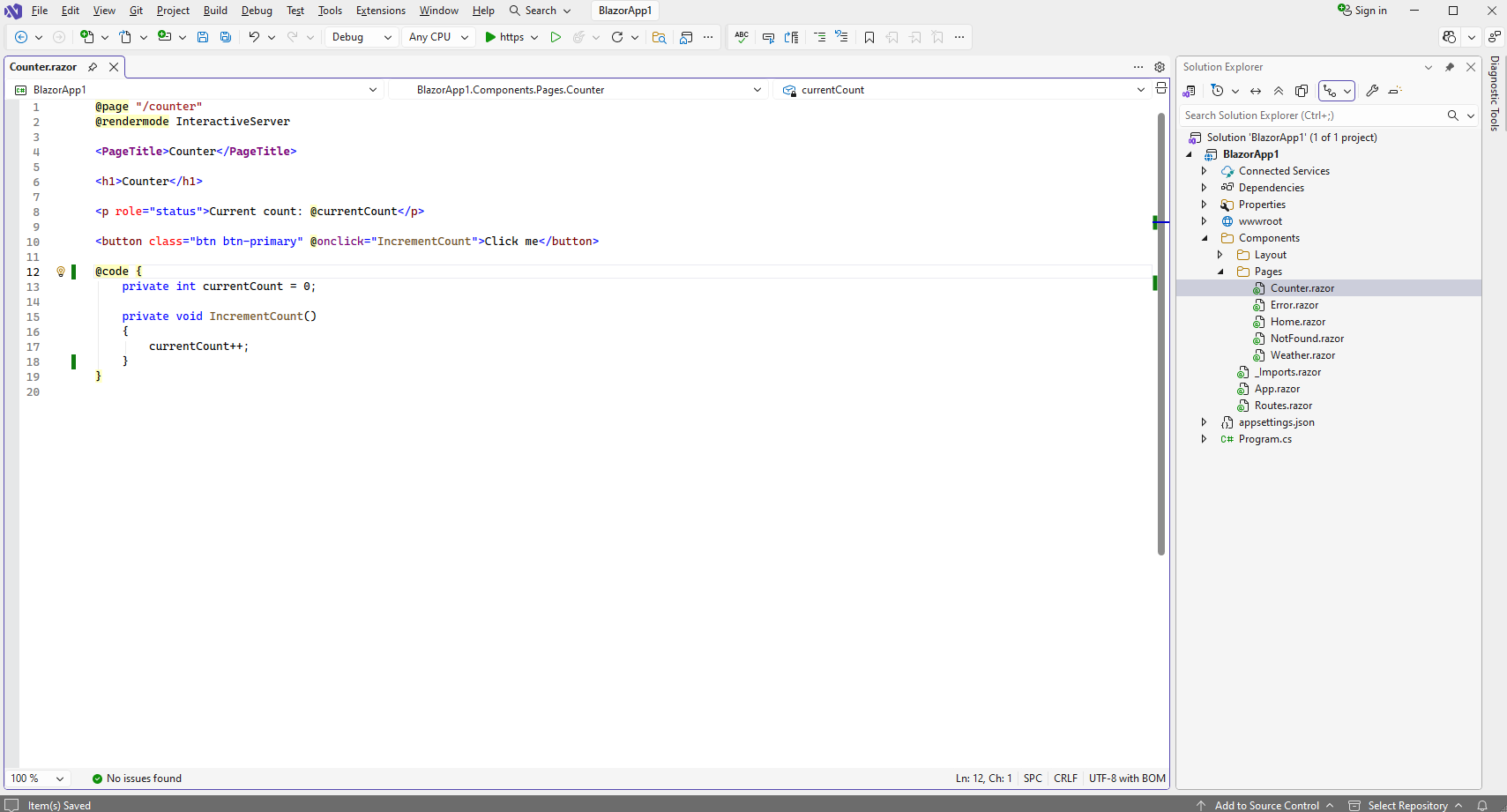
Open "Counter.razor" page
-
Add an "img" element to the "Counter.razor" page
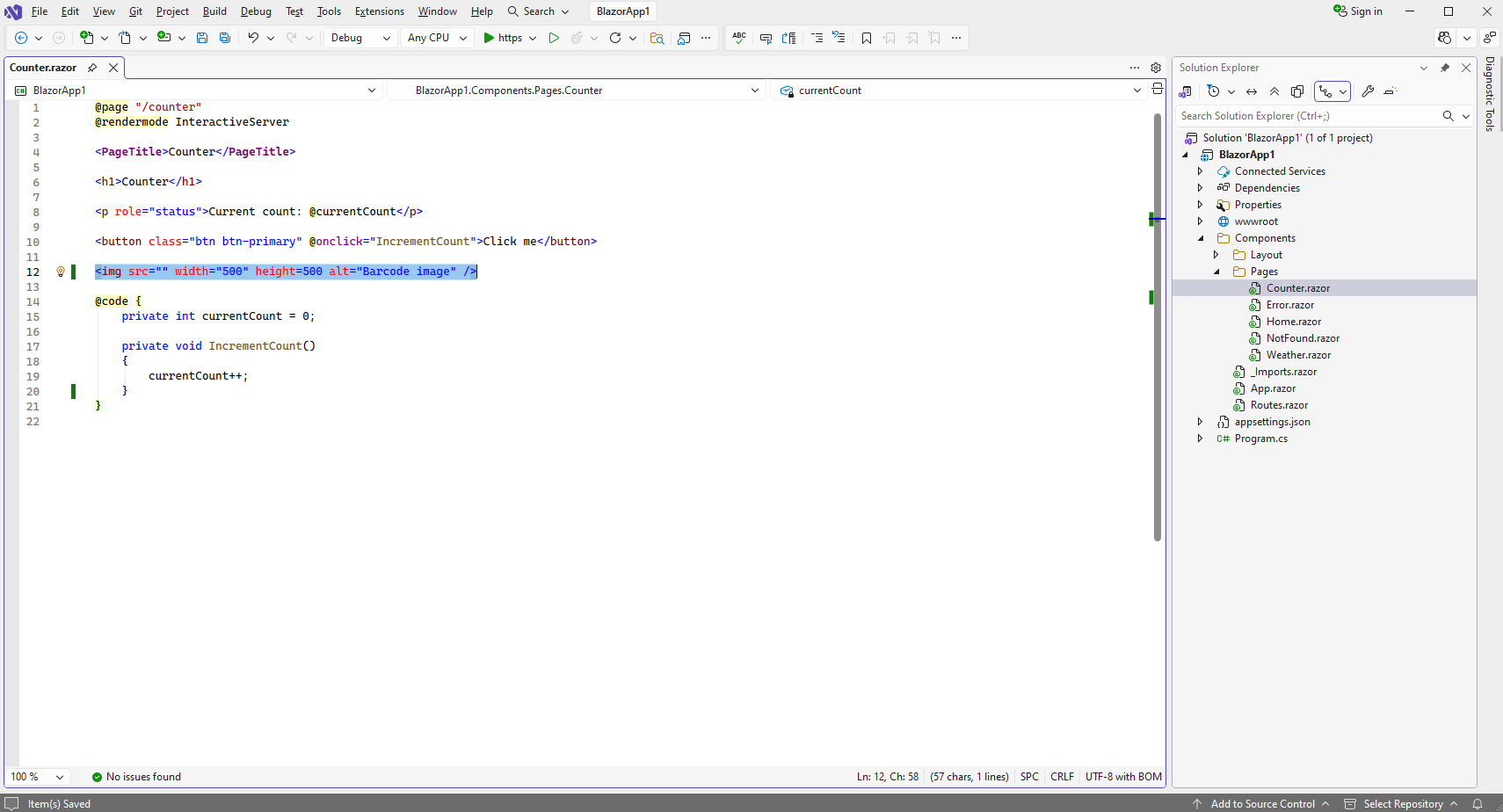
Here is code of "Counter.razor" page after modifications:
@page "/counter"
@rendermode InteractiveServer

<PageTitle>Counter</PageTitle>

<h1>Counter</h1>

<p role="status">Current count: @currentCount</p>

<button class="btn btn-primary" @onclick="IncrementCount">Click me</button>

<img src="" width="500" height=500 alt="Barcode image" />

@code {
    private int currentCount = 0;

    private void IncrementCount()
    {
        currentCount++;
    }
}
-
Add C# code, which generates barcode image, to the "Counter.razor" page
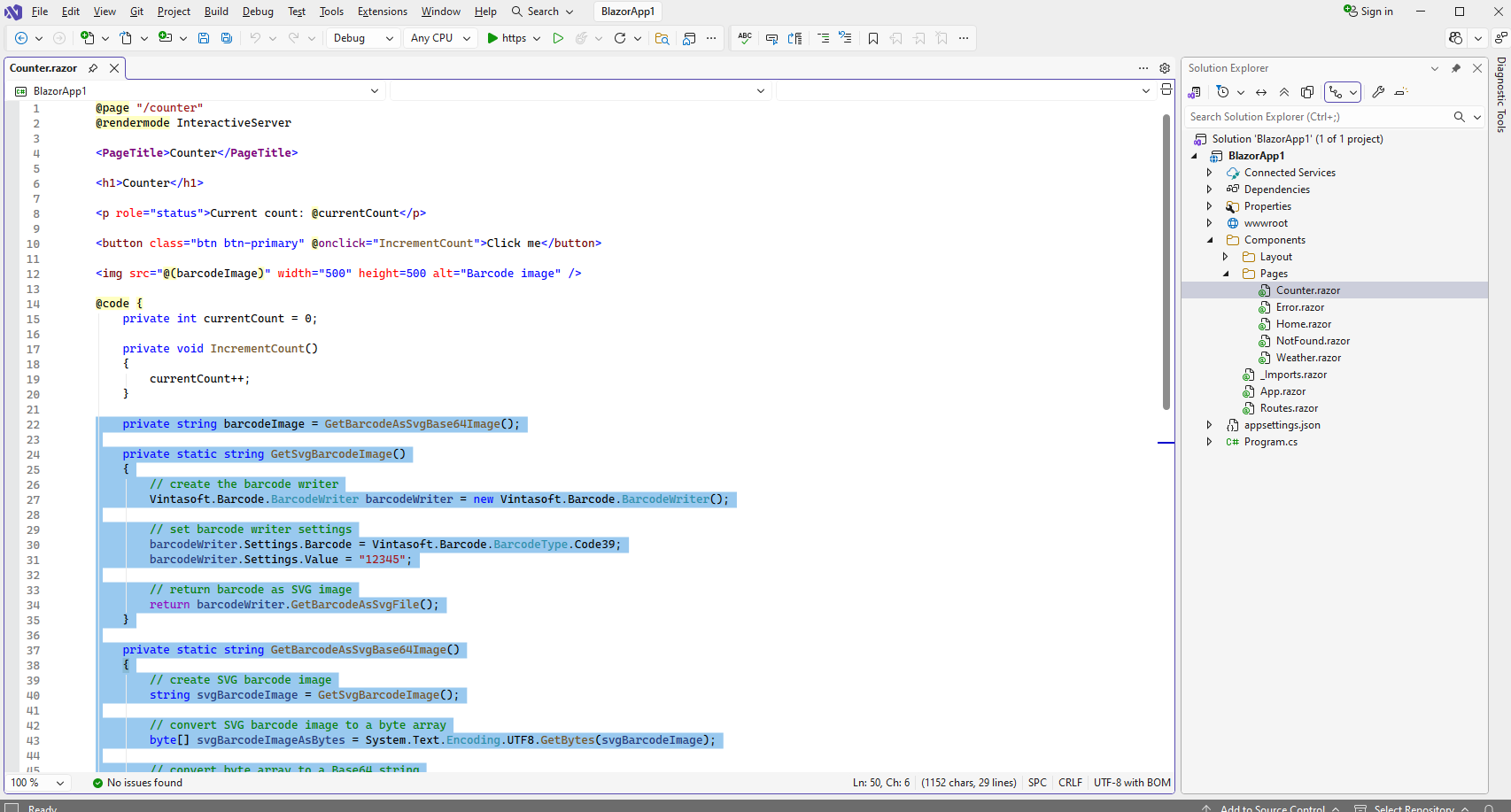
Here is code of "Counter.razor" page after modifications:
@page "/counter"
@rendermode InteractiveServer

<PageTitle>Counter</PageTitle>

<h1>Counter</h1>

<p role="status">Current count: @currentCount</p>

<button class="btn btn-primary" @onclick="IncrementCount">Click me</button>

<img src="@(barcodeImage)" width="500" height=500 alt="Barcode image" />

@code {
    private int currentCount = 0;

    private void IncrementCount()
    {
        currentCount++;
    }

    private string barcodeImage = GetBarcodeAsSvgBase64Image();

    private static string GetSvgBarcodeImage()
    {
        // create the barcode writer
        Vintasoft.Barcode.BarcodeWriter barcodeWriter = new Vintasoft.Barcode.BarcodeWriter();

        // set barcode writer settings
        barcodeWriter.Settings.Barcode = Vintasoft.Barcode.BarcodeType.Code39;
        barcodeWriter.Settings.Value = "12345";

        // return barcode as SVG image
        return barcodeWriter.GetBarcodeAsSvgFile();
    }

    private static string GetBarcodeAsSvgBase64Image()
    {
        // create SVG barcode image
        string svgBarcodeImage = GetSvgBarcodeImage();

        // convert SVG barcode image to a byte array
        byte[] svgBarcodeImageAsBytes = System.Text.Encoding.UTF8.GetBytes(svgBarcodeImage);

        // convert byte array to a Base64 string
        string svgBarcodeImageAsBase64 = System.Convert.ToBase64String(svgBarcodeImageAsBytes);

        // return string that can be used as source of "img" element
        return string.Format("data:image/svg+xml;base64,{0}", svgBarcodeImageAsBase64);
    }
}
-
Run the Blazor Web application and see the result.