VintaSoft Imaging .NET SDK 15.0: Documentation for Web developer
In This Topic
    Add web document viewer to an "Angular and ASP.NET Core" application
    In This Topic
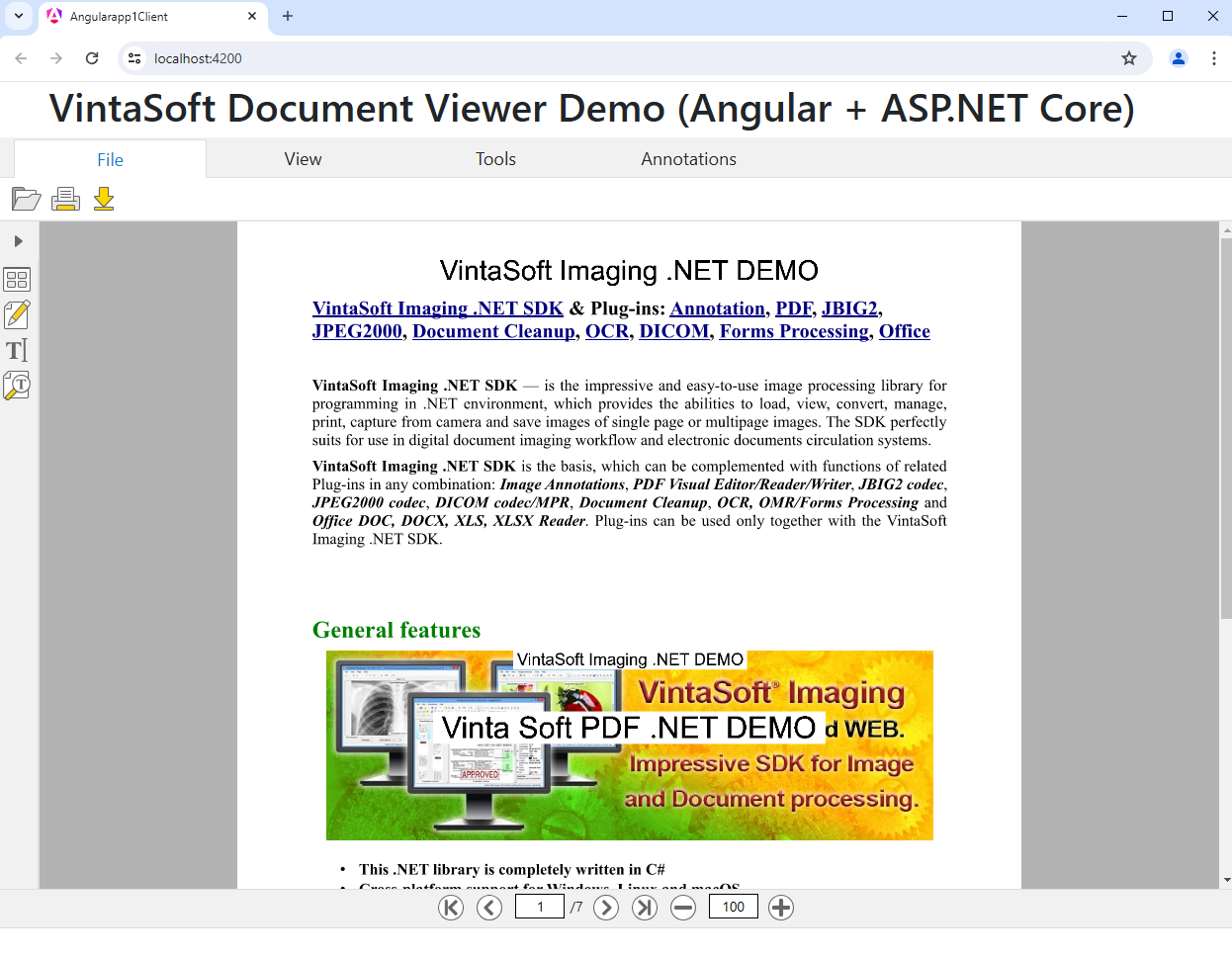
    This tutorial shows how to create a blank "Angular and ASP.NET Core" application in Visual Studio .NET 2026 and add document viewer (with ability to open images and documents (PDF, DOCX, XLSX), extract/search text, annotate documents) to an "Angular and ASP.NET Core" application.

    Here are steps, which must be done:
    1. Create a blank "Angular and ASP.NET Core" application.

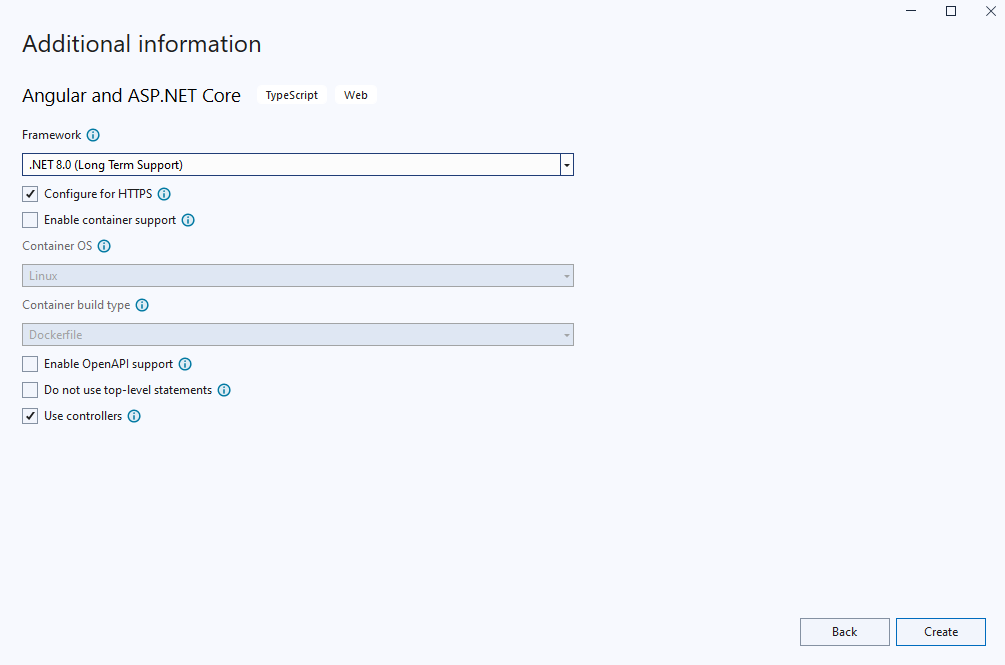
      Open Visual Studio .NET 2026 and create a new application of "Angular and ASP.NET Core" type:

      Configure the application to use .NET 10.0:
    2. "AngularApp1.Server" project: Add references to the Vintasoft nuget-packages to "AngularApp1.Server" project.

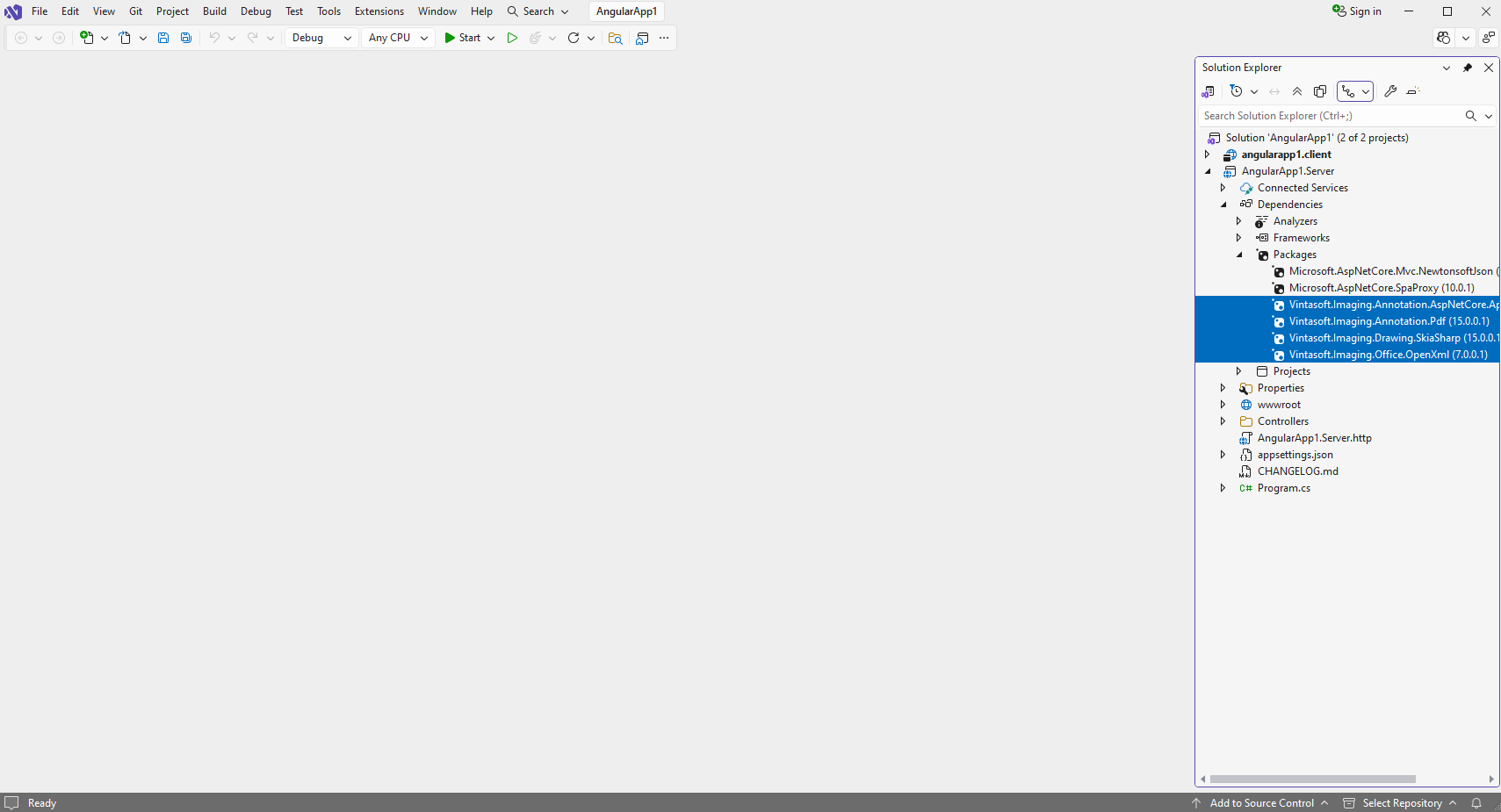
      Add references to the nuget-packages "Vintasoft.Imaging.Annotation.AspNetCore.ApiControllers", "Vintasoft.Imaging.Annotation.Pdf" and "Vintasoft.Imaging.Office.OpenXml" to the "AngularApp1.Server" project. Other necessary nuget-packages will be added automatically.


    3. "AngularApp1.Server" project: Specify drawing engine, which should be used by VintaSoft Imaging .NET SDK for drawing of 2D graphics.

      If "AngularApp1.Server" project must be used in Windows or Linux, SkiaSharp drawing engine should be used.
      If "AngularApp1.Server" project must be used in Windows only, System.Drawing or SkiaSharp drawing engine should be used.

      Here are steps, which should be made for using SkiaSharp engine:
      • Add reference to the "Vintasoft.Imaging.Drawing.SkiaSharp" nuget-package. Reference to the "SkiaSharp" nuget-package version 3.119.0 will be added automatically.
      • Open "Program.cs" file in "AngularApp1.Server" project, add code line "Vintasoft.Imaging.Drawing.SkiaSharp.SkiaSharpDrawingFactory.SetAsDefault();" at the beginning of file - added code specifies that VintaSoft Imaging .NET SDK should use SkiaSharp library for drawing of 2D graphics.

      Here are steps, which should be made for using System.Drawing engine:
      • Add reference to the "Vintasoft.Imaging.Gdi" nuget-package.
      • Open "Program.cs" file in "AngularApp1.Server" project, add code line "Vintasoft.Imaging.Drawing.Gdi.GdiGraphicsFactory.SetAsDefault();" at the beginning of file - added code specifies that VintaSoft Imaging .NET SDK should use System.Drawing library for drawing of 2D graphics.

    4. "AngularApp1.Server" project: Add Newtonsoft JSON for deserialization of JSON annotations.

      • Add reference to the "Microsoft.AspNetCore.Mvc.NewtonsoftJson" nuget-package 10.0.0.

      • Open the "Program.cs" file in "AngularApp1.Server" project and add code line "builder.Services.AddControllersWithViews().AddNewtonsoftJson();" after line "builder.Services.AddControllers();". This is necessary for correct deserialization of JSON annotations.
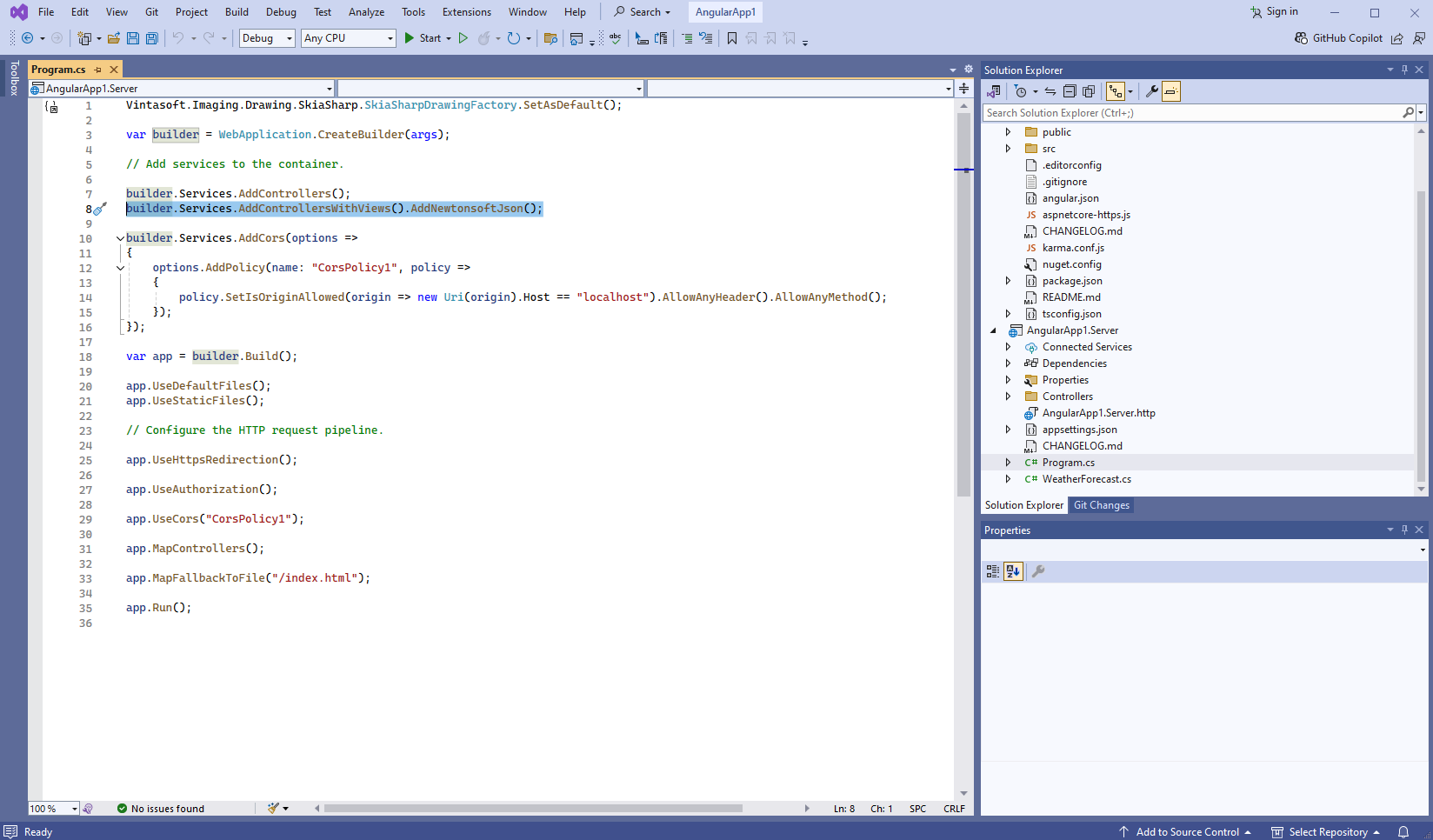

        Here are source codes of "Program.cs" file after update:

        Vintasoft.Imaging.Drawing.SkiaSharp.SkiaSharpDrawingFactory.SetAsDefault();
        
        var builder = WebApplication.CreateBuilder(args);
        
        // Add services to the container.
        
        builder.Services.AddControllersWithViews().AddNewtonsoftJson();
        
        var app = builder.Build();
        
        app.UseDefaultFiles();
        app.MapStaticAssets();
        
        // Configure the HTTP request pipeline.
        
        app.UseHttpsRedirection();
        
        app.UseAuthorization();
        
        app.MapControllers();
        
        app.MapFallbackToFile("/index.html");
        
        app.Run();
        
        
    5. "AngularApp1.Server" project: Create web services, which allow to upload/download file, manage image collection, get information about images, get thumbnails, render image tiles, extract/search text and annotate document.

      • Create web service that allows to upload/download file

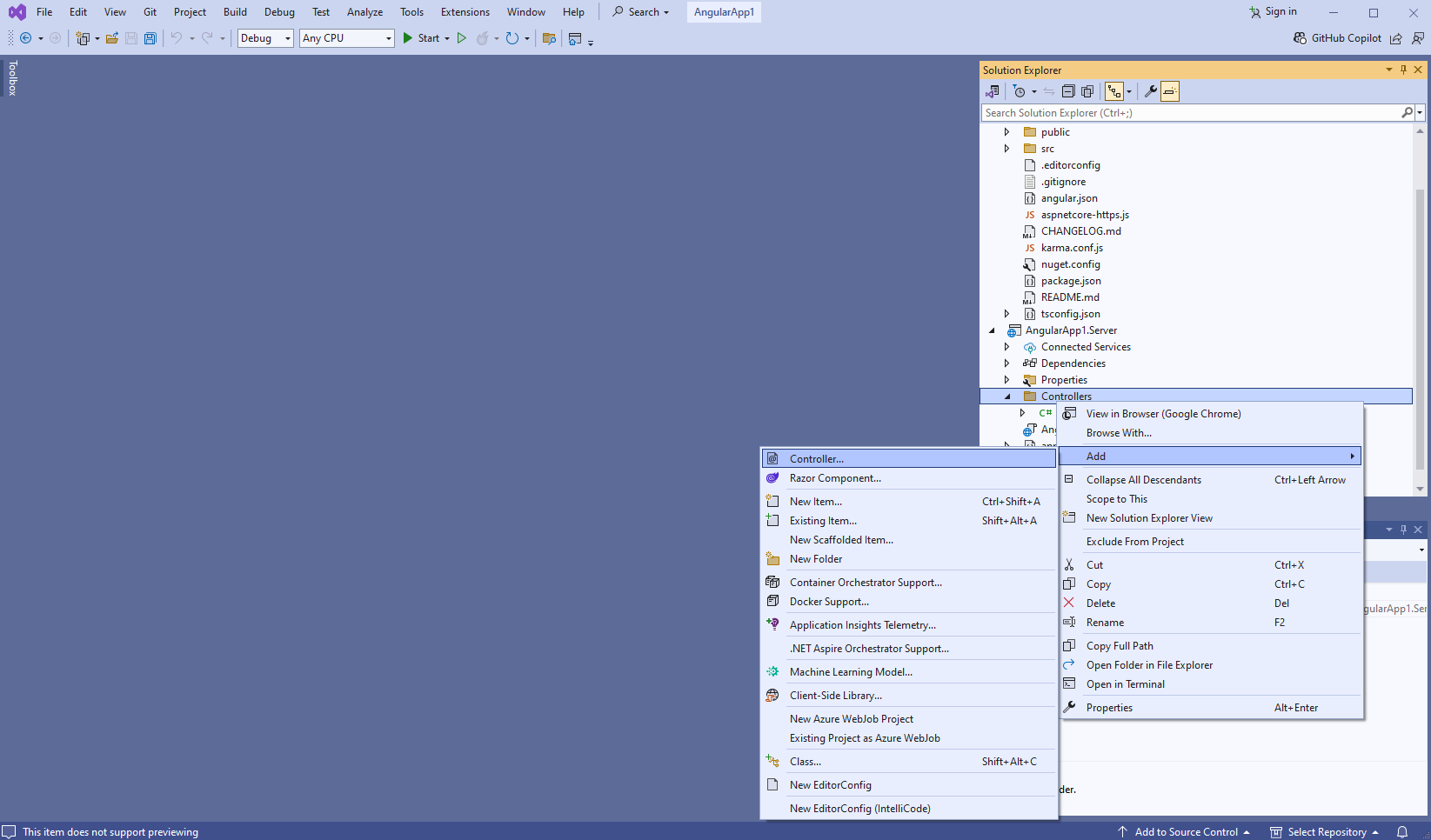
        • Press the right mouse button on the "Controllers" folder and select the "Add => Controller..." menu from context menu
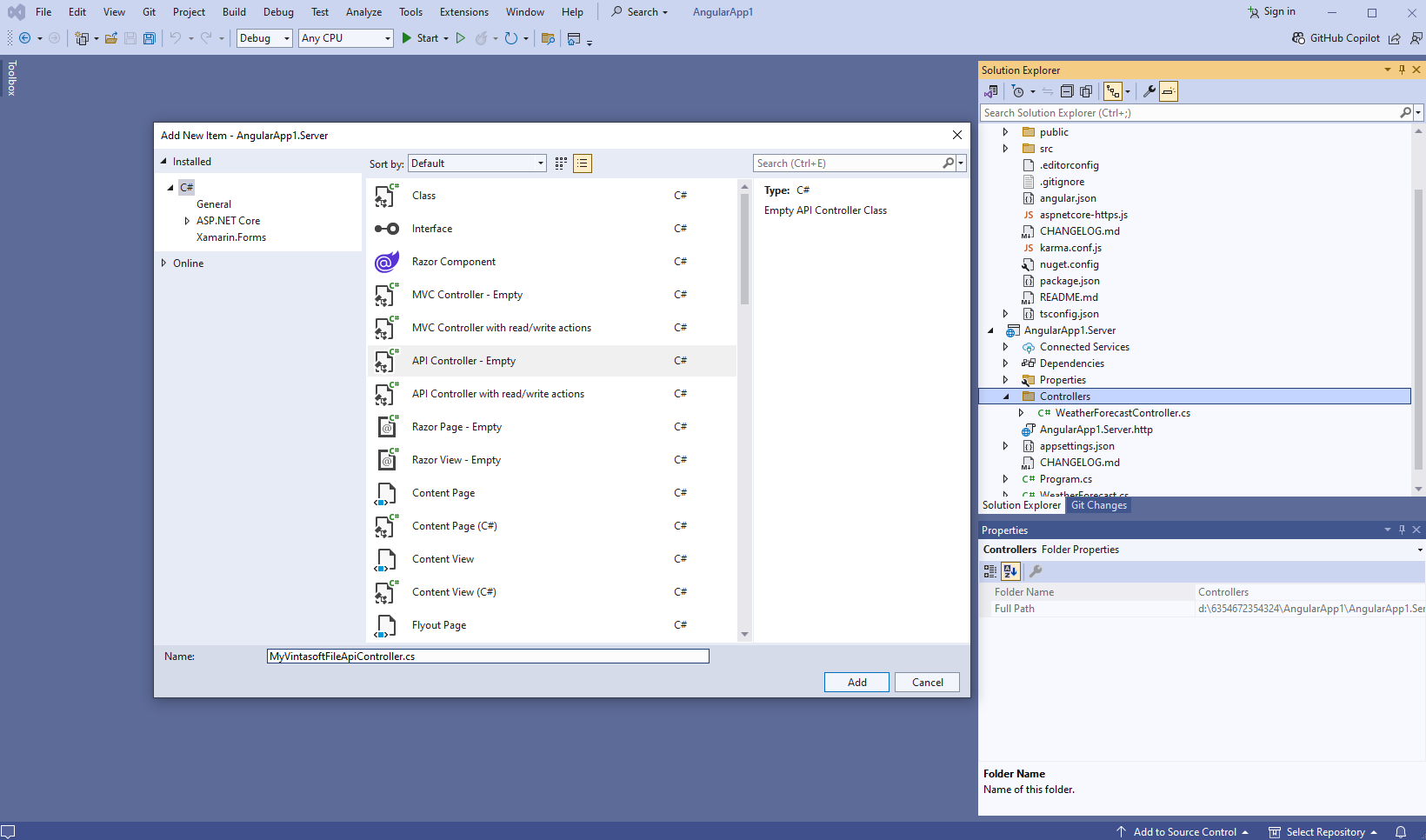
        • Select "Empty API controller" template, set the controller name to the "MyVintasoftFileApiController" and press the "Add" button
        • Specify that MyVintasoftFileApiController class is derived from Vintasoft.Imaging.AspNetCore.ApiControllers.VintasoftFileApiController class
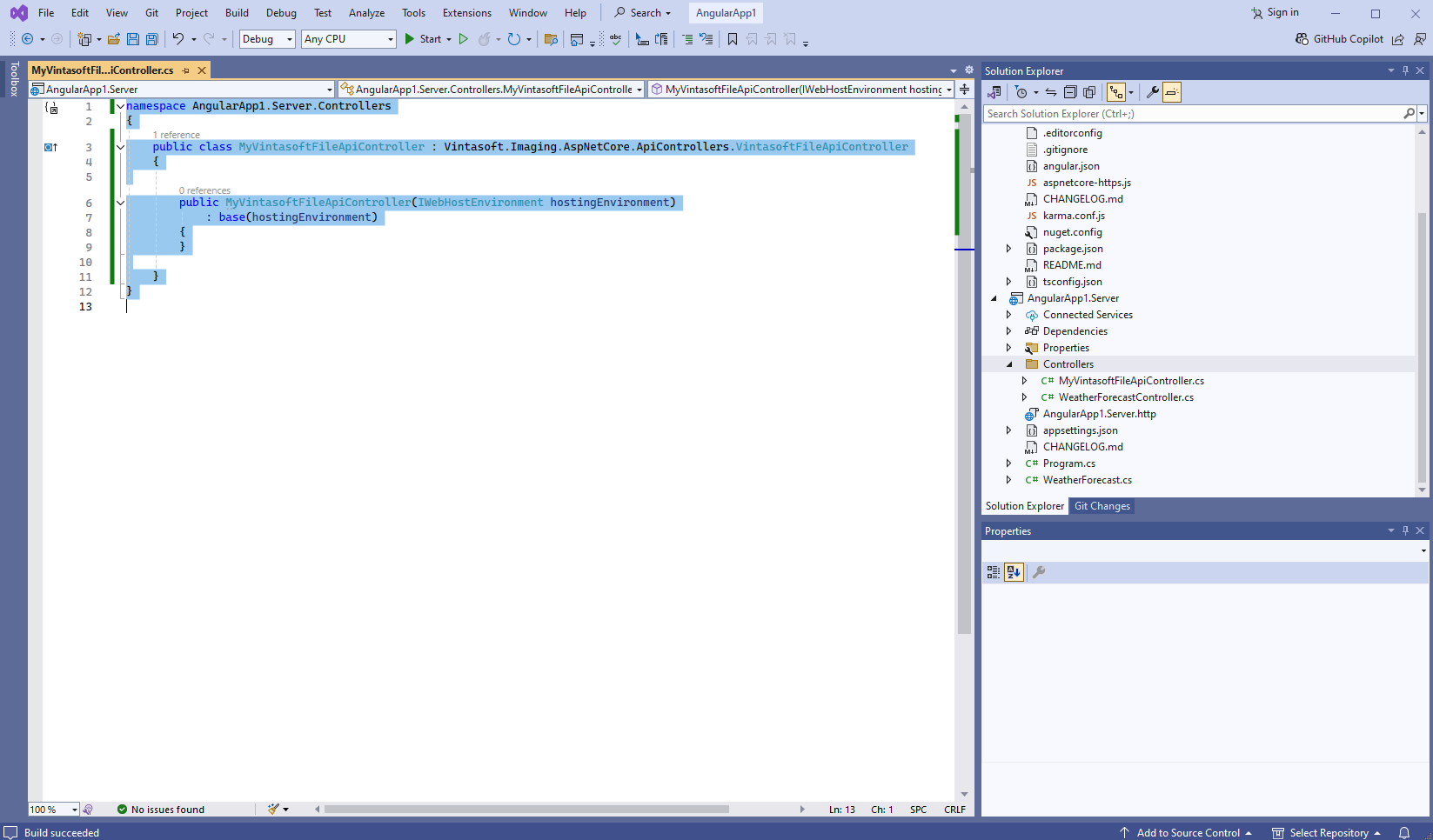
          Here are source codes of MyVintasoftFileApiController class:
          namespace AngularApp1.Server.Controllers
          {
              public class MyVintasoftFileApiController : Vintasoft.Imaging.AspNetCore.ApiControllers.VintasoftFileApiController
              {
          
                  public MyVintasoftFileApiController(IWebHostEnvironment hostingEnvironment)
                      : base(hostingEnvironment)
                  {
                  }
          
              }
          }
          
          
      • Create web service that allows to manage image collection

        • Press the right mouse button on the "Controllers" folder and select the "Add => Controller..." menu from context menu
        • Select "Empty API controller" template, set the controller name to the "MyVintasoftImageCollectionApiController" and press the "Add" button
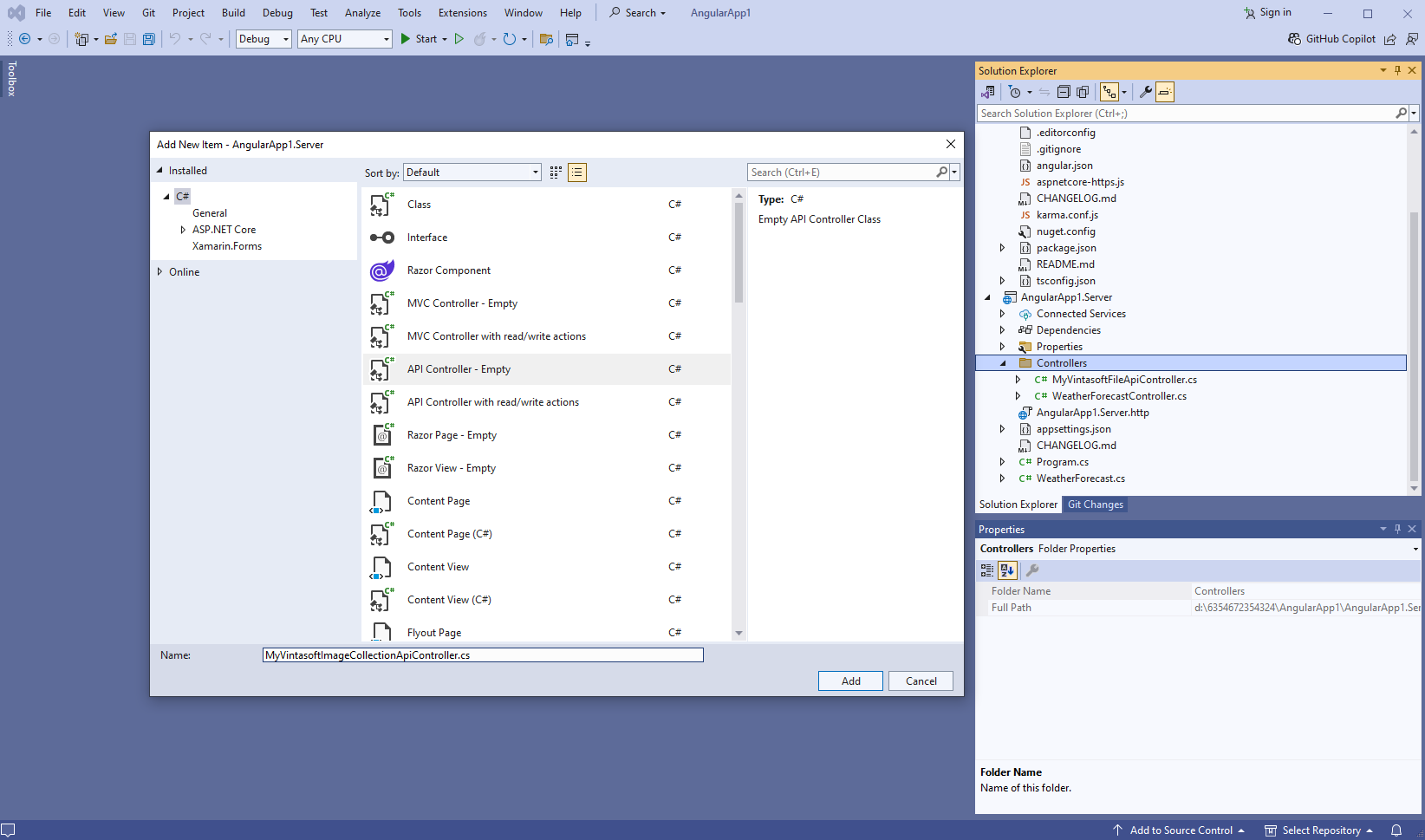
        • Specify that MyVintasoftImageCollectionApiController class is derived from Vintasoft.Imaging.AspNetCore.ApiControllers.VintasoftImageCollectionApiController class
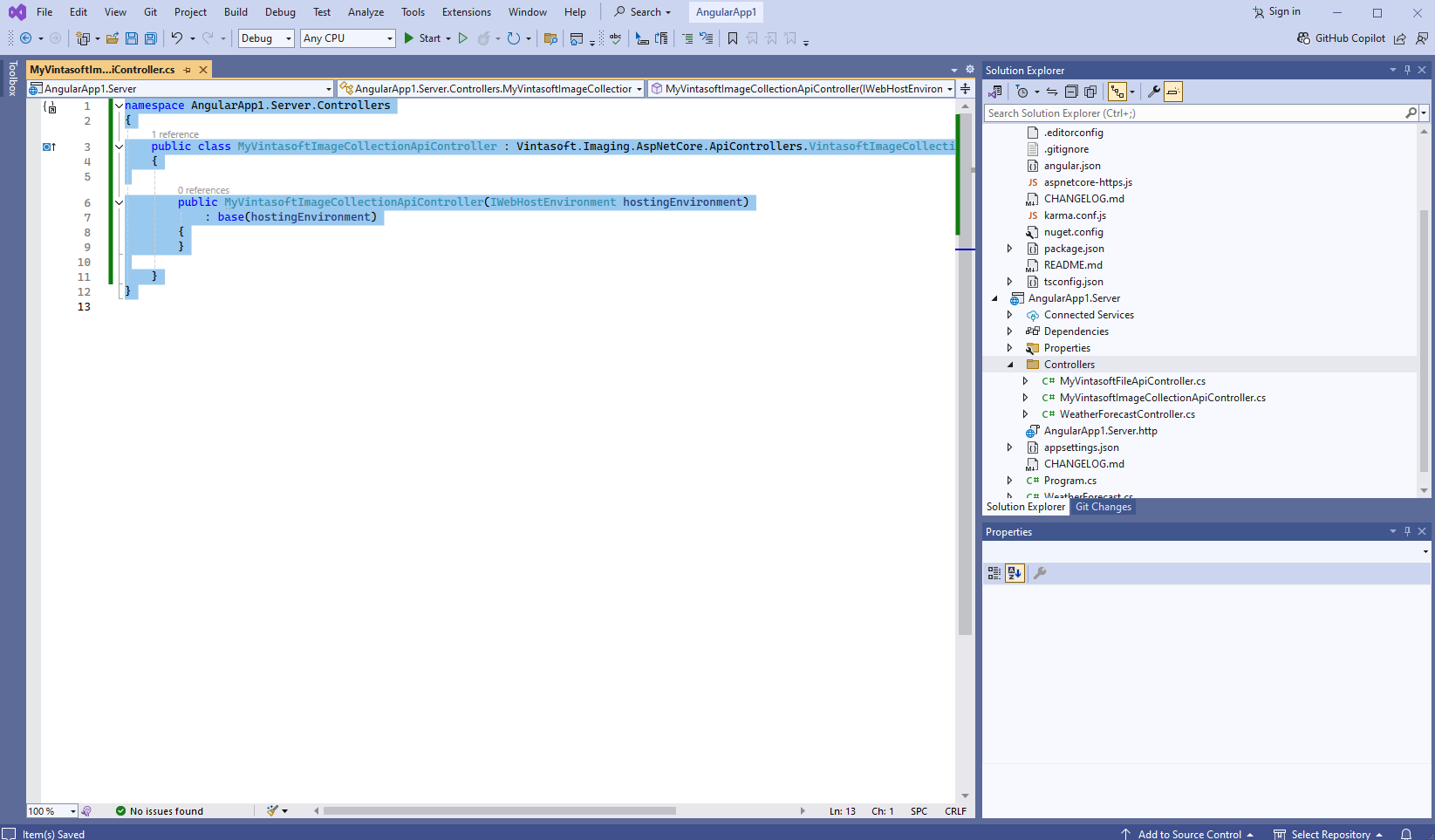
          Here are source codes of MyVintasoftImageCollectionApiController class:
          namespace AngularApp1.Server.Controllers
          {
              public class MyVintasoftImageCollectionApiController : Vintasoft.Imaging.AspNetCore.ApiControllers.VintasoftImageCollectionApiController
              {
          
                  public MyVintasoftImageCollectionApiController(IWebHostEnvironment hostingEnvironment)
                      : base(hostingEnvironment)
                  {
                  }
          
              }
          }
          
          
      • Create web service that allows to get information about images, get thumbnails, render image tiles, extract/search text

        • Press the right mouse button on the "Controllers" folder and select the "Add => Controller..." menu from context menu
        • Select "Empty API controller" template, set the controller name to the "MyVintasoftImageApiController" and press the "Add" button
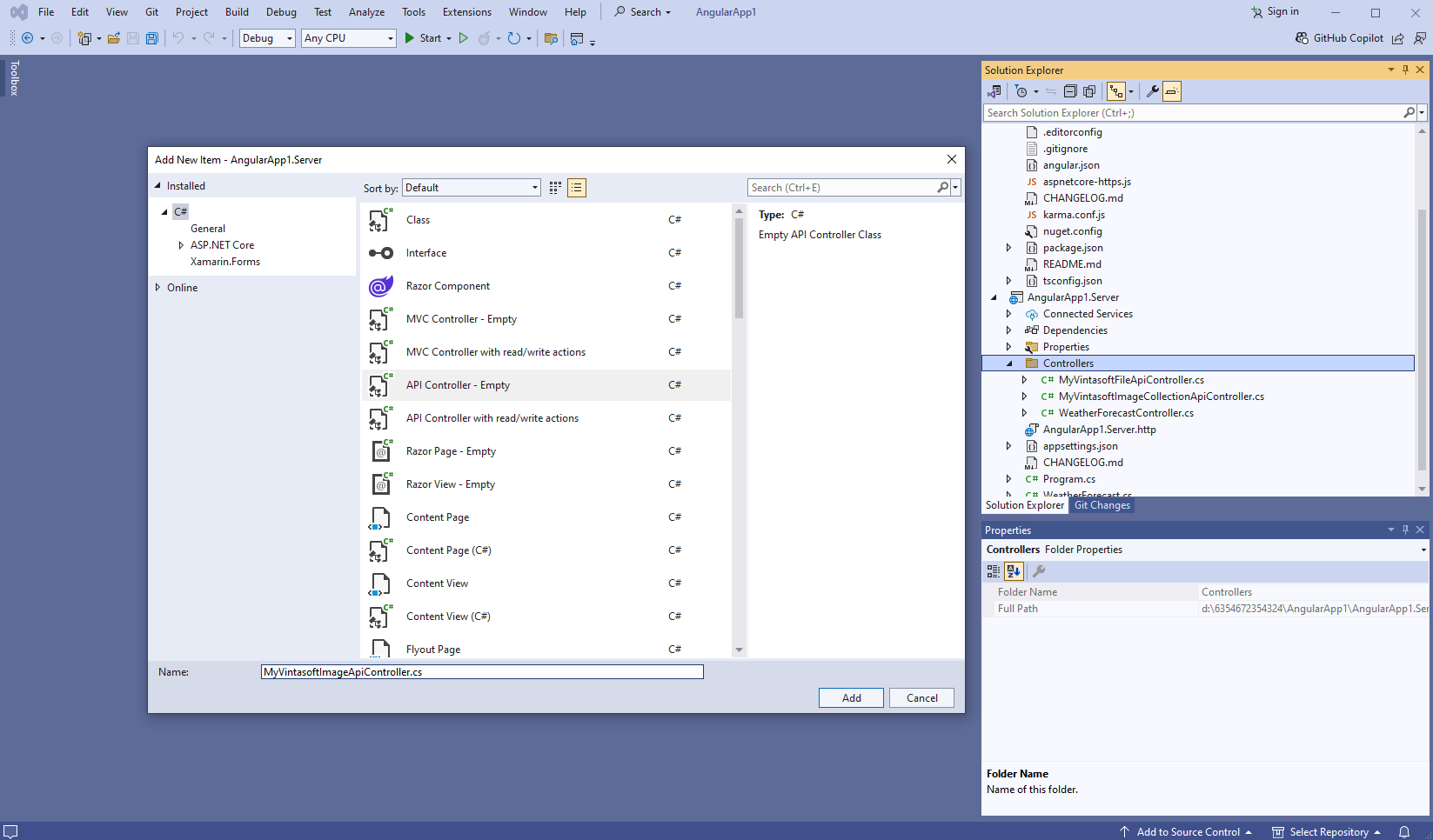
        • Specify that MyVintasoftImageApiController class is derived from Vintasoft.Imaging.AspNetCore.ApiControllers.VintasoftImageApiController class
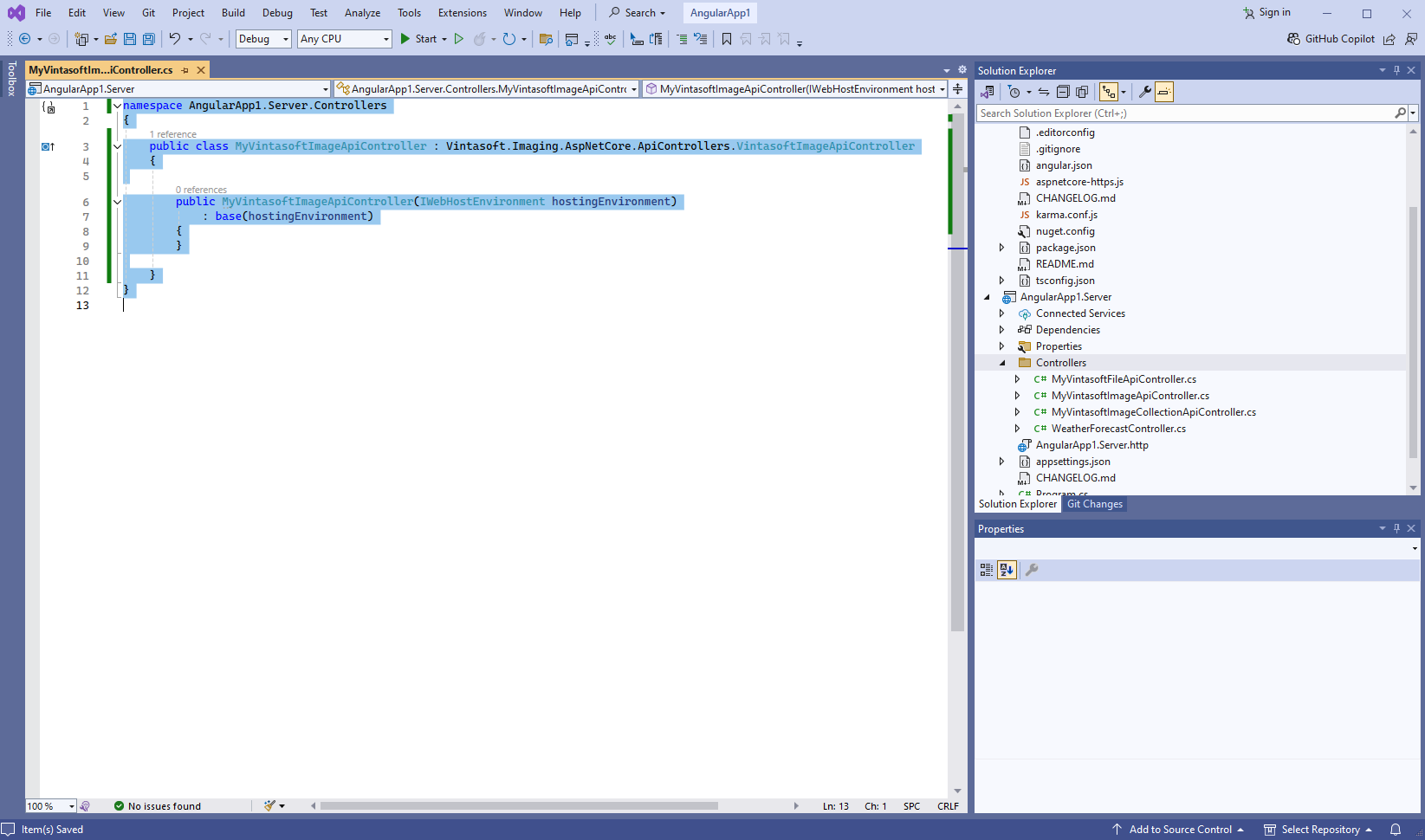
          Here are source codes of MyVintasoftImageApiController class:
          namespace AngularApp1.Server.Controllers
          {
              public class MyVintasoftImageApiController : Vintasoft.Imaging.AspNetCore.ApiControllers.VintasoftImageApiController
              {
          
                  public MyVintasoftImageApiController(IWebHostEnvironment hostingEnvironment)
                      : base(hostingEnvironment)
                  {
                  }
          
              }
          }
          
          
      • Create web service that allows to annotate images and documents

        • Press the right mouse button on the "Controllers" folder and select the "Add => Controller..." menu from context menu
        • Select "Empty API controller" template, set the controller name to the "MyVintasoftAnnotationCollectionApiController" and press the "Add" button
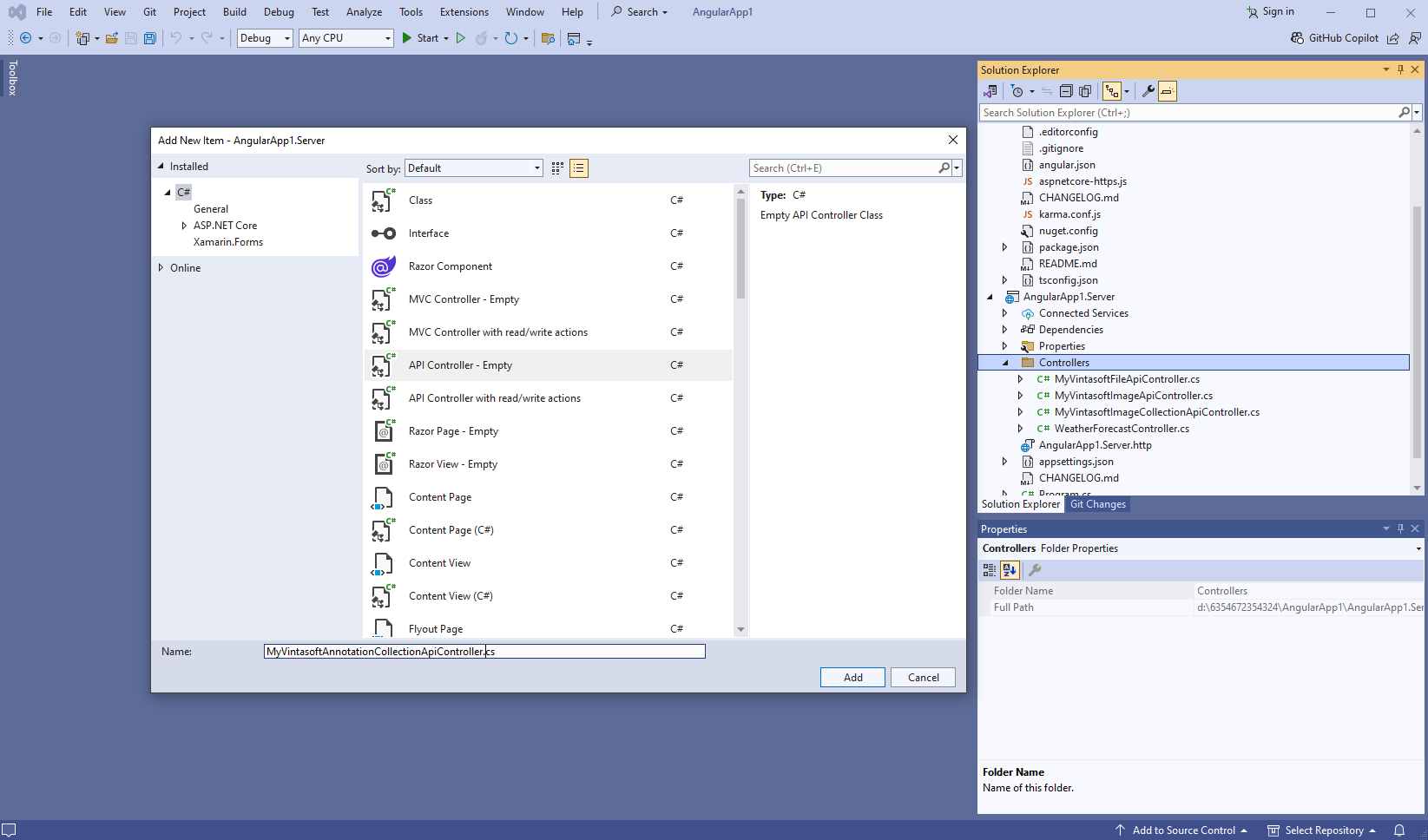
        • Specify that MyVintasoftAnnotationCollectionApiController class is derived from Vintasoft.Imaging.Annotation.AspNetCore.ApiControllers.VintasoftAnnotationCollectionApiController class
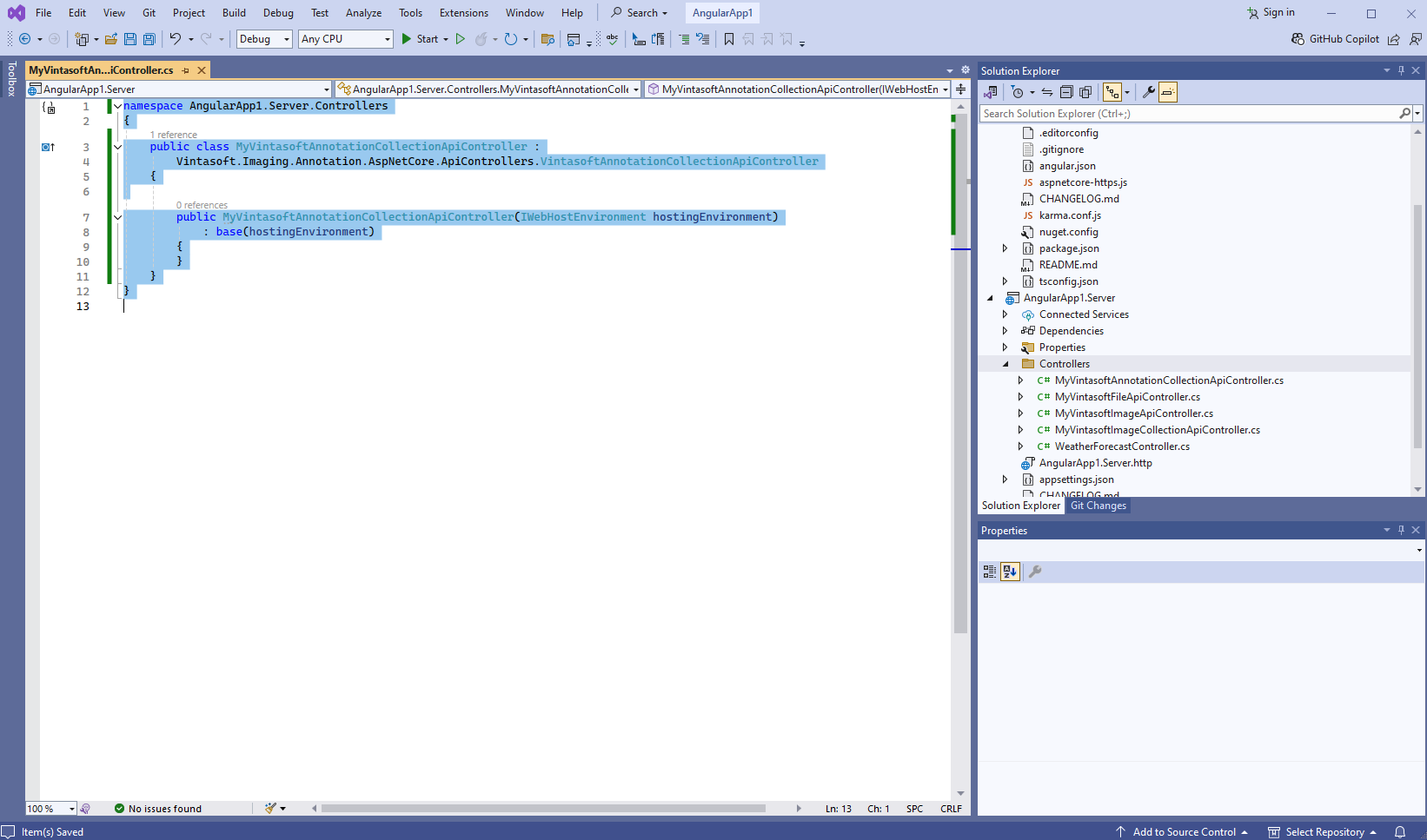
          Here are source codes of MyVintasoftAnnotationCollectionApiController class:
          namespace AngularApp1.Server.Controllers
          {
              public class MyVintasoftAnnotationCollectionApiController :
                  Vintasoft.Imaging.Annotation.AspNetCore.ApiControllers.VintasoftAnnotationCollectionApiController
              {
          
                  public MyVintasoftAnnotationCollectionApiController(IWebHostEnvironment hostingEnvironment)
                      : base(hostingEnvironment)
                  {
                  }
              }
          }
          
          
    6. "AngularApp1.Server" project: Copy the default test PDF document to a server side.

      • Create folder "wwwroot\UploadedImageFiles\SessionID" in "AngularApp1.Server" project and copy test PDF document "<SdkInstallPath>\VintaSoft\Imaging .NET 15.0\Examples\ASP.NET Core\CSharp\AspNetCoreImagingDemo\wwwroot\UploadedImageFiles\VintasoftImagingDemo.pdf" to the folder. This file will be displayed in web document viewer.
    7. "AngularApp1.Server" project: Delete files, which are not necessary in this tutorial.

      Delete files "WeatherForecast.cs" and "Controllers\WeatherForecastController.cs" in "AngularApp1.Server" project - the WeatherForecast Web API controller is not necessary in this demo.
    8. Compile the solution for restoring TypeScript-dependencies in "angularapp1.client" project.

    9. "angularapp1.client" project: Add JavaScript files and TypeScript modules to the "angularapp1.client" project.

      • Add the "assets" folder to the "src\app\" folder in "angularapp1.client" project.

      • Copy Vintasoft.Shared.js, Vintasoft.Shared.d.ts, Vintasoft.Imaging.js, Vintasoft.Imaging.d.ts, Vintasoft.Imaging.Annotation.js, Vintasoft.Imaging.Annotation.d.ts, Vintasoft.Imaging.DocumentViewer.js and Vintasoft.Imaging.DocumentViewer.d.ts files from "<SdkInstallPath>\VintaSoft Imaging .NET 15.0\Bin\JavaScript\" folder to the "src\app\assets\" folder.

      • Specify, which "standard" dialogs (password dialog, print dialog, etc) should be used by web document viewer
        • If web document viewer should use ready-to-use "standard" Bootstrap dialogs:
          • Add "bootstrap" Node-module to the "package.json" file. Rebuild the project for refreshing Node-modules.
            Here are source codes of "package.json" file after update:
            {
              "name": "angularapp1.client",
              "version": "0.0.0",
              "scripts": {
                "ng": "ng",
                "start": "run-script-os",
                "build": "ng build",
                "watch": "ng build --watch --configuration development",
                "test": "ng test",
                "prestart": "node aspnetcore-https",
                "start:windows": "ng serve --ssl --ssl-cert \"%APPDATA%\\ASP.NET\\https\\%npm_package_name%.pem\" --ssl-key \"%APPDATA%\\ASP.NET\\https\\%npm_package_name%.key\" --host=127.0.0.1",
                "start:default": "ng serve --ssl --ssl-cert \"$HOME/.aspnet/https/${npm_package_name}.pem\" --ssl-key \"$HOME/.aspnet/https/${npm_package_name}.key\" --host=127.0.0.1"
              },
              "private": true,
              "dependencies": {
                "@angular/animations": "^16.2.0",
                "@angular/common": "^16.2.0",
                "@angular/compiler": "^16.2.0",
                "@angular/core": "^16.2.0",
                "@angular/forms": "^16.2.0",
                "@angular/platform-browser": "^16.2.0",
                "@angular/platform-browser-dynamic": "^16.2.0",
                "@angular/router": "^16.2.0",
                "bootstrap": "~5.3.8",
                "rxjs": "~7.8.0",
                "tslib": "^2.3.0",
                "zone.js": "~0.13.0",
                "jest-editor-support": "*",
                "run-script-os": "*"
              },
              "devDependencies": {
                "@angular-devkit/build-angular": "^16.2.0",
                "@angular/cli": "~16.2.0",
                "@angular/compiler-cli": "^16.2.0",
                "@types/jasmine": "~4.3.0",
                "jasmine-core": "~4.6.0",
                "karma": "~6.4.0",
                "karma-chrome-launcher": "~3.2.0",
                "karma-coverage": "~2.2.0",
                "karma-jasmine": "~5.1.0",
                "karma-jasmine-html-reporter": "~2.1.0",
                "typescript": "~5.1.3"
              }
            }
            
            
          • Copy Vintasoft.Imaging.Dialogs.Bootstrap.js, Vintasoft.Imaging.Dialogs.Bootstrap.d.ts, Vintasoft.Imaging.DocumentViewer.Dialogs.Bootstrap.js and Vintasoft.Imaging.DocumentViewer.Dialogs.Bootstrap.d.ts files from "<InstallPath>\VintaSoft Imaging .NET 15.0\Bin\JavaScript\" folder into "src\app\assets\" folder.

        • If web document viewer should use ready-to-use "standard" jQuery UI dialogs:
          • Add "jquery-ui-dist" Node-module to the "package.json" file. Rebuild the project for refreshing Node-modules.
          • Copy Vintasoft.Imaging.Dialogs.jQueryUI.js, Vintasoft.Imaging.Dialogs.jQueryUI.d.ts, Vintasoft.Imaging.DocumentViewer.Dialogs.jQueryUI.js and Vintasoft.Imaging.DocumentViewer.Dialogs.jQueryUI.d.ts files from "<InstallPath>\VintaSoft Imaging .NET 15.0\Bin\JavaScript\" folder into "src\app\assets\" folder.

        • If web document viewer should use custom "standard" dialogs (for example, Angular+Bootstrap dialogs), please read how to create custom "standard" dialogs here.

      • Add references to used JavaScript libraries to the "projects => angularapp1.client => architect => build => options => scripts" section in "angular.json" file, add references to used CSS-files to the "projects => Demo => architect => build => options => styles" section in "angular.json" file.
        Here are source codes of "angular.json" file:
        {
          "$schema": "./node_modules/@angular/cli/lib/config/schema.json",
          "version": 1,
          "newProjectRoot": "projects",
          "projects": {
            "angularapp1.client": {
              "projectType": "application",
              "schematics": {},
              "root": "",
              "sourceRoot": "src",
              "prefix": "app",
              "architect": {
                "build": {
                  "builder": "@angular-devkit/build-angular:browser",
                  "options": {
                    "outputPath": "dist/angularapp1.client",
                    "index": "src/index.html",
                    "main": "src/main.ts",
                    "polyfills": [
                      "zone.js"
                    ],
                    "tsConfig": "tsconfig.app.json",
                    "assets": [
                      "src/favicon.ico",
                      "src/assets"
                    ],
                    "styles": [
                      "node_modules/bootstrap/dist/css/bootstrap.css",
                      "src/Vintasoft.Imaging.css",
                      "src/Vintasoft.Imaging.Annotation.css",
                      "src/styles.css"
                    ],
                    "scripts": [
                      "src/app/assets/Vintasoft.Shared.js",
                      "src/app/assets/Vintasoft.Imaging.js",
                      "src/app/assets/Vintasoft.Imaging.Dialogs.Bootstrap.js",
                      "src/app/assets/Vintasoft.Imaging.Annotation.js",
                      "src/app/assets/Vintasoft.Imaging.Annotation.Dialogs.Bootstrap.js",
                      "src/app/assets/Vintasoft.Imaging.DocumentViewer.js",
                      "src/app/assets/Vintasoft.Imaging.DocumentViewer.Dialogs.Bootstrap.js"
                    ]
                  },
                  "configurations": {
                    "production": {
                      "budgets": [
                        {
                          "type": "initial",
                          "maximumWarning": "500kb",
                          "maximumError": "1mb"
                        },
                        {
                          "type": "anyComponentStyle",
                          "maximumWarning": "2kb",
                          "maximumError": "4kb"
                        }
                      ],
                      "outputHashing": "all"
                    },
                    "development": {
                      "buildOptimizer": false,
                      "optimization": false,
                      "vendorChunk": true,
                      "extractLicenses": false,
                      "sourceMap": true,
                      "namedChunks": true
                    }
                  },
                  "defaultConfiguration": "production"
                },
                "serve": {
                  "builder": "@angular-devkit/build-angular:dev-server",
                  "configurations": {
                    "production": {
                      "browserTarget": "angularapp1.client:build:production"
                    },
                    "development": {
                      "browserTarget": "angularapp1.client:build:development"
                    }
                  },
                  "defaultConfiguration": "development",
                  "options": {
                    "proxyConfig": "src/proxy.conf.js",
                    "port": 65185
                  }
                },
                "extract-i18n": {
                  "builder": "@angular-devkit/build-angular:extract-i18n",
                  "options": {
                    "browserTarget": "angularapp1.client:build"
                  }
                },
                "test": {
                  "builder": "@angular-devkit/build-angular:karma",
                  "options": {
                    "polyfills": [
                      "zone.js",
                      "zone.js/testing"
                    ],
                    "tsConfig": "tsconfig.spec.json",
                    "assets": [
                      "src/favicon.ico",
                      "src/assets"
                    ],
                    "styles": [
                      "src/styles.css"
                    ],
                    "scripts": [],
                    "karmaConfig": "karma.conf.js"
                  }
                }
              }
            }
          }
        }


      • Copy files "Vintasoft.Imaging.css" and "Vintasoft.Imaging.Annotation.css" with CSS-styles of Vintasoft web document viewer from "<SdkInstallPath>\VintaSoft\Imaging .NET 15.0\Bin\JavaScript\" folder to the "src\" folder.
        Add information about "Vintasoft.Imaging.css" and "Vintasoft.Imaging.Annotation.css" files to the "styles" section of "app\angular.json" file.
    10. "angularapp1.client" project: Create Angular-component that allows to display document, search and extract text from document, annotate document.

      • Open "src\app\app.component.html" file in "angularapp1.client" project, clear the file, add HTML markup (page header and DIV-element for web document viewer) to the "app.component.html" file:
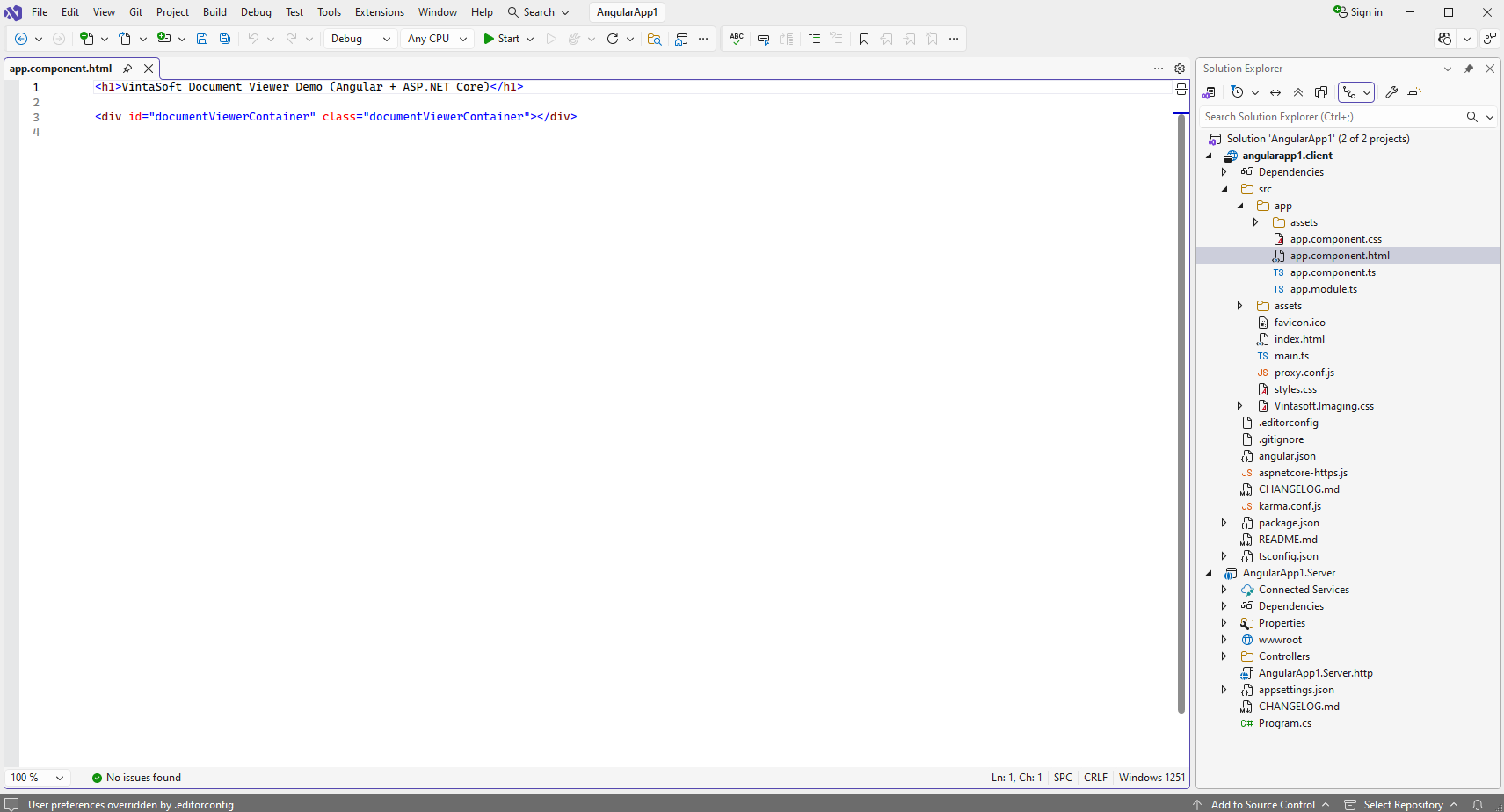
        <h1>VintaSoft Document Viewer Demo (Angular + ASP.NET Core)</h1>
        
        <div id="documentViewerContainer" class="documentViewerContainer"></div>


      • Open "src\app\app.component.ts" file in "angularapp1.client" project, clear the file, add TypeScript code to the "app.component.ts" file:
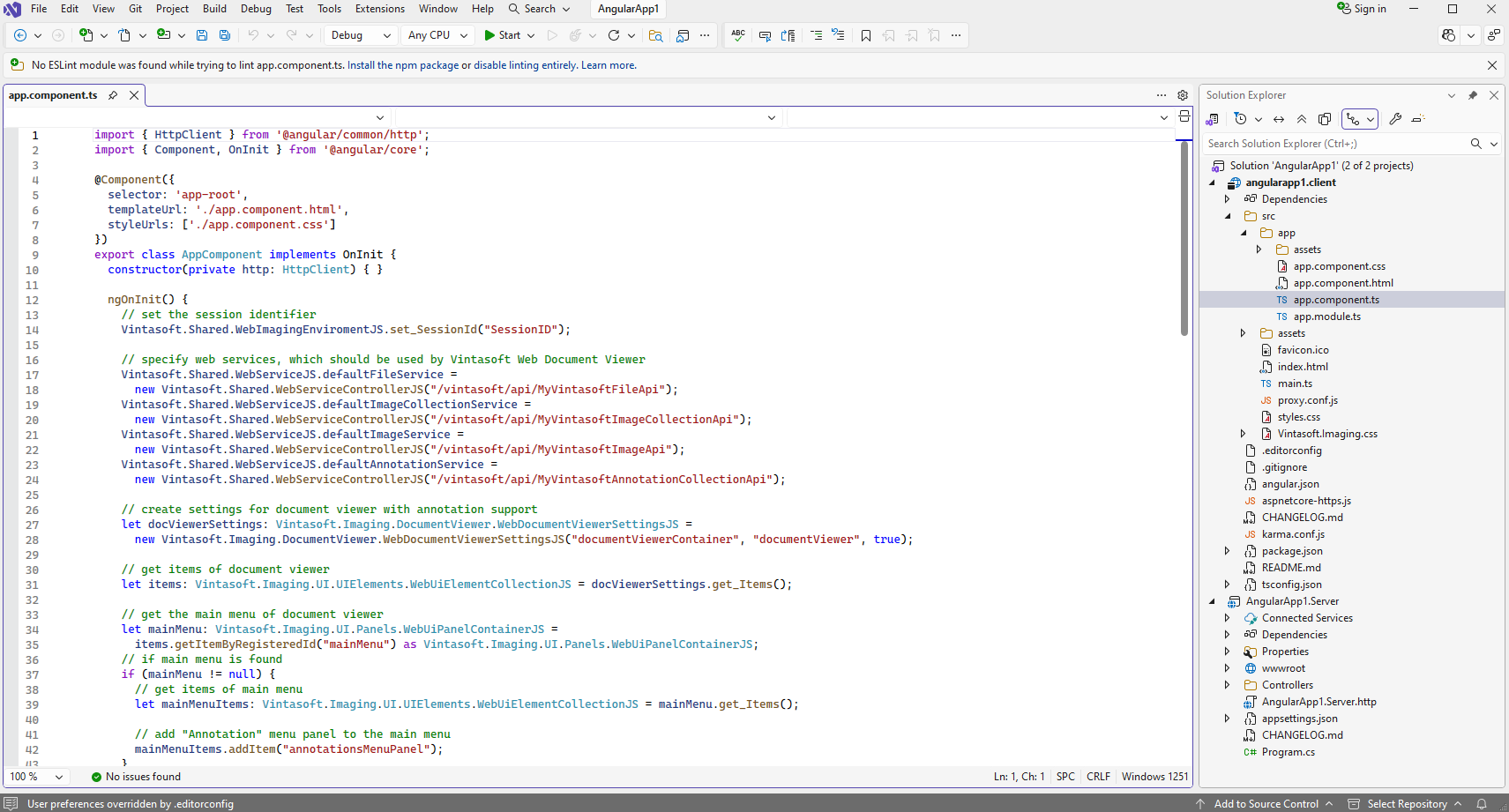
        import { HttpClient } from '@angular/common/http';
        import { Component, OnInit } from '@angular/core';
        
        @Component({
          selector: 'app-root',
          templateUrl: './app.component.html',
          styleUrls: ['./app.component.css']
        })
        export class AppComponent implements OnInit {
          constructor(private http: HttpClient) { }
        
          ngOnInit() {
            // set the session identifier
            Vintasoft.Shared.WebImagingEnviromentJS.set_SessionId("SessionID");
        
            // specify web services, which should be used by Vintasoft Web Document Viewer
            Vintasoft.Shared.WebServiceJS.defaultFileService =
              new Vintasoft.Shared.WebServiceControllerJS("/vintasoft/api/MyVintasoftFileApi");
            Vintasoft.Shared.WebServiceJS.defaultImageCollectionService =
              new Vintasoft.Shared.WebServiceControllerJS("/vintasoft/api/MyVintasoftImageCollectionApi");
            Vintasoft.Shared.WebServiceJS.defaultImageService =
              new Vintasoft.Shared.WebServiceControllerJS("/vintasoft/api/MyVintasoftImageApi");
            Vintasoft.Shared.WebServiceJS.defaultAnnotationService =
              new Vintasoft.Shared.WebServiceControllerJS("/vintasoft/api/MyVintasoftAnnotationCollectionApi");
        
            // create settings for document viewer with annotation support
            let docViewerSettings: Vintasoft.Imaging.DocumentViewer.WebDocumentViewerSettingsJS =
              new Vintasoft.Imaging.DocumentViewer.WebDocumentViewerSettingsJS("documentViewerContainer", "documentViewer", true);
        
            // get items of document viewer
            let items: Vintasoft.Imaging.UI.UIElements.WebUiElementCollectionJS = docViewerSettings.get_Items();
        
            // get the main menu of document viewer
            let mainMenu: Vintasoft.Imaging.UI.Panels.WebUiPanelContainerJS =
              items.getItemByRegisteredId("mainMenu") as Vintasoft.Imaging.UI.Panels.WebUiPanelContainerJS;
            // if main menu is found
            if (mainMenu != null) {
              // get items of main menu
              let mainMenuItems: Vintasoft.Imaging.UI.UIElements.WebUiElementCollectionJS = mainMenu.get_Items();
        
              // add "Annotation" menu panel to the main menu
              mainMenuItems.addItem("annotationsMenuPanel");
            }
        
            // get side panel of document viewer
            let sidePanel: Vintasoft.Imaging.UI.Panels.WebUiSidePanelJS =
              items.getItemByRegisteredId("sidePanel") as Vintasoft.Imaging.UI.Panels.WebUiSidePanelJS;
            // if side panel is found
            if (sidePanel != null) {
              // get items of side panel
              let sidePanelItems: Vintasoft.Imaging.UI.UIElements.WebUiElementCollectionJS =
                sidePanel.get_PanelsCollection();
        
              // add "Annotations" panel to the side panel
              sidePanelItems.addItem("annotationsPanel");
        
              // add "Text selection" panel to the side panel
              sidePanelItems.addItem("textSelectionPanel");
        
              // add "Text searh" panel to the side panel
              sidePanelItems.addItem("textSearchPanel");
            }
        
            // create the document viewer
            let docViewer = new Vintasoft.Imaging.DocumentViewer.WebDocumentViewerJS(docViewerSettings);
        
            // create visual tool that allows to work with annotations, navigate document and select text
            let annotationNavigationTextSelectionTool: Vintasoft.Imaging.UI.VisualTools.WebVisualToolJS =
              docViewer.getVisualToolById("AnnotationVisualTool,DocumentNavigationTool,TextSelectionTool");
            // specify visual tool as mandatory visual tool of document viewer
            docViewer.set_MandatoryVisualTool(annotationNavigationTextSelectionTool);
            // specify visual tool as current visual tool of document viewer
            docViewer.set_CurrentVisualTool(annotationNavigationTextSelectionTool);
        
            // get thumbnail viewer of document viewer
            let thumbnailViewer = docViewer.get_ThumbnailViewer();
            // specify that thumbnail viewer should not cache thumbnails on server side
            thumbnailViewer.set_UseCache(false);
        
            // get image viewer of document viewer
            let imageViewer: Vintasoft.Imaging.UI.WebImageViewerJS = docViewer.get_ImageViewer();
            // specify that image viewer should not cache image tiles on server side
            imageViewer.set_UseCache(false);
            // open file from session folder and add images from file to the image viewer
            imageViewer.get_Images().openFile("VintasoftImagingDemo.pdf");
          }
        
          title = 'angularapp1.client';
        }


      • Open "src\app\app.component.css" file in "angularapp1.client" project, add CSS-style for "documentViewerContainer" to the "app.component.ts" file:
        :host {
            max-width: 1280px;
            padding: 2rem;
            text-align: center;
        }
        
        th, td {
            padding-left: 1rem;
            padding-right: 1rem;
        }
        
        table {
            margin: 0 auto;
        }
        
        .documentViewerContainer {
          height: 800px;
        }


      • Delete file "src\app\app.component.spec.ts" in "angularapp1.client" project - file is not necessary.

      • Open "src\proxy.conf.js" file in "angularapp1.client" project and specify that Angular aplication can have access to the ASP.NET Core Web API controller "/vintasoft/api/" in "AngularApp1.Server" project:
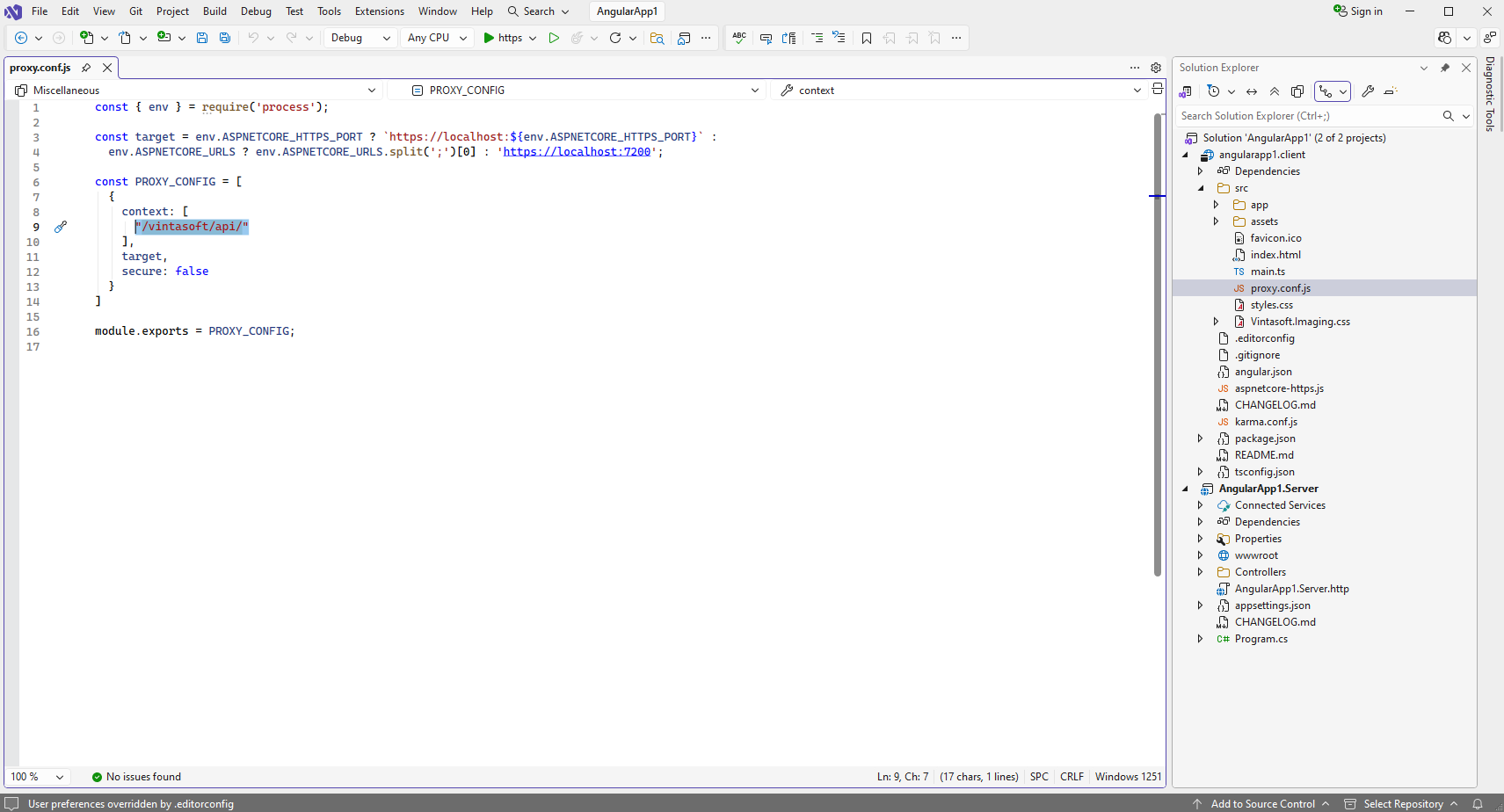
        const { env } = require('process');
        
        const target = env.ASPNETCORE_HTTPS_PORT ? `https://localhost:${env.ASPNETCORE_HTTPS_PORT}` :
          env.ASPNETCORE_URLS ? env.ASPNETCORE_URLS.split(';')[0] : 'https://localhost:7200';
        
        const PROXY_CONFIG = [
          {
            context: [
              "/vintasoft/api/"
            ],
            target,
            secure: false
          }
        ]
        
        module.exports = PROXY_CONFIG;


    11. Run the "Angular and ASP.NET Core" application and see the result.