Convert DOCX file to PDF file in an "ASP.NET Core Web App (Model-View-Controller)" application
In This Topic
This tutorial shows how to create a blank "ASP.NET Core Web App (Model-View-Controller)" application in Visual Studio .NET 2026 and convert DOCX file to a PDF file in ASP.NET Core application.
Here are steps, which must be done:
-
Create a blank "ASP.NET Core Web App (Model-View-Controller)" application.
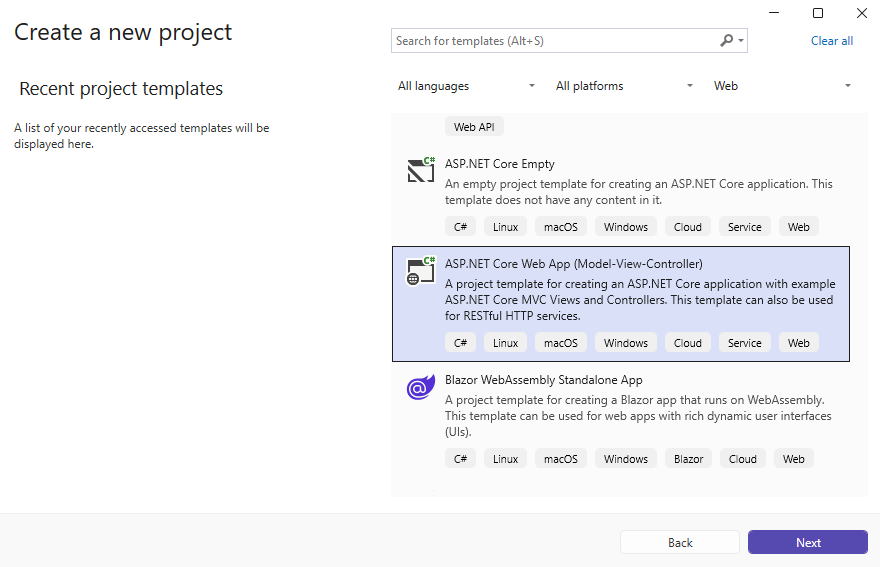
Open Visual Studio .NET 2026 and create a new project, of "ASP.NET Core Web App (Model-View-Controller)" application type:
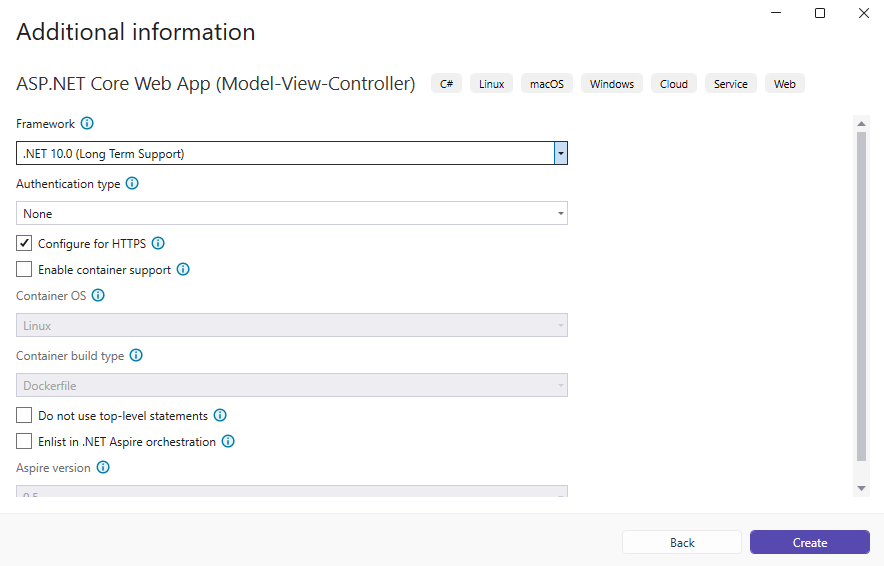
Configure the project to use .NET 10.0:
-
Server side: Add references to the Vintasoft nuget-packages to the ASP.NET Core application.
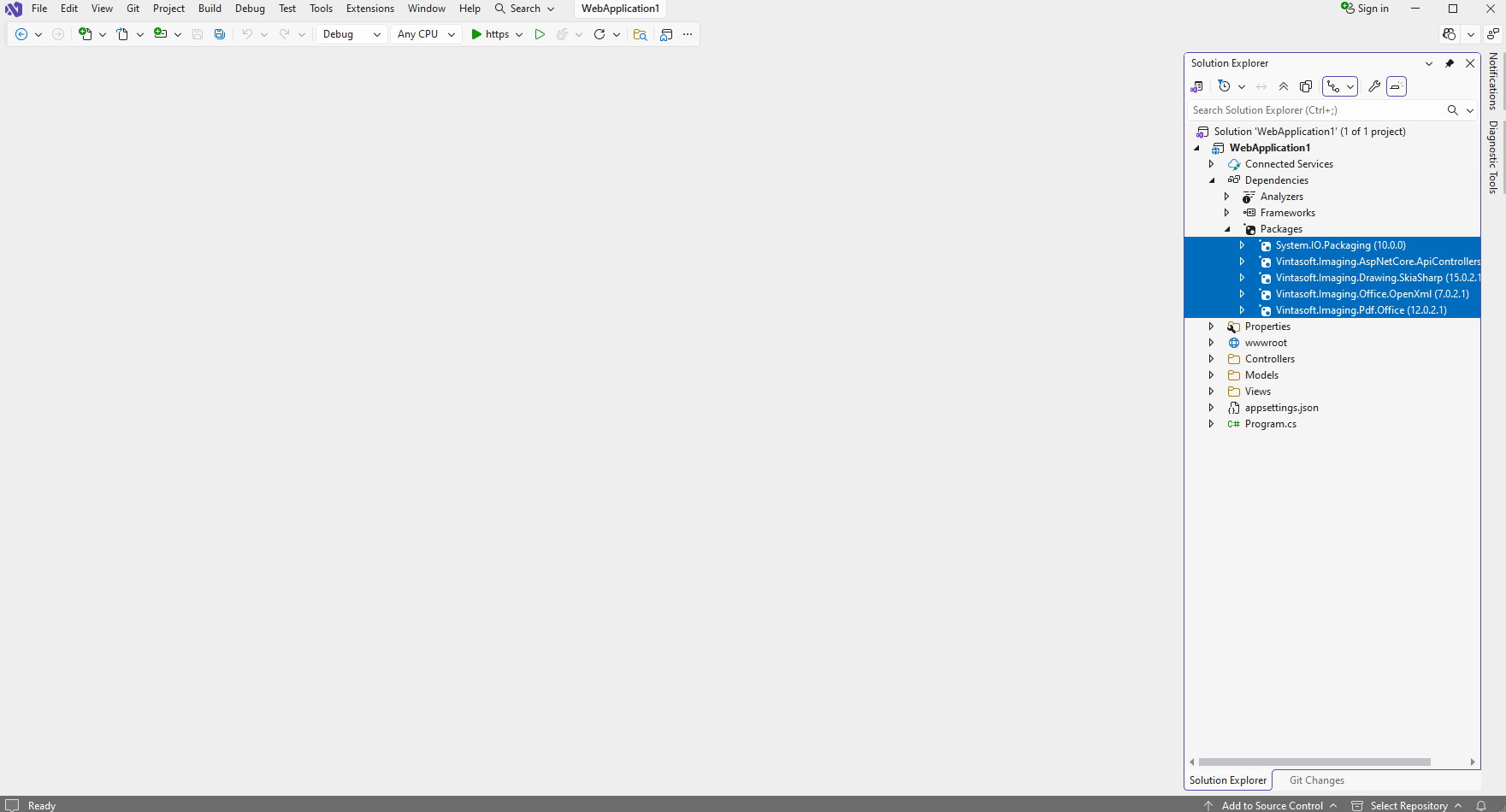
Add references to the nuget-packages "Vintasoft.Imaging.AspNetCore.ApiControllers", "Vintasoft.Imaging.Pdf.Office", "Vintasoft.Imaging.Office.OpenXml", "Vintasoft.Imaging.Drawing.SkiaSharp", "System.IO.Packaging" to the ASP.NET Core application. Other necessary nuget-packages will be added automatically.
-
Server side: Create web service, which allow to convert file.
-
Create web service that allows to upload/download file
-
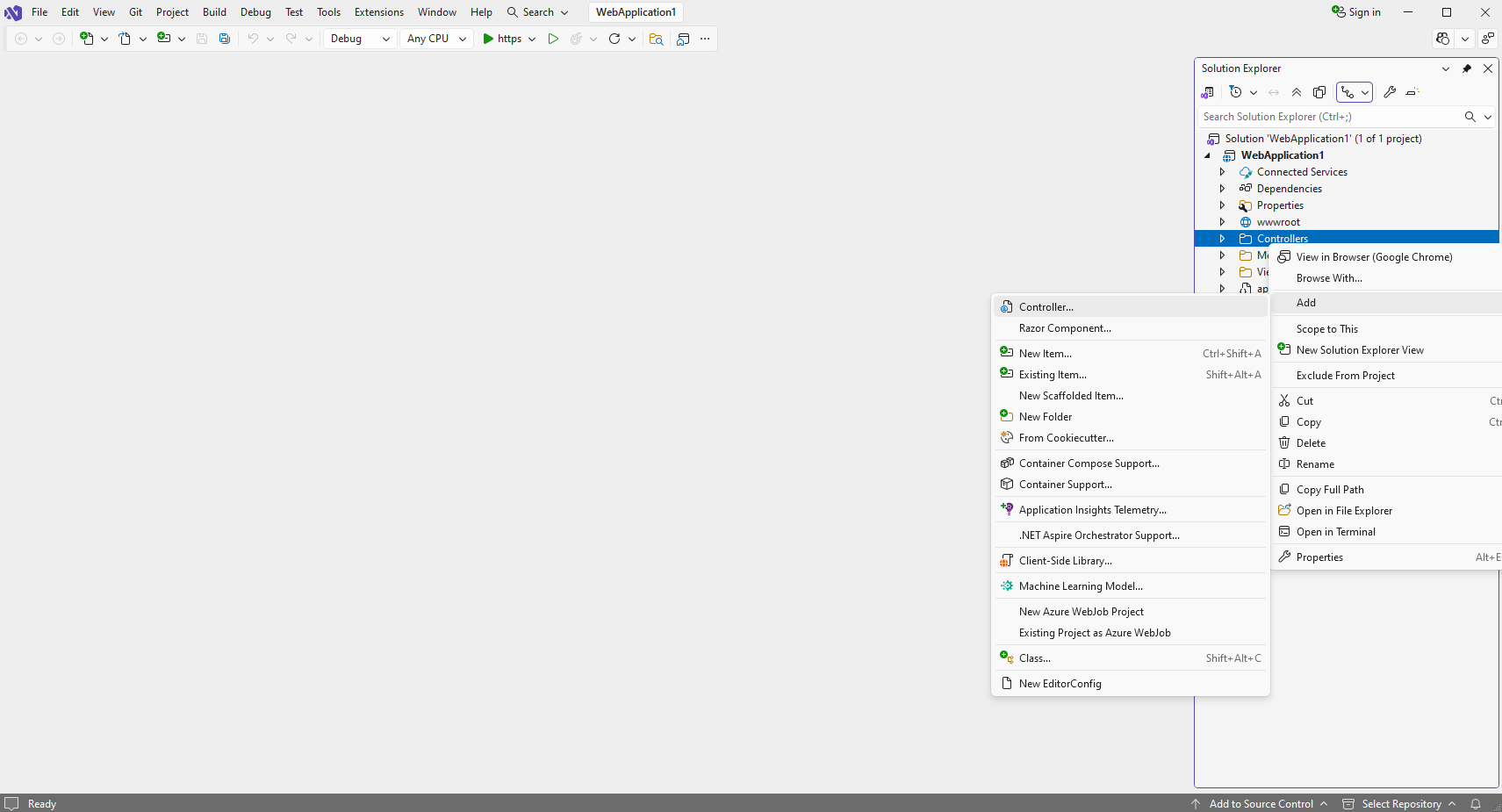
Press the right mouse button on the "Controllers" folder and select the "Add => Controller..." menu from context menu
-
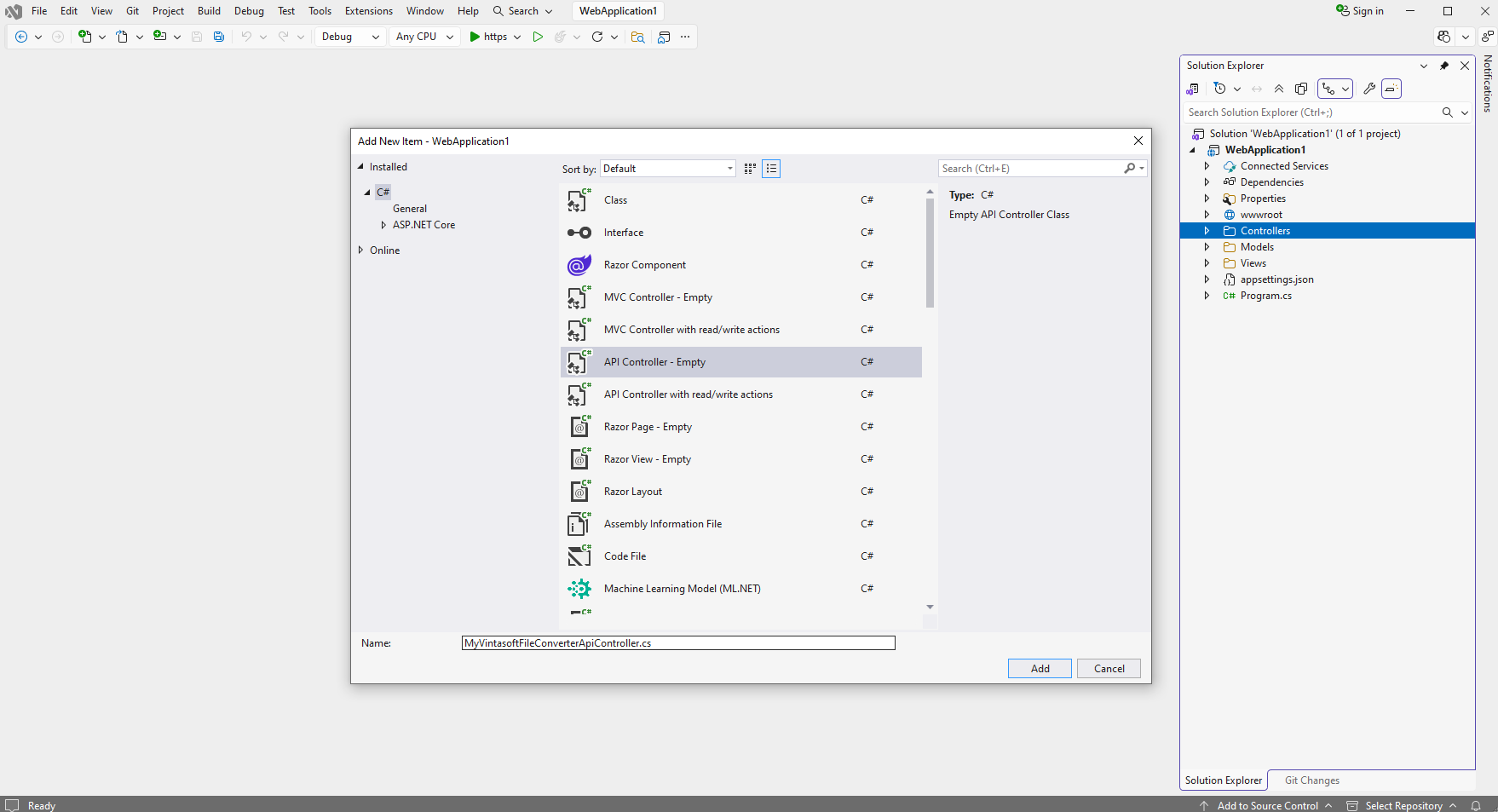
Select "Empty API controller" template, set the controller name to the "MyVintasoftFileConverterApiController" and press the "Add" button
-
Specify that MyVintasoftFileConverterApiController class is derived from VintasoftFileConverterApiController class
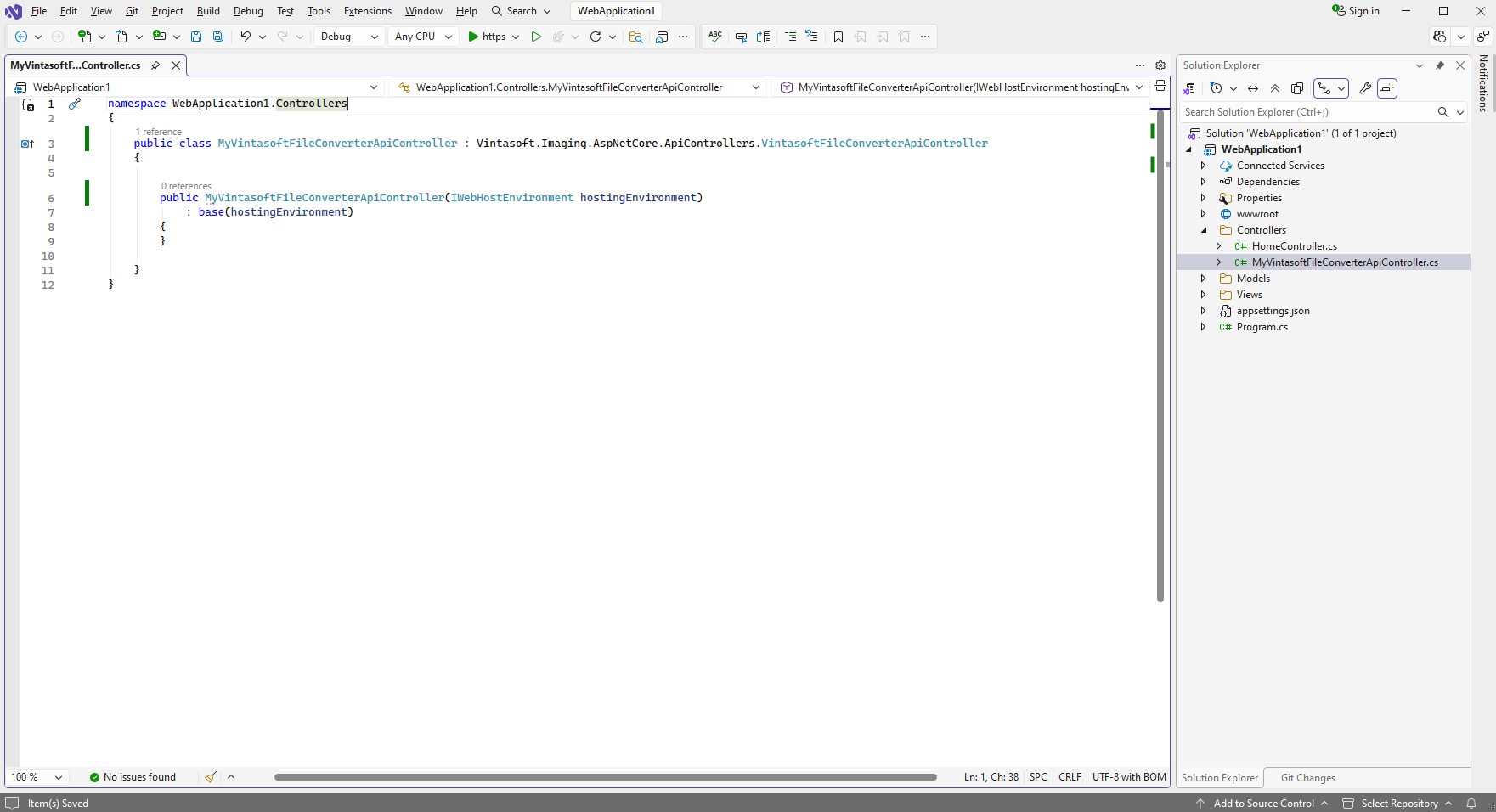
Here are source codes of MyVintasoftFileConverterApiController class:
-
Press the right mouse button on the "Controllers" folder and select the "Add => Controller..." menu from context menu
-
-
Client side: Add JavaScript libraries to the project.
-
Add the "wwwroot\lib\Vintasoft\" folder to ASP.NET Core application.
- Copy Vintasoft.Shared.js and Vintasoft.Imaging.js files from "<InstallPath>\VintaSoft Imaging .NET 15.0\Bin\JavaScript\" folder into "wwwroot\lib\Vintasoft\" folder.
-
Add the "wwwroot\lib\Vintasoft\" folder to ASP.NET Core application.
-
Client side: Add JavaScript code that allows to convert PDF file to a DOCX file.
-
Create folder "wwwroot\UploadedImageFiles\SessionID\" and copy test DOCX document to the folder. This file will be converted to a PDF file.
-
Open file "Views\Home\Index.cshtml" and add references to used JavaScript libraries.
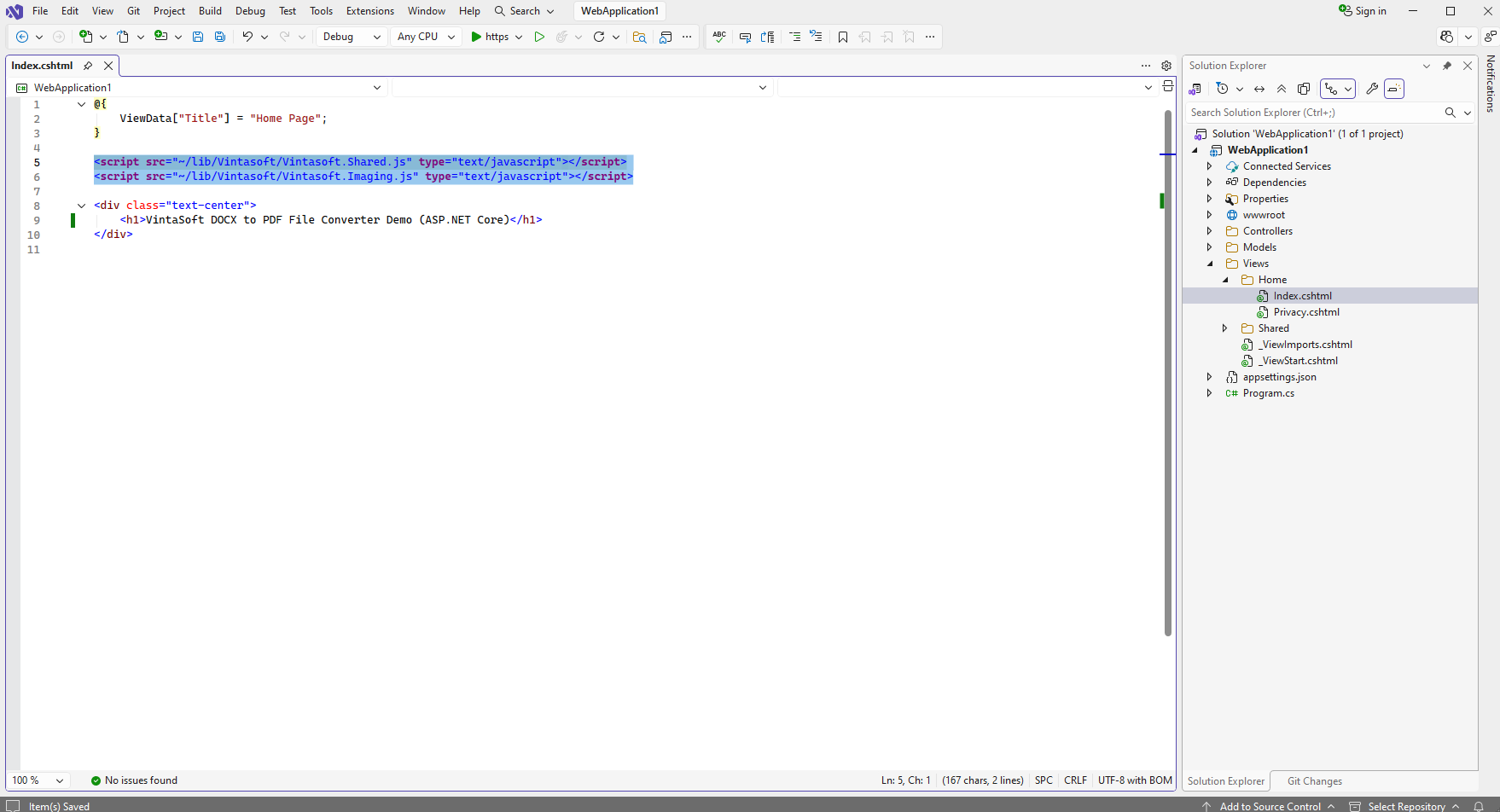
Here is HTML code that adds references to the Vintasoft JavaScript files:
-
Open file "wwwroot\js\site.js", add JavaScript code that converts DOCX file to a PDF file:
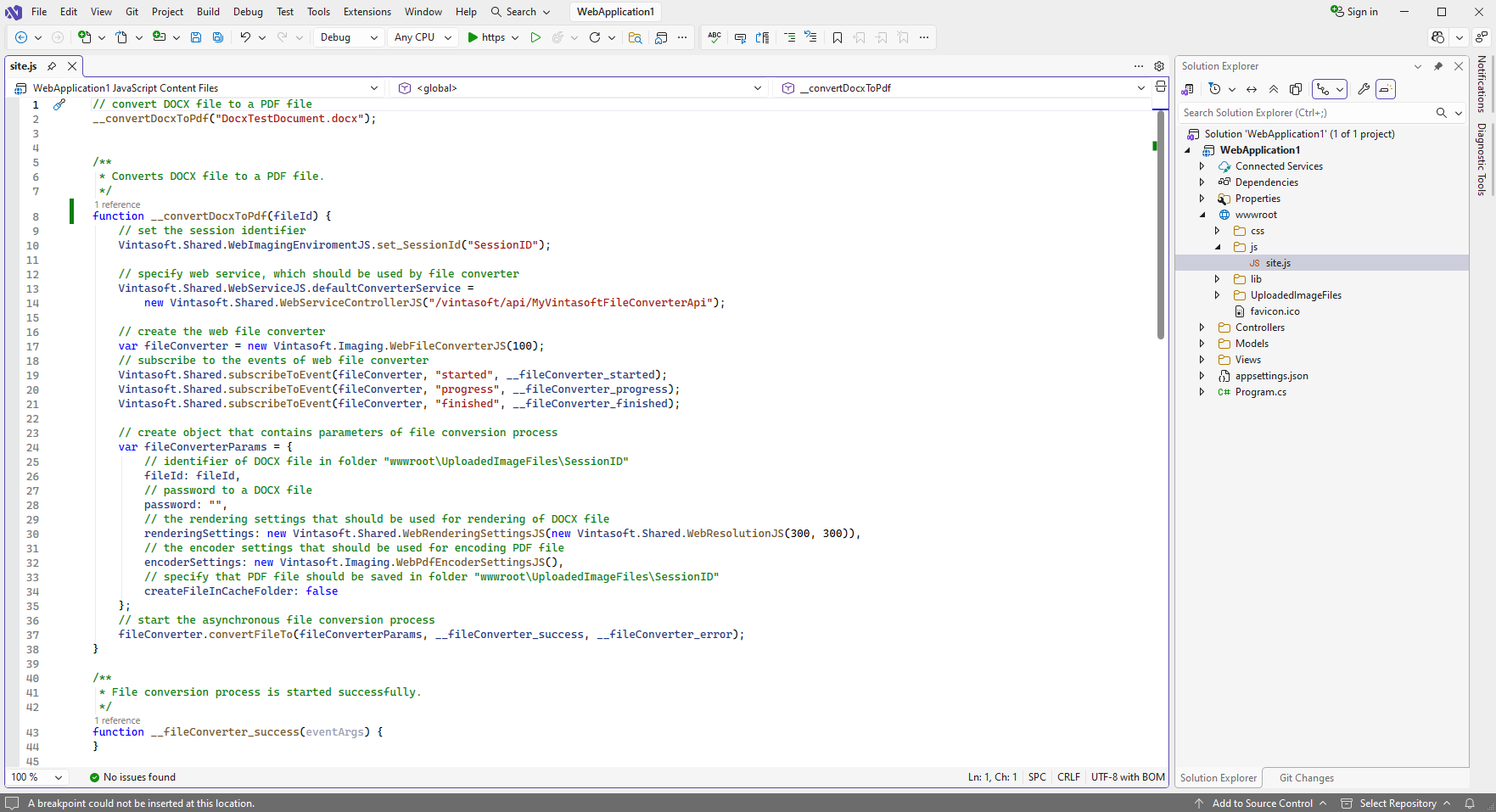
Here is JavaScript code that converts DOCX file to a PDF file:
-
Create folder "wwwroot\UploadedImageFiles\SessionID\" and copy test DOCX document to the folder. This file will be converted to a PDF file.
-
Run the ASP.NET Core application and see the result.
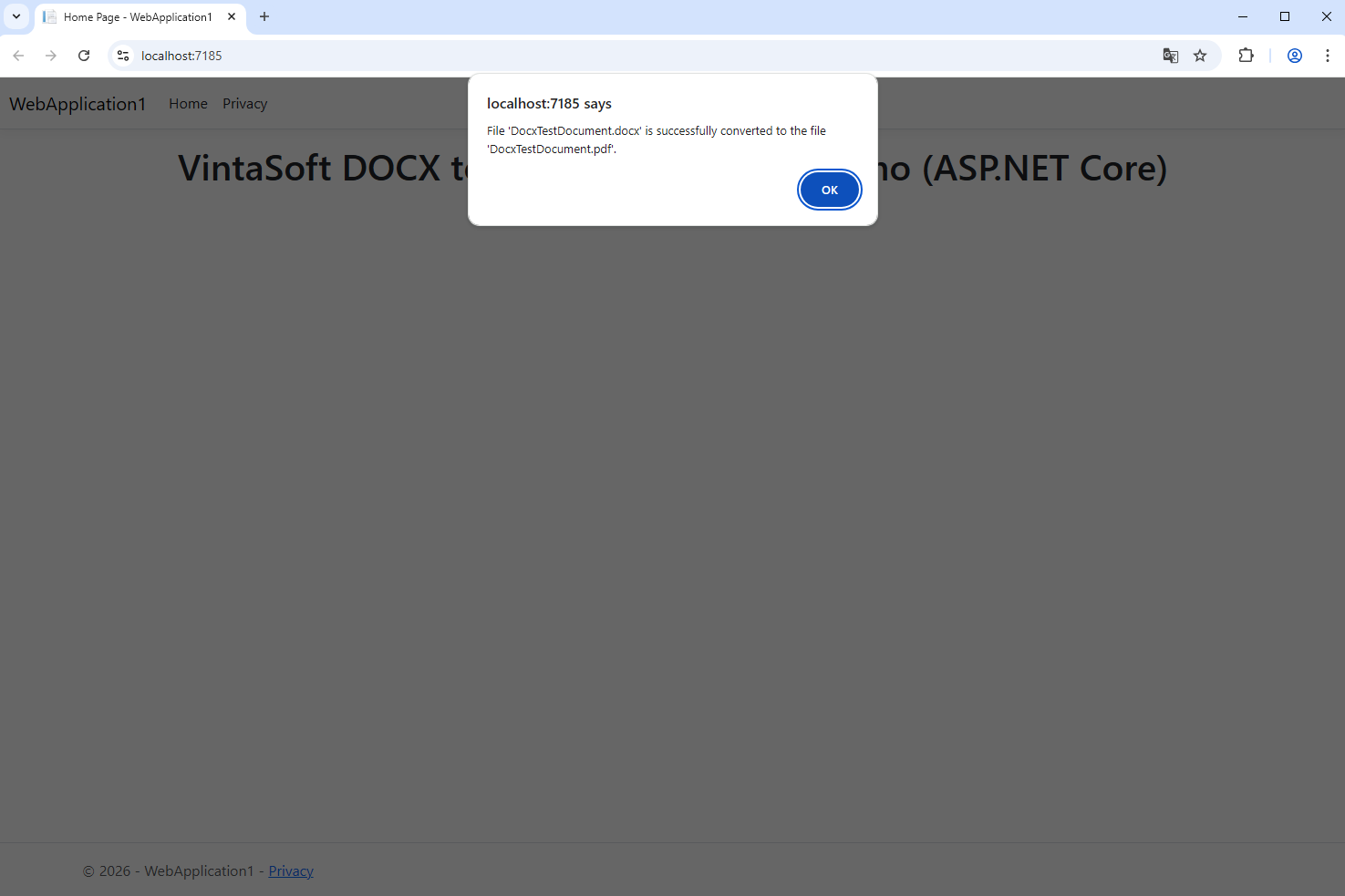
Converted PDF file "DocxTestDocument.pdf" can be found in folder "wwwroot\UploadedImageFiles\SessionID\".