VintaSoft Imaging .NET SDK 15.0: Documentation for Web developer
In This Topic
    Convert PDF file to DOCX file in an "ASP.NET Core Web App (Model-View-Controller)" application
    In This Topic
    This tutorial shows how to create a blank "ASP.NET Core Web App (Model-View-Controller)" application in Visual Studio .NET 2026 and convert PDF file to a DOCX file in ASP.NET Core application.

    Here are steps, which must be done:
    1. Create a blank "ASP.NET Core Web App (Model-View-Controller)" application.

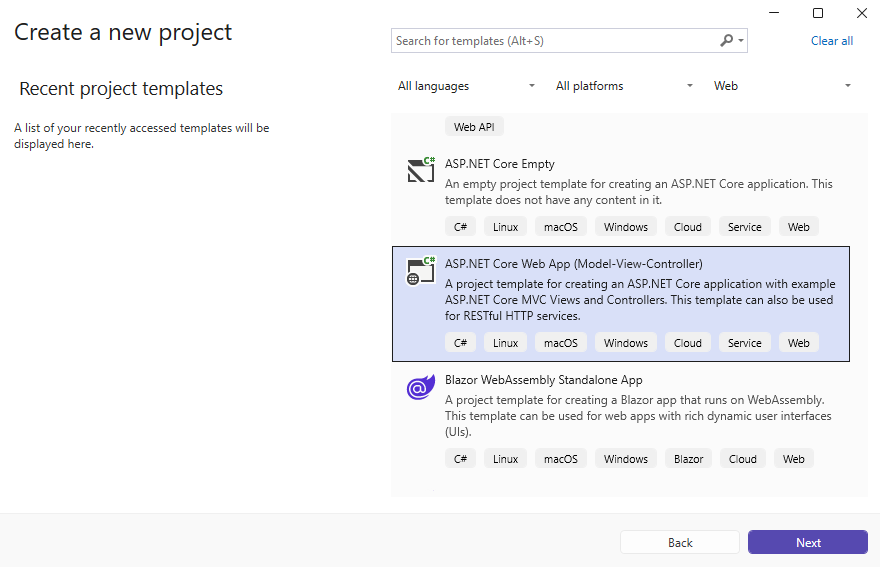
      Open Visual Studio .NET 2026 and create a new project, of "ASP.NET Core Web App (Model-View-Controller)" application type:
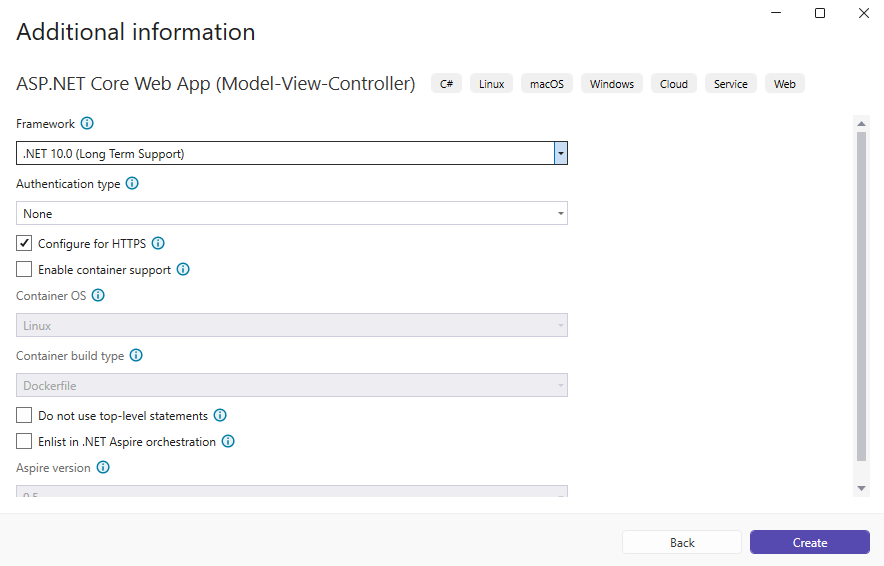
      Configure the project to use .NET 10.0:
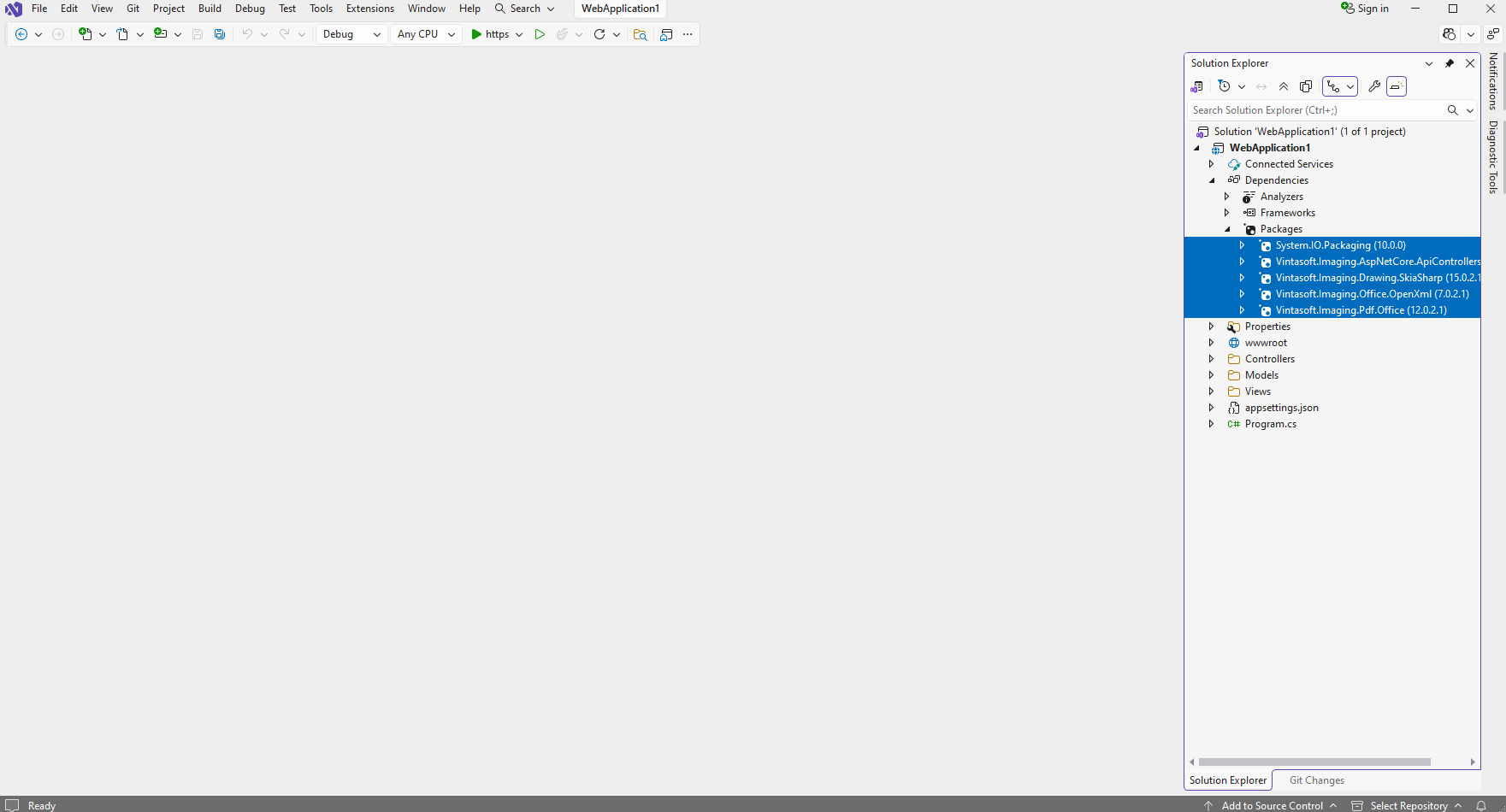
    2. Server side: Add references to the Vintasoft nuget-packages to the ASP.NET Core application.

      Add references to the nuget-packages "Vintasoft.Imaging.AspNetCore.ApiControllers", "Vintasoft.Imaging.Pdf.Office", "Vintasoft.Imaging.Office.OpenXml", "Vintasoft.Imaging.Drawing.SkiaSharp", "System.IO.Packaging" to the ASP.NET Core application. Other necessary nuget-packages will be added automatically.


    3. Server side: Create web service, which allow to convert file.

      • Create web service that allows to upload/download file

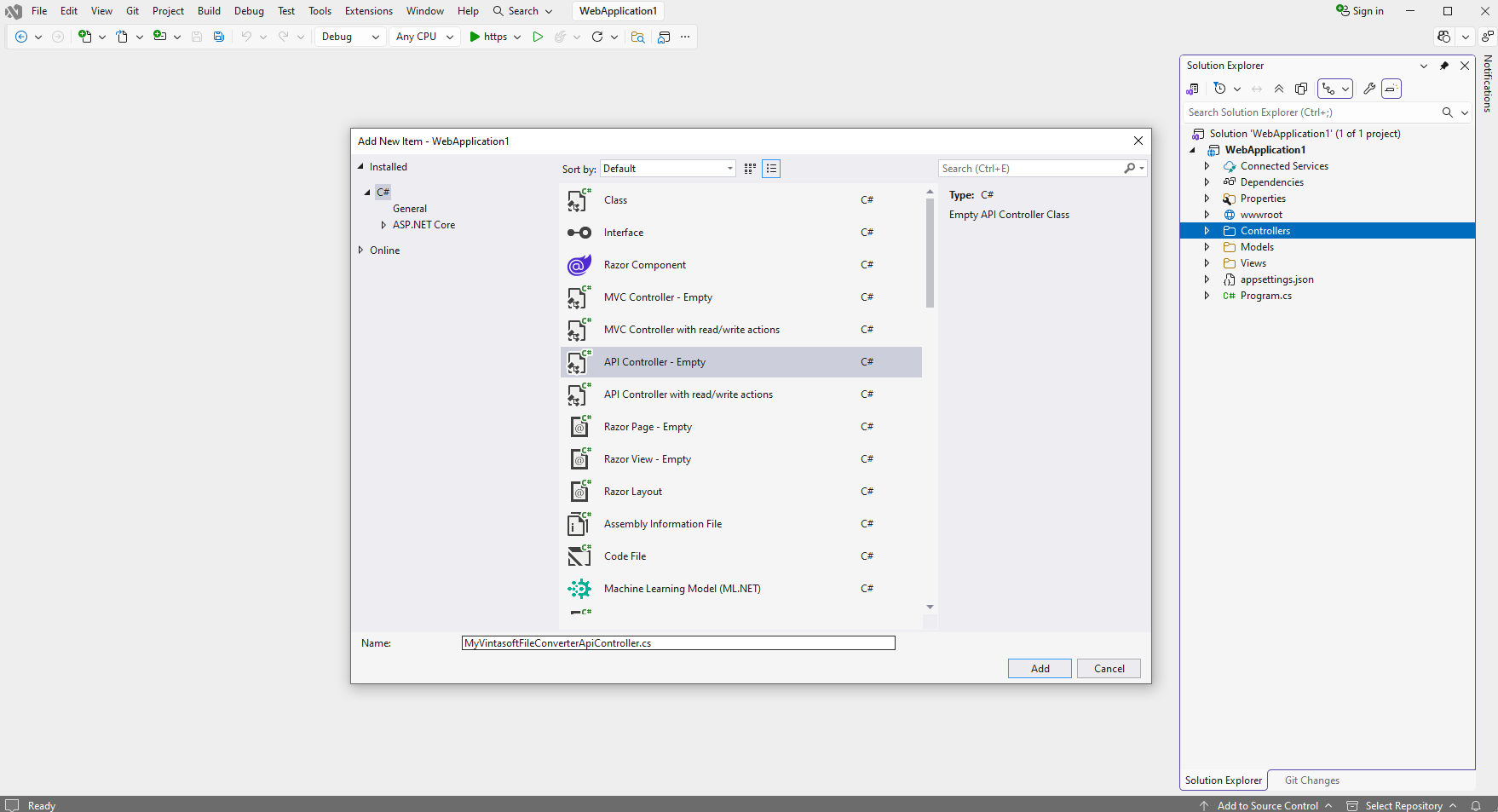
        • Press the right mouse button on the "Controllers" folder and select the "Add => Controller..." menu from context menu
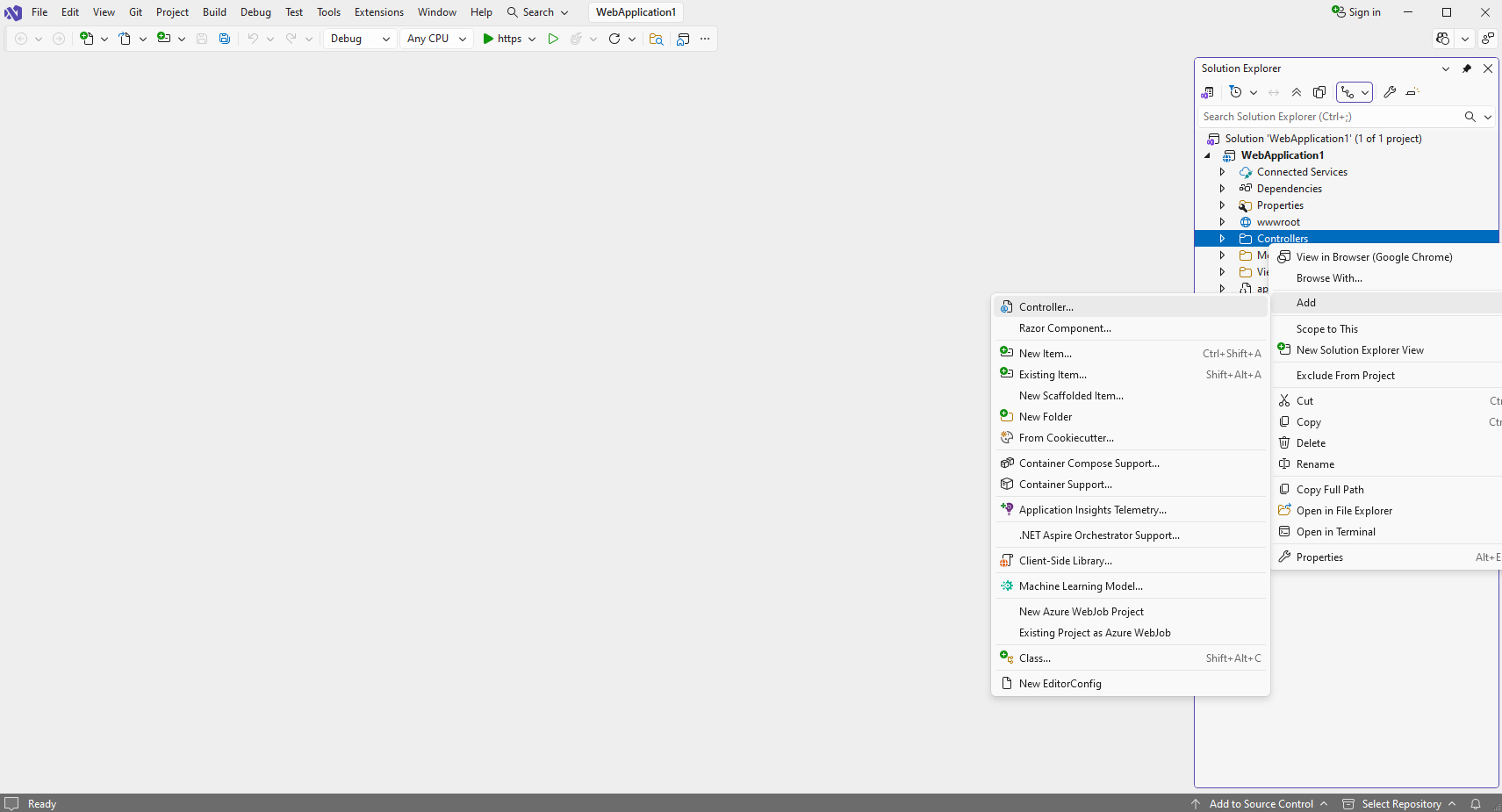
        • Select "Empty API controller" template, set the controller name to the "MyVintasoftFileConverterApiController" and press the "Add" button
        • Specify that MyVintasoftFileConverterApiController class is derived from VintasoftFileConverterApiController class
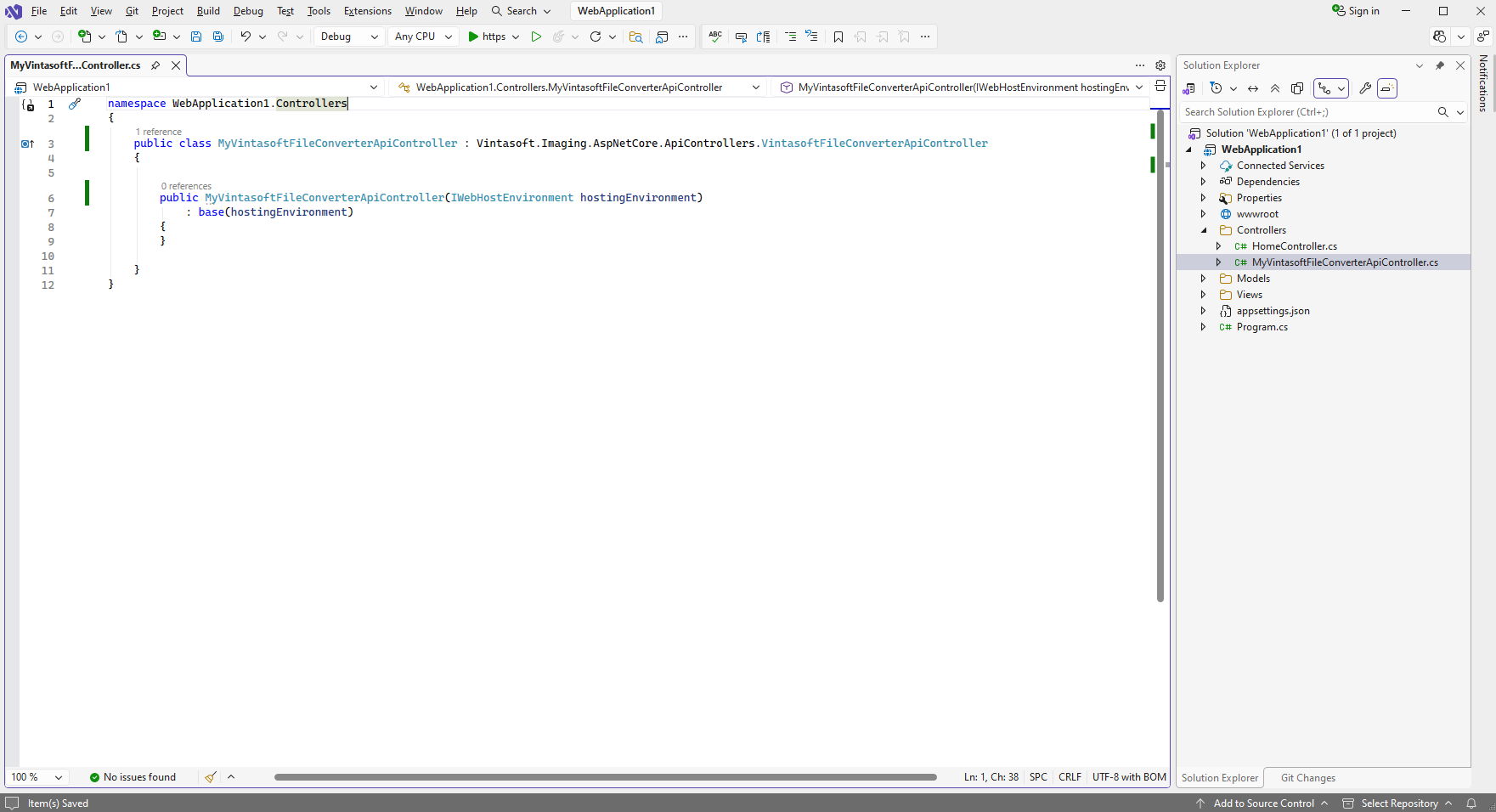
          Here are source codes of MyVintasoftFileConverterApiController class:
          namespace WebApplication1.Controllers
          {
              public class MyVintasoftFileConverterApiController : Vintasoft.Imaging.AspNetCore.ApiControllers.VintasoftFileConverterApiController
              {
          
                  public MyVintasoftFileConverterApiController(IWebHostEnvironment hostingEnvironment)
                      : base(hostingEnvironment)
                  {
                  }
          
              }
          }
          
          
    4. Client side: Add JavaScript libraries to the project.

      • Add the "wwwroot\lib\Vintasoft\" folder to ASP.NET Core application.

      • Copy Vintasoft.Shared.js and Vintasoft.Imaging.js files from "<InstallPath>\VintaSoft Imaging .NET 15.0\Bin\JavaScript\" folder into "wwwroot\lib\Vintasoft\" folder.

    5. Client side: Add JavaScript code that allows to convert PDF file to a DOCX file.

      • Create folder "wwwroot\UploadedImageFiles\SessionID\" and copy test PDF document to the folder. This file will be converted to a DOCX file.

      • Open file "Views\Home\Index.cshtml" and add references to used JavaScript libraries.
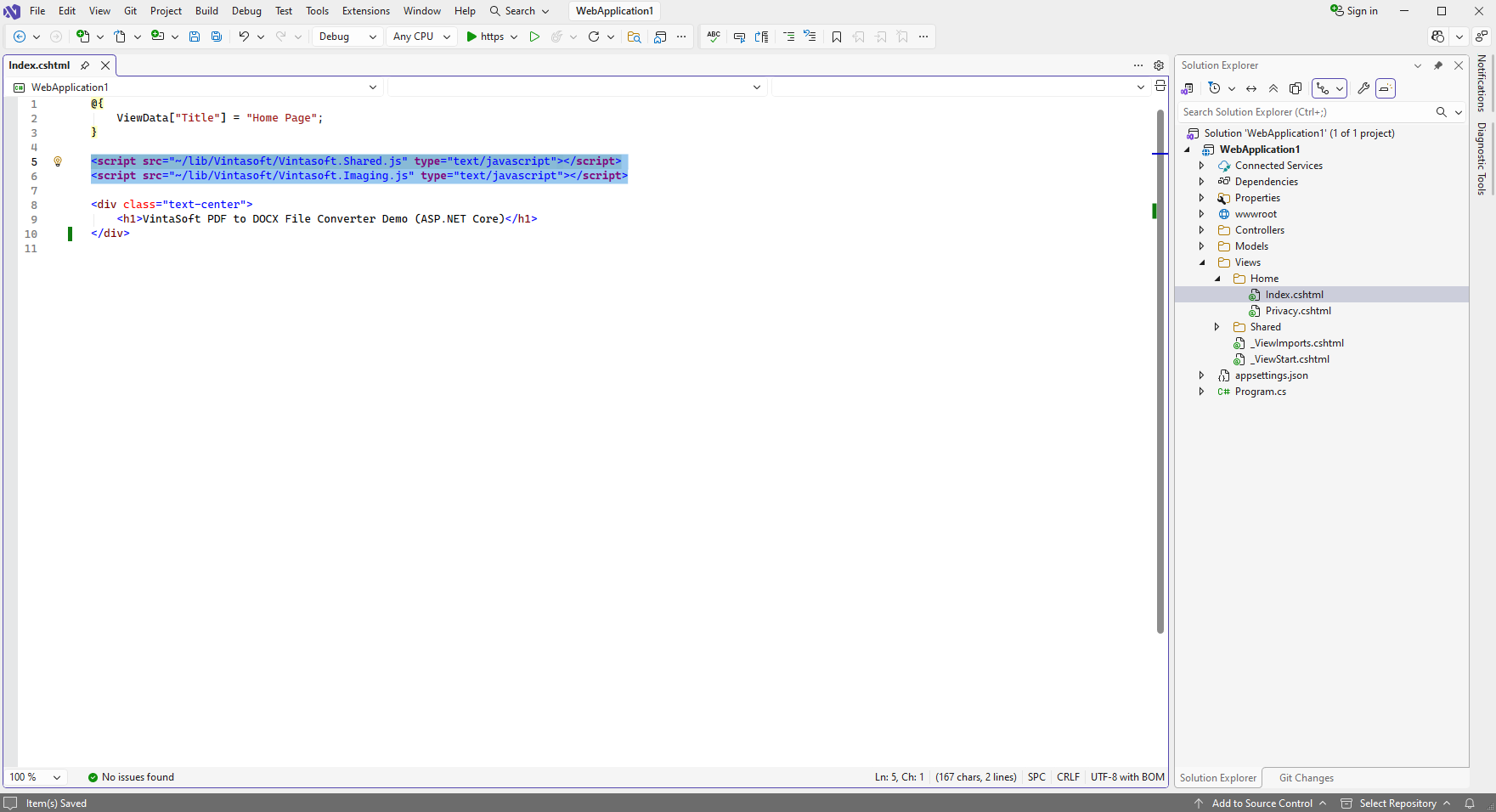

        Here is HTML code that adds references to the Vintasoft JavaScript files:
        <script src="~/lib/Vintasoft/Vintasoft.Shared.js" type="text/javascript"></script>
        <script src="~/lib/Vintasoft/Vintasoft.Imaging.js" type="text/javascript"></script>


      • Open file "wwwroot\js\site.js", add JavaScript code that converts PDF file to a DOCX file:
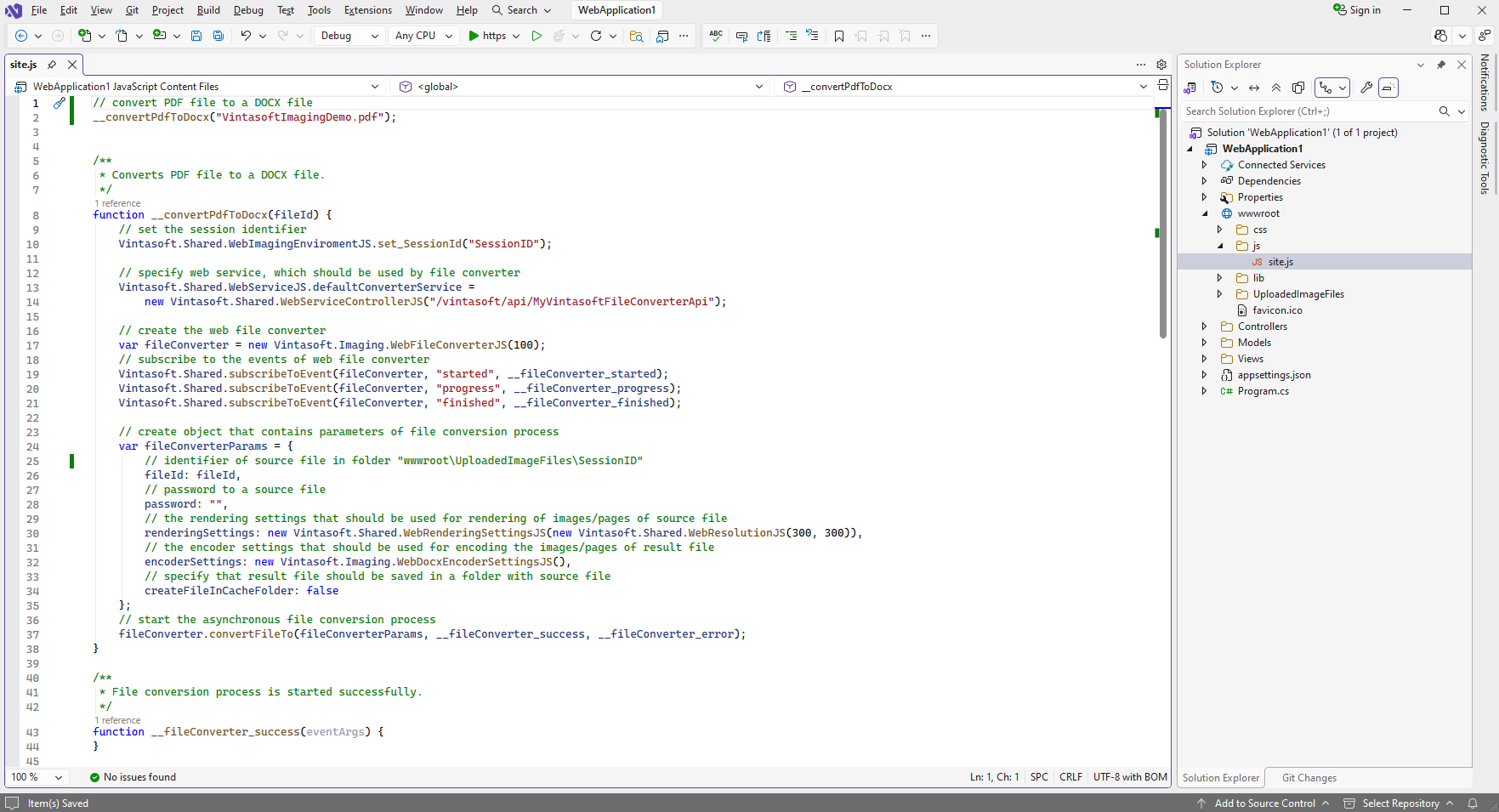
        Here is JavaScript code that converts PDF file to a DOCX file:
        // convert PDF file to a DOCX file
        __convertPdfToDocx("VintasoftImagingDemo.pdf");
        
        
        /**
         * Converts PDF file to a DOCX file.
         */
        function __convertPdfToDocx(fileId) {
            // set the session identifier
            Vintasoft.Shared.WebImagingEnviromentJS.set_SessionId("SessionID");
        
            // specify web service, which should be used by file converter
            Vintasoft.Shared.WebServiceJS.defaultConverterService =
                new Vintasoft.Shared.WebServiceControllerJS("/vintasoft/api/MyVintasoftFileConverterApi");
        
            // create the web file converter
            var fileConverter = new Vintasoft.Imaging.WebFileConverterJS(100);
            // subscribe to the events of web file converter
            Vintasoft.Shared.subscribeToEvent(fileConverter, "started", __fileConverter_started);
            Vintasoft.Shared.subscribeToEvent(fileConverter, "progress", __fileConverter_progress);
            Vintasoft.Shared.subscribeToEvent(fileConverter, "finished", __fileConverter_finished);
        
            // create object that contains parameters of file conversion process
            var fileConverterParams = {
                // identifier of PDF file in folder "wwwroot\UploadedImageFiles\SessionID"
                fileId: fileId,
                // password to a PDF file
                password: "",
                // the rendering settings that should be used for rendering of PDF file
                renderingSettings: new Vintasoft.Shared.WebRenderingSettingsJS(new Vintasoft.Shared.WebResolutionJS(300, 300)),
                // the encoder settings that should be used for encoding of DOCX file
                encoderSettings: new Vintasoft.Imaging.WebDocxEncoderSettingsJS(),
                // specify that result file should be saved in folder "wwwroot\UploadedImageFiles\SessionID"
                createFileInCacheFolder: false
            };
            // start the asynchronous file conversion process
            fileConverter.convertFileTo(fileConverterParams, __fileConverter_success, __fileConverter_error);
        }
        
        /**
         * File conversion process is started successfully.
         */
        function __fileConverter_success(eventArgs) {
        }
        
        /**
         * File conversion process is NOT started.
         */
        function __fileConverter_error(eventArgs) {
            alert("Error: " + eventArgs.message);
        }
        
        /**
         * File conversion is started.
         */
        function __fileConverter_started() {
        }
        
        /**
         * File conversion is in progress.
         */
        function __fileConverter_progress(event, status) {
        }
        
        /**
         * File conversion is finished.
         */
        function __fileConverter_finished(event, status) {
            // if file is converted successfully
            if (status.resultFilesIds != null) {
                alert("File 'VintasoftImagingDemo.pdf' is successfully converted to the file '" + status.resultFilesIds[0] + "'.");
            }
            // if error occurred
            if (status.errorMessage != null) {
                alert("Error: " + status);
            }
        }
        
        
    6. Run the ASP.NET Core application and see the result.
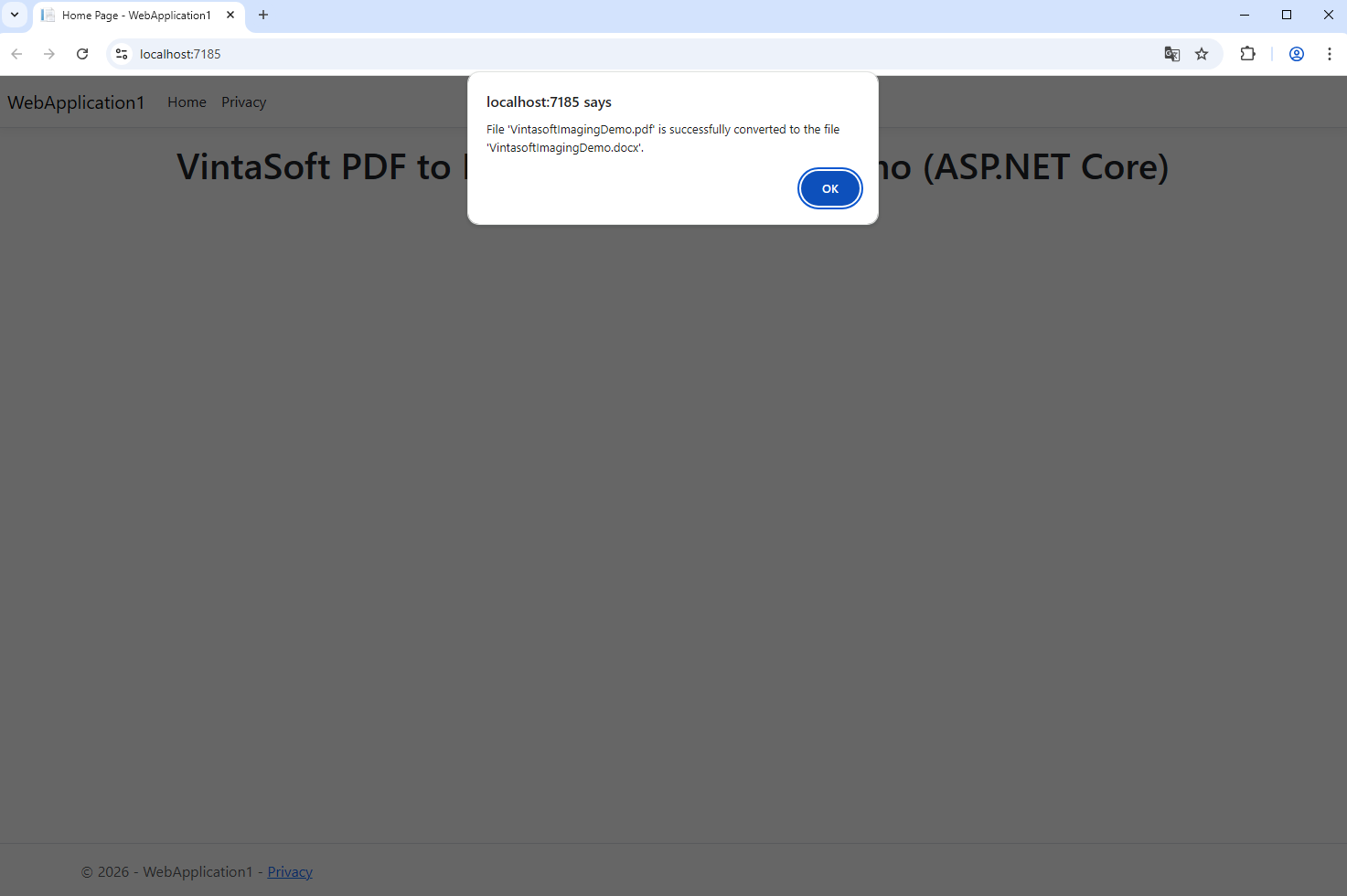


      Converted DOCX file "VintasoftImagingDemo.docx" can be found in folder "wwwroot\UploadedImageFiles\SessionID\".