PDF: Remove content from PDF page. Redaction marks.
In This Topic
The process of content removal from PDF page should be used for permanent removal of some sensitive information from the document page, for example, for removal some private data before sharing the document with third parties. The functionality can be used also for removal of some selected text.
Important! After content removal it is necessary to perform packing of PDF document (
PdfDocument.Pack),otherwise the removed data could be restored and retrieved!
Remove content from PDF page programmatically
VintaSoft PDF .NET Plug-in allows to:
-
Blackout image or image regions on PDF page:
- Blackout a rectangle on the image-resource or embedded image (PdfImageResource.ClearRect).
- Blackout a graphical path on the image-resource or embedded image (PdfImageResource.ClearPath).
- Blackout image regions on PDF page (PdfPage.ClearImages).
- Blackout an image without changing parameters of image compression.
- Blackout image-resources and embedded images.
-
Remove text from PDF page:
- Remove the specified text from PDF page (PdfPage.RemoveText).
- Remove text from the specified regions of PDF page (PdfPage.RemoveText).
- Text removal algorithm saves formatting of the surrounding text.
-
Remove vector graphics from PDF page:
-
Remove annotations from PDF page:
-
Remove any content (text, images, vector graphics, annotations) from PDF page (PdfPage.RemoveContentAndBlackOutResources):
- Remove PDF page content.
- Blackout all image-resources used on PDF page.
- Remove content and blackout images in all forms used on PDF page.
- Remove all annotations and annotation appearances from PDF page.
Here is C#/VB.NET code that demonstrates how to find text on PDF page and remove text from page:
/// <summary>
/// Searches and removes specified text on all pages of PDF document.
/// </summary>
/// <param name="inputPdfFilename">The name of input PDF file.</param>
/// <param name="outputPdfFilename">The name of output PDF file.</param>
/// <param name="textToRemove">The text to remove.</param>
public static void TestFindAndRemoveTextOnAllPages(
    string inputPdfFilename,
    string outputPdfFilename,
    params string[] textToRemove)
{
    // open document
    using (Vintasoft.Imaging.Pdf.PdfDocument document = new Vintasoft.Imaging.Pdf.PdfDocument(inputPdfFilename))
    {
        // if there is a text to remove
        if (textToRemove.Length > 0)
        {
            // create a list that contains text regions to remove
            System.Collections.Generic.List<Vintasoft.Imaging.Text.TextRegion> textRegions =
                new System.Collections.Generic.List<Vintasoft.Imaging.Text.TextRegion>();

            // for each page
            foreach (Vintasoft.Imaging.Pdf.Tree.PdfPage page in document.Pages)
            {
                // clear a list of text regions to remove
                textRegions.Clear();

                // for all text strings that must be remove
                for (int i = 0; i < textToRemove.Length; i++)
                {
                    // search text string on PDF page
                    Vintasoft.Imaging.Text.TextRegion[] searchedText = SimpleTextSearchOnPdfPage(page, textToRemove[i]);
                    // if text is found
                    if (searchedText != null && searchedText.Length > 0)
                        // add searched text to a list of text for removing
                        textRegions.AddRange(searchedText);
                }

                // if PDF page contains text regions with text to remove
                if (textRegions.Count > 0)
                    // remove text regions from PDF page
                    page.RemoveText(textRegions.ToArray());
            }
        }

        // if names of source and destination files are the same
        if (inputPdfFilename == outputPdfFilename)
            // pack PDF document
            document.Pack();
        // if names of source and destination files are different
        else
            // pack source PDF document to specified file
            document.Pack(outputPdfFilename);
    }
}

/// <summary>
/// Searches a text string on PDF page.
/// </summary>
/// <param name="page">PDF page where text should be searched.</param>
/// <param name="text">Text to search.</param>
/// <returns>An array of text regions on PDF page where text was found.</returns>
public static Vintasoft.Imaging.Text.TextRegion[] SimpleTextSearchOnPdfPage(
    Vintasoft.Imaging.Pdf.Tree.PdfPage page, string text)
{
    System.Collections.Generic.List<Vintasoft.Imaging.Text.TextRegion> textRegions =
        new System.Collections.Generic.List<Vintasoft.Imaging.Text.TextRegion>();

    Vintasoft.Imaging.Text.TextRegion textRegion = null;
    int startIndex = 0;
    do
    {
        // search text
        textRegion = page.TextRegion.FindText(text, ref startIndex, false);
        // if text is found
        if (textRegion != null)
        {
            // add searched text to a result
            textRegions.Add(textRegion);
            // shift start index
            startIndex += textRegion.TextContent.Length;
        }
    } while (textRegion != null);

    return textRegions.ToArray();
}
''' <summary>
''' Searches and removes specified text on all pages of PDF document.
''' </summary>
''' <param name="inputPdfFilename">The name of input PDF file.</param>
''' <param name="outputPdfFilename">The name of output PDF file.</param>
''' <param name="textToRemove">The text to remove.</param>
Public Shared Sub TestFindAndRemoveTextOnAllPages(inputPdfFilename As String, outputPdfFilename As String, ParamArray textToRemove As String())
    ' open document
    Using document As New Vintasoft.Imaging.Pdf.PdfDocument(inputPdfFilename)
        ' if there is a text to remove
        If textToRemove.Length > 0 Then
            ' create a list that contains text regions to remove
            Dim textRegions As New System.Collections.Generic.List(Of Vintasoft.Imaging.Text.TextRegion)()

            ' for each page
            For Each page As Vintasoft.Imaging.Pdf.Tree.PdfPage In document.Pages
                ' clear a list of text regions to remove
                textRegions.Clear()

                ' for all text strings that must be remove
                For i As Integer = 0 To textToRemove.Length - 1
                    ' search text string on PDF page
                    Dim searchedText As Vintasoft.Imaging.Text.TextRegion() = SimpleTextSearchOnPdfPage(page, textToRemove(i))
                    ' if text is found
                    If searchedText IsNot Nothing AndAlso searchedText.Length > 0 Then
                        ' add searched text to a list of text for removing
                        textRegions.AddRange(searchedText)
                    End If
                Next

                ' if PDF page contains text regions with text to remove
                If textRegions.Count > 0 Then
                    ' remove text regions from PDF page
                    page.RemoveText(textRegions.ToArray())
                End If
            Next
        End If

        ' if names of source and destination files are the same
        If inputPdfFilename = outputPdfFilename Then
            ' pack PDF document
            document.Pack()
        Else
            ' if names of source and destination files are different
            ' pack source PDF document to specified file
            document.Pack(outputPdfFilename)
        End If
    End Using
End Sub

''' <summary>
''' Searches a text string on PDF page.
''' </summary>
''' <param name="page">PDF page where text should be searched.</param>
''' <param name="text">Text to search.</param>
''' <returns>An array of text regions on PDF page where text was found.</returns>
Public Shared Function SimpleTextSearchOnPdfPage(page As Vintasoft.Imaging.Pdf.Tree.PdfPage, text As String) As Vintasoft.Imaging.Text.TextRegion()
    Dim textRegions As New System.Collections.Generic.List(Of Vintasoft.Imaging.Text.TextRegion)()

    Dim textRegion As Vintasoft.Imaging.Text.TextRegion = Nothing
    Dim startIndex As Integer = 0
    Do
        ' search text
        textRegion = page.TextRegion.FindText(text, startIndex, False)
        ' if text is found
        If textRegion IsNot Nothing Then
            ' add searched text to a result
            textRegions.Add(textRegion)
            ' shift start index
            startIndex += textRegion.TextContent.Length
        End If
    Loop While textRegion IsNot Nothing

    Return textRegions.ToArray()
End Function
Remove content from PDF page interactively
VintaSoft PDF .NET Plug-in allows to remove content visually using the redaction marks. Redaction mark is a visual object that defines an area on PDF page, from where the content should be removed.
Here is a list of supported types of redaction marks:
Visual tool
PdfRemoveContentTool/
WpfPdfRemoveContentTool allows to:
Here is C#/VB.NET code that shows how to define redaction mark appearance and apply redaction marks programmatically:
/// <summary>
/// Creates the redaction mark with custom appearance and applies the redaction mark
/// to PDF page.
/// </summary>
public static void TestRedactionMarkAppearance(Vintasoft.Imaging.UI.ImageViewer viewer)
{
    // if image viewer does not have image
    if (viewer.Image == null)
        throw new System.InvalidOperationException();

    // if image viewer contains not PDF page
    Vintasoft.Imaging.Pdf.Tree.PdfPage page =
        Vintasoft.Imaging.Pdf.PdfDocumentController.GetPageAssociatedWithImage(viewer.Image);
    if (page == null)
        throw new System.InvalidOperationException();

    // create and set PdfRemoveContentTool as current tool of image viewer
    Vintasoft.Imaging.Pdf.UI.PdfRemoveContentTool removeContentTool =
        new Vintasoft.Imaging.Pdf.UI.PdfRemoveContentTool();
    viewer.VisualTool = removeContentTool;

    // create the redaction mark
    Vintasoft.Imaging.Pdf.UI.RedactionMark mark =
        new Vintasoft.Imaging.Pdf.UI.RedactionMark(viewer.Image);
    // specify that redaction mark must remove all PDF content
    mark.MarkType = Vintasoft.Imaging.Pdf.PdfRedactionMarkType.RemoveAll;
    // calculate and specify the redaction mark rectangle
    System.Drawing.RectangleF rect = page.MediaBox;
    rect.Inflate(-rect.Width / 4, -rect.Height / 4);
    mark.SelectedRect = rect;

    // add the redaction mark to a list of redaction marks of visual tool
    removeContentTool.Add(mark);

    // create redaction mark appearance
    Vintasoft.Imaging.Pdf.Drawing.GraphicsFigures.TextBoxFigure textBox =
        new Vintasoft.Imaging.Pdf.Drawing.GraphicsFigures.TextBoxFigure(
            new Vintasoft.Imaging.Pdf.Drawing.PdfBrush(System.Drawing.Color.Red),
            "TOP SECRET",
            page.Document.FontManager.GetStandardFont(Vintasoft.Imaging.Pdf.Tree.Fonts.PdfStandardFontType.Helvetica),
            0);
    textBox.TextAlignment = Vintasoft.Imaging.Pdf.Drawing.PdfContentAlignment.Center;
    textBox.Brush = new Vintasoft.Imaging.Pdf.Drawing.PdfBrush(System.Drawing.Color.Black);
    textBox.AutoFontSize = true;
    removeContentTool.RedactionMarkAppearance = textBox;

    // apply redaction marks
    removeContentTool.ApplyRedactionMarks();
}
''' <summary>
''' Creates the redaction mark with custom appearance and applies the redaction mark
''' to PDF page.
''' </summary>
Public Shared Sub TestRedactionMarkAppearance(viewer As Vintasoft.Imaging.UI.ImageViewer)
    ' if image viewer does not have image
    If viewer.Image Is Nothing Then
        Throw New System.InvalidOperationException()
    End If

    ' if image viewer contains not PDF page
    Dim page As Vintasoft.Imaging.Pdf.Tree.PdfPage = Vintasoft.Imaging.Pdf.PdfDocumentController.GetPageAssociatedWithImage(viewer.Image)
    If page Is Nothing Then
        Throw New System.InvalidOperationException()
    End If

    ' create and set PdfRemoveContentTool as current tool of image viewer
    Dim removeContentTool As New Vintasoft.Imaging.Pdf.UI.PdfRemoveContentTool()
    viewer.VisualTool = removeContentTool

    ' create the redaction mark
    Dim mark As New Vintasoft.Imaging.Pdf.UI.RedactionMark(viewer.Image)
    ' specify that redaction mark must remove all PDF content
    mark.MarkType = Vintasoft.Imaging.Pdf.PdfRedactionMarkType.RemoveAll
    ' calculate and specify the redaction mark rectangle
    Dim rect As System.Drawing.RectangleF = page.MediaBox
    rect.Inflate(-rect.Width / 4, -rect.Height / 4)
    mark.SelectedRect = rect

    ' add the redaction mark to a list of redaction marks of visual tool
    removeContentTool.Add(mark)

    ' create redaction mark appearance
    Dim textBox As New Vintasoft.Imaging.Pdf.Drawing.GraphicsFigures.TextBoxFigure(New Vintasoft.Imaging.Pdf.Drawing.PdfBrush(System.Drawing.Color.Red), "TOP SECRET", page.Document.FontManager.GetStandardFont(Vintasoft.Imaging.Pdf.Tree.Fonts.PdfStandardFontType.Helvetica), 0)
    textBox.TextAlignment = Vintasoft.Imaging.Pdf.Drawing.PdfContentAlignment.Center
    textBox.Brush = New Vintasoft.Imaging.Pdf.Drawing.PdfBrush(System.Drawing.Color.Black)
    textBox.AutoFontSize = True
    removeContentTool.RedactionMarkAppearance = textBox

    ' apply redaction marks
    removeContentTool.ApplyRedactionMarks()
End Sub
PDF Editor Demo application
PDF Editor Demo and WPF Pdf Editor Demo application includes an example of use of
PdfRemoveContentTool visual tool, which allows to:
- create, edit, remove redaction marks
- change size and location of redaction marks
- apply redaction marks (content removal)
- adjust the parameters of an object drawn on place of redaction mark after its applying.
An example of content removal using
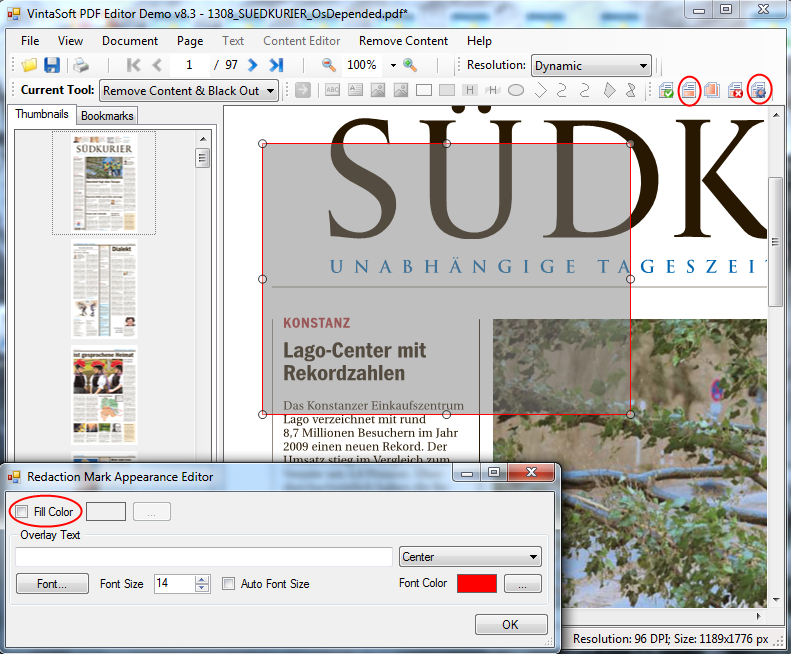
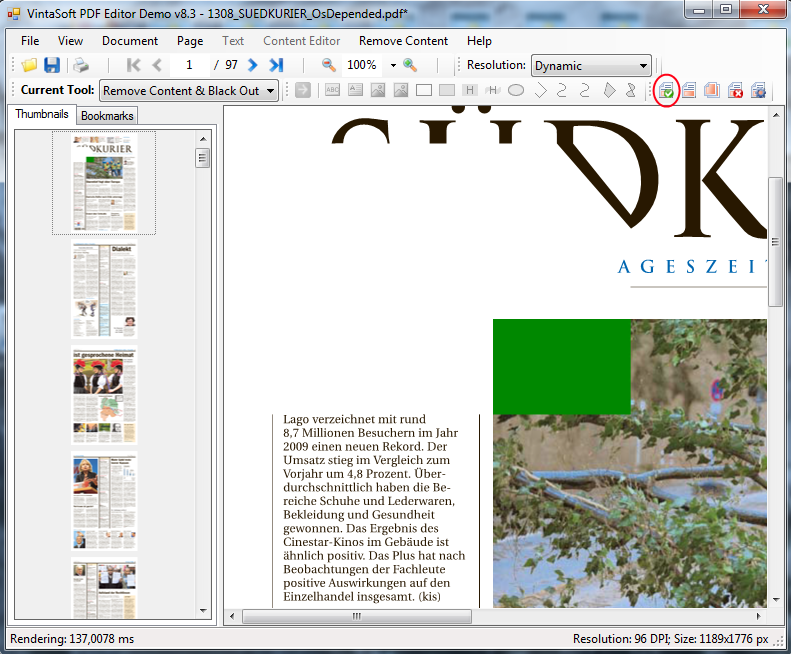
PdfRemoveContentTool visual tool. Nothing will appear on place of removed content:
An example of content removal using
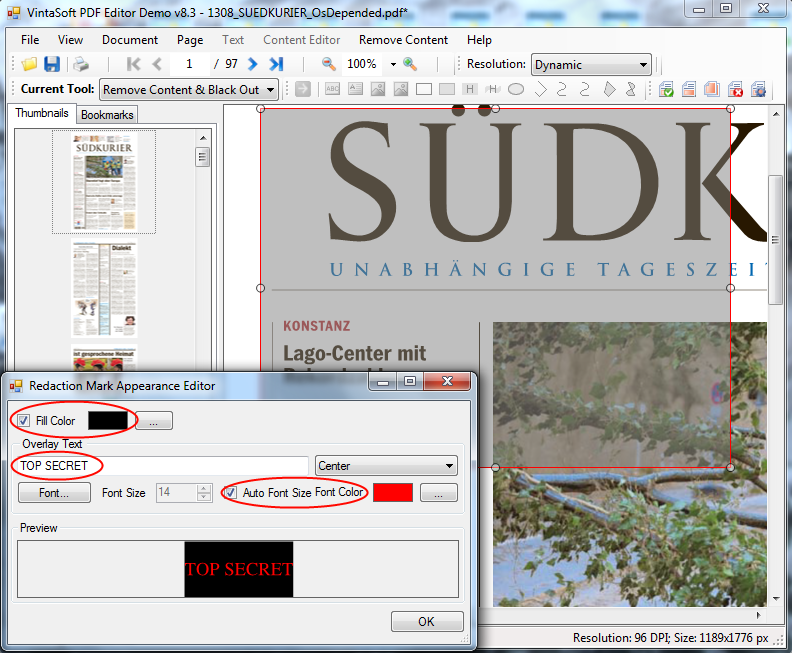
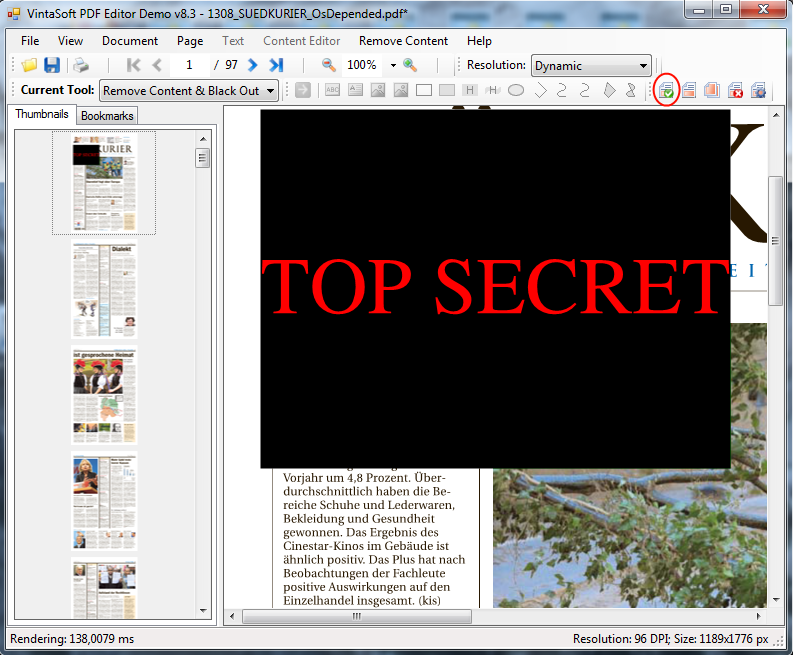
PdfRemoveContentTool visual tool. A black rectangle with red text will appear on place of removed content: