Print images using System.Drawing
In This Topic
The
ImagePrintDocument control, which is derived from System.Drawing.Printing.PrintDocument control, is used for printing and print previewing of images in WinForms.
By default the
ImagePrintDocument control prints the entire image without scaling, image is divided into pages if the entire image cannot be printed on a single page.
Also control allows to scale an image during printing, scaling mode can be chosen using the
ImagePrintDocument.PrintScaleMode property.
The following image scaling modes are supported:
-
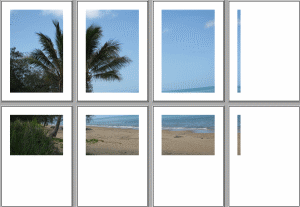
PrintScaleMode.None mode
No scaling, the image will be divided into several parts in accordance with the page margins and image size, printer resolution and image resolution.
-
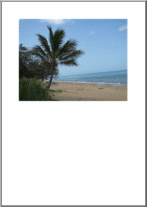
PrintScaleMode.BestFit mode
The image will be resized to fit within the page margins. Image proportions do not change.
-
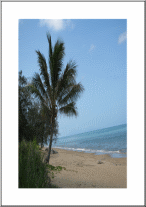
PrintScaleMode.Stretch mode
The image will be resized to fill up the page.
-
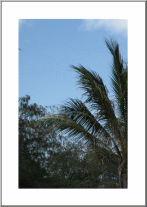
PrintScaleMode.CropToPageSize mode
The image will be cropped to fit within the page margins.
-
PrintScaleMode.Mozaic mode
A chosen set of images will be combined on one page in mosaic order.
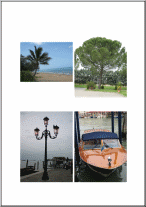
Before print start, margins for all pages selected for printing can be defined using the dialog System.Windows.Forms.PageSetupDialog.
During print process, margins for the page which is being printed can be defined in handler of the System.Drawing.Printing.PrintDocument.PrintPage event using Margins property of System.Drawing.Printing.PageSettings class.
The image can be centered on a page while printing using
ImagePrintDocument.Center property.
The
ImagePrintDocument control uses a standard WinForms settings dialog, which is implemented in System.Windows.Forms.PrintDialog class, for choosing a print device and adjusting printing parameters.
While printing
ImagePrintDocument control raises a set of events, which allow to obtain detailed information about print process and control all printing aspects:
- System.Drawing.Printing.PrintDocument.BeginPrint - occurs when the System.Drawing.Printing.PrintDocument.Print method is called and before printing the first page of the document.
- System.Drawing.Printing.PrintDocument.EndPrint - occurs when the last page of the document has been printed.
- System.Drawing.Printing.PrintDocument.PrintPage - occurs before printing each page.
- ImagePrintDocument.PrintImage - occurs when printer needs next image to print.
- ImagePrintDocument.ImagePrinting - occurs when an image is being printed on the page.
- ImagePrintDocument.ImagePrinted - occurs when an image has been printed on the page.
Here is C#/VB.NET code that shows how to print an image collection with default print settings, each image from the collection will be printed on separate page, each image will be scaled up on page in BestFit mode:
Vintasoft.Imaging.ImageCollection _printingImages;
int _printingImageIndex;

public void PrintImagesOnDefaultPrinter(Vintasoft.Imaging.ImageCollection images)
{
    // save information about printing image collection in global variable
    _printingImages = images;
    _printingImageIndex = 0;

    // create print manager
    Vintasoft.Imaging.Print.ImagePrintDocument imagePrintDocument =
        new Vintasoft.Imaging.Print.ImagePrintDocument();
    // specify that each image must be resized to fit within the page margins,
    // image proportions are not changed
    imagePrintDocument.PrintScaleMode = Vintasoft.Imaging.Print.PrintScaleMode.BestFit;

    // subscribe to the PrintImage event
    imagePrintDocument.PrintImage +=
        new System.EventHandler<Vintasoft.Imaging.Print.PrintImageEventArgs>(imagePrintDocument_PrintImage);

    // start print
    imagePrintDocument.Print();
}

private void imagePrintDocument_PrintImage(object sender, Vintasoft.Imaging.Print.PrintImageEventArgs e)
{
    e.Image = _printingImages[_printingImageIndex];

    _printingImageIndex++;

    if (_printingImageIndex >= _printingImages.Count)
    {
        Vintasoft.Imaging.Print.ImagePrintDocument imagePrintDocument =
            (Vintasoft.Imaging.Print.ImagePrintDocument)sender;
        // unsubscribe from the PrintImage event
        imagePrintDocument.PrintImage -=
            new System.EventHandler<Vintasoft.Imaging.Print.PrintImageEventArgs>(imagePrintDocument_PrintImage);
        // indicate that there is no more images to print
        e.HasMoreImages = false;
    }
    else
    {
        // indicate that there are additional images to print
        e.HasMoreImages = true;
    }
}
Private _printingImages As Vintasoft.Imaging.ImageCollection
Private _printingImageIndex As Integer

Public Sub PrintImagesOnDefaultPrinter(images As Vintasoft.Imaging.ImageCollection)
    ' save information about printing image collection in global variable
    _printingImages = images
    _printingImageIndex = 0

    ' create print manager
    Dim imagePrintDocument As New Vintasoft.Imaging.Print.ImagePrintDocument()
    ' specify that each image must be resized to fit within the page margins,
    ' image proportions are not changed
    imagePrintDocument.PrintScaleMode = Vintasoft.Imaging.Print.PrintScaleMode.BestFit

    ' subscribe to the PrintImage event
    AddHandler imagePrintDocument.PrintImage, New System.EventHandler(Of Vintasoft.Imaging.Print.PrintImageEventArgs)(AddressOf imagePrintDocument_PrintImage)

    ' start print
    imagePrintDocument.Print()
End Sub

Private Sub imagePrintDocument_PrintImage(sender As Object, e As Vintasoft.Imaging.Print.PrintImageEventArgs)
    e.Image = _printingImages(_printingImageIndex)

    _printingImageIndex += 1

    If _printingImageIndex >= _printingImages.Count Then
        Dim imagePrintDocument As Vintasoft.Imaging.Print.ImagePrintDocument = DirectCast(sender, Vintasoft.Imaging.Print.ImagePrintDocument)
        ' unsubscribe from the PrintImage event
        RemoveHandler imagePrintDocument.PrintImage, New System.EventHandler(Of Vintasoft.Imaging.Print.PrintImageEventArgs)(AddressOf imagePrintDocument_PrintImage)
        ' indicate that there is no more images to print
        e.HasMoreImages = False
    Else
        ' indicate that there are additional images to print
        e.HasMoreImages = True
    End If
End Sub
Here is C#/VB.NET code that shows how to choose a printer, run printing of image collection and cancel printing after the first half of image collection has been printed:
Vintasoft.Imaging.ImageCollection _printingImages;
int _printingImageIndex;

public void PrintImagesAndCancel(Vintasoft.Imaging.ImageCollection images)
{
    // save information about printing image collection in global variable
    _printingImages = images;
    _printingImageIndex = 0;

    // create print manager
    Vintasoft.Imaging.Print.ImagePrintDocument imagePrintDocument =
        new Vintasoft.Imaging.Print.ImagePrintDocument();
    // specify that each image must be resized to fit within the page margins,
    // image proportions is not changed
    imagePrintDocument.PrintScaleMode = Vintasoft.Imaging.Print.PrintScaleMode.BestFit;

    // create an instance of PrintDialog class
    System.Windows.Forms.PrintDialog printDialog1 =
        new System.Windows.Forms.PrintDialog();
    // specify that printer settings should be obtain for imagePrintDocument
    printDialog1.Document = imagePrintDocument;
    // if printer is not selected
    if (printDialog1.ShowDialog() != System.Windows.Forms.DialogResult.OK)
        // exit
        return;

    // subscribe to the PrintImage event
    imagePrintDocument.PrintImage +=
        new System.EventHandler<Vintasoft.Imaging.Print.PrintImageEventArgs>(imagePrintDocument_PrintImageAndCancel);

    // start print
    imagePrintDocument.Print();
}

private void imagePrintDocument_PrintImageAndCancel(object sender, Vintasoft.Imaging.Print.PrintImageEventArgs e)
{
    if ((_printingImageIndex >= _printingImages.Count) ||
        (_printingImageIndex >= (_printingImages.Count / 2)))
    {
        Vintasoft.Imaging.Print.ImagePrintDocument imagePrintDocument =
            (Vintasoft.Imaging.Print.ImagePrintDocument)sender;
        // unsubscribe from the PrintImage event
        imagePrintDocument.PrintImage -=
            new System.EventHandler<Vintasoft.Imaging.Print.PrintImageEventArgs>(imagePrintDocument_PrintImageAndCancel);
        // indicate that there is no more images to print
        e.HasMoreImages = false;
        return;
    }

    e.Image = _printingImages[_printingImageIndex];

    _printingImageIndex++;
}
Private _printingImages As Vintasoft.Imaging.ImageCollection
Private _printingImageIndex As Integer

Public Sub PrintImagesAndCancel(images As Vintasoft.Imaging.ImageCollection)
    ' save information about printing image collection in global variable
    _printingImages = images
    _printingImageIndex = 0

    ' create print manager
    Dim imagePrintDocument As New Vintasoft.Imaging.Print.ImagePrintDocument()
    ' specify that each image must be resized to fit within the page margins,
    ' image proportions is not changed
    imagePrintDocument.PrintScaleMode = Vintasoft.Imaging.Print.PrintScaleMode.BestFit

    ' create an instance of PrintDialog class
    Dim printDialog1 As New System.Windows.Forms.PrintDialog()
    ' specify that printer settings should be obtain for imagePrintDocument
    printDialog1.Document = imagePrintDocument
    ' if printer is not selected
    If printDialog1.ShowDialog() <> System.Windows.Forms.DialogResult.OK Then
        ' exit
        Return
    End If

    ' subscribe to the PrintImage event
    AddHandler imagePrintDocument.PrintImage, New System.EventHandler(Of Vintasoft.Imaging.Print.PrintImageEventArgs)(AddressOf imagePrintDocument_PrintImageAndCancel)

    ' start print
    imagePrintDocument.Print()
End Sub

Private Sub imagePrintDocument_PrintImageAndCancel(sender As Object, e As Vintasoft.Imaging.Print.PrintImageEventArgs)
    If (_printingImageIndex >= _printingImages.Count) OrElse (_printingImageIndex >= (_printingImages.Count \ 2)) Then
        Dim imagePrintDocument As Vintasoft.Imaging.Print.ImagePrintDocument = DirectCast(sender, Vintasoft.Imaging.Print.ImagePrintDocument)
        ' unsubscribe from the PrintImage event
        RemoveHandler imagePrintDocument.PrintImage, New System.EventHandler(Of Vintasoft.Imaging.Print.PrintImageEventArgs)(AddressOf imagePrintDocument_PrintImageAndCancel)
        ' indicate that there is no more images to print
        e.HasMoreImages = False
        Return
    End If

    e.Image = _printingImages(_printingImageIndex)

    _printingImageIndex += 1
End Sub
Here is C#/VB.NET code that shows how to print all images from an image collection except the second one:
Vintasoft.Imaging.ImageCollection _printingImages;
int _printingImageIndex;

public void PrintImagesAndSuppressSecondImage(Vintasoft.Imaging.ImageCollection images)
{
    // save information about printing image collection in global variable
    _printingImages = images;
    _printingImageIndex = 0;

    // create print manager
    Vintasoft.Imaging.Print.ImagePrintDocument imagePrintDocument =
        new Vintasoft.Imaging.Print.ImagePrintDocument();

    // subscribe to the PrintImage event
    imagePrintDocument.PrintImage +=
        new System.EventHandler<Vintasoft.Imaging.Print.PrintImageEventArgs>(imagePrintDocument_PrintImageAndSuppress);

    // start print
    imagePrintDocument.Print();
}

private void imagePrintDocument_PrintImageAndSuppress(object sender, Vintasoft.Imaging.Print.PrintImageEventArgs e)
{
    if (_printingImageIndex == 1)
        _printingImageIndex++;

    if (_printingImageIndex >= _printingImages.Count)
    {
        Vintasoft.Imaging.Print.ImagePrintDocument imagePrintDocument =
            (Vintasoft.Imaging.Print.ImagePrintDocument)sender;
        // unsubscribe from the PrintImage event
        imagePrintDocument.PrintImage -=
            new System.EventHandler<Vintasoft.Imaging.Print.PrintImageEventArgs>(imagePrintDocument_PrintImageAndSuppress);
        // indicate that there is no more images to print
        e.HasMoreImages = false;
        return;
    }

    e.Image = _printingImages[_printingImageIndex];

    _printingImageIndex++;
}
Private _printingImages As Vintasoft.Imaging.ImageCollection
Private _printingImageIndex As Integer

Public Sub PrintImagesAndSuppressSecondImage(images As Vintasoft.Imaging.ImageCollection)
    ' save information about printing image collection in global variable
    _printingImages = images
    _printingImageIndex = 0

    ' create print manager
    Dim imagePrintDocument As New Vintasoft.Imaging.Print.ImagePrintDocument()

    ' subscribe to the PrintImage event
    AddHandler imagePrintDocument.PrintImage, New System.EventHandler(Of Vintasoft.Imaging.Print.PrintImageEventArgs)(AddressOf imagePrintDocument_PrintImageAndSuppress)

    ' start print
    imagePrintDocument.Print()
End Sub

Private Sub imagePrintDocument_PrintImageAndSuppress(sender As Object, e As Vintasoft.Imaging.Print.PrintImageEventArgs)
    If _printingImageIndex = 1 Then
        _printingImageIndex += 1
    End If

    If _printingImageIndex >= _printingImages.Count Then
        Dim imagePrintDocument As Vintasoft.Imaging.Print.ImagePrintDocument = DirectCast(sender, Vintasoft.Imaging.Print.ImagePrintDocument)
        ' unsubscribe from the PrintImage event
        RemoveHandler imagePrintDocument.PrintImage, New System.EventHandler(Of Vintasoft.Imaging.Print.PrintImageEventArgs)(AddressOf imagePrintDocument_PrintImageAndSuppress)
        ' indicate that there is no more images to print
        e.HasMoreImages = False
        Return
    End If

    e.Image = _printingImages(_printingImageIndex)

    _printingImageIndex += 1
End Sub
A code example, which shows how to add header and/or footer to the printing image or page, can be found in the PrintDemo application, which is available in SDK distribution.
Print preview of images
ImagePrintDocument control can use System.Windows.Forms.PrintPreviewControl control for print preview of images.
During the preview System.Windows.Forms.PrintPreviewControl control allows to:
- define zoom level - System.Windows.Forms.PrintPreviewControl.Zoom.
- define a number of pages which have to be shown horizontally/vertically in previewer - System.Windows.Forms.PrintPreviewControl.Columns, System.Windows.Forms.PrintPreviewControl.Rows.
- refresh previewer - System.Windows.Forms.PrintPreviewControl.InvalidatePreview.
Good example showing an implementation of image collection print preview is available in PrintDemo application.
Print images with annotations
The
AnnotatedImagePrintDocument control, which is derived from
ImagePrintDocument control, must be used for printing and print preview of images with annotations.
The
AnnotatedImagePrintDocument control prints annotations in vector form and this provides more efficient memory usage and greater performance than when rasterizing annotations onto an image clone before printing. The
AnnotatedImagePrintDocument control will work as
ImagePrintDocument control if the
AnnotatedImagePrintDocument.PrintAnnotations property value is set to false.