Correction de la distorsion de perspective d'une image de document en .NET
Catégorie du blog: Imagerie ; .NET
08.12.2023

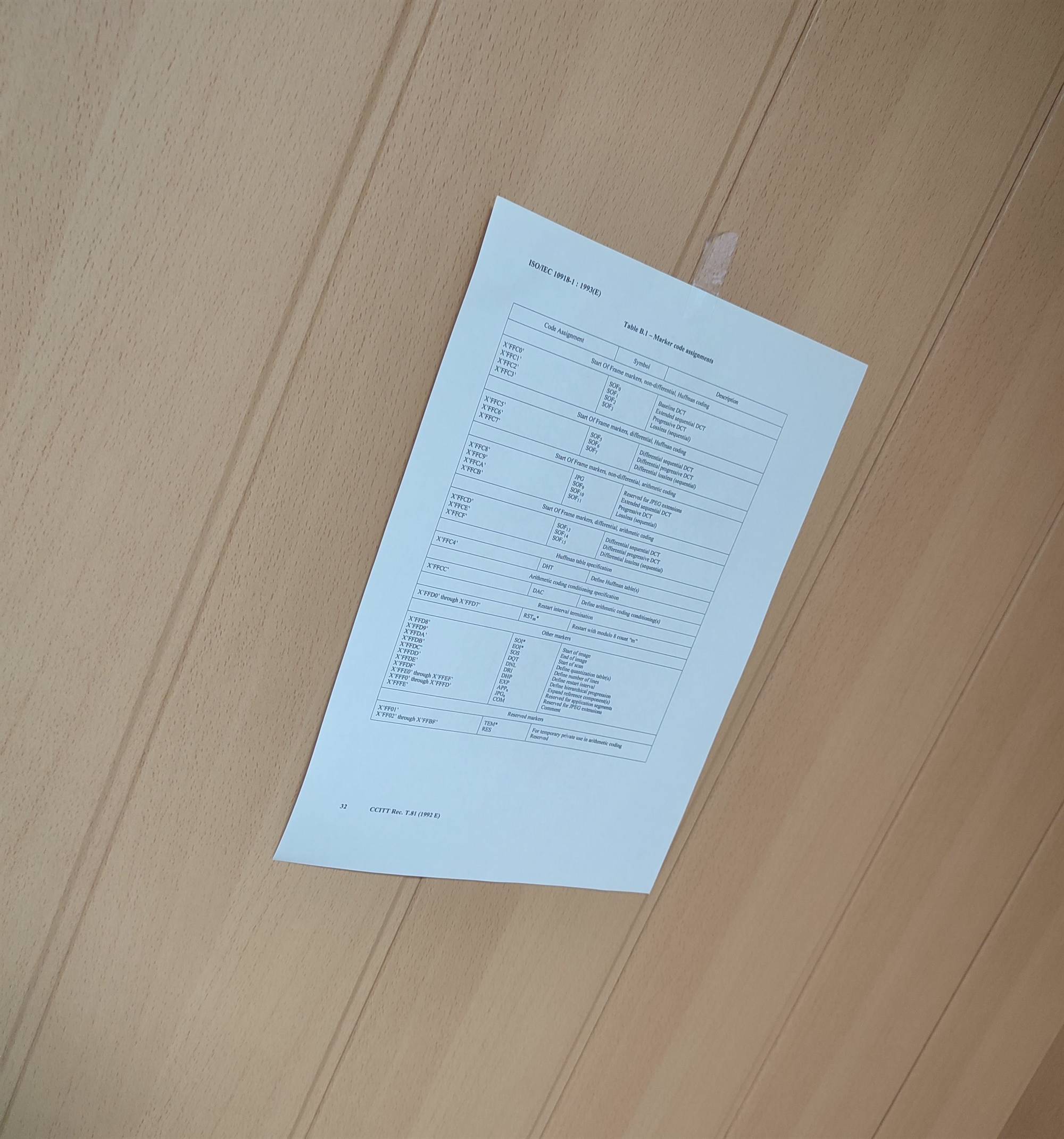
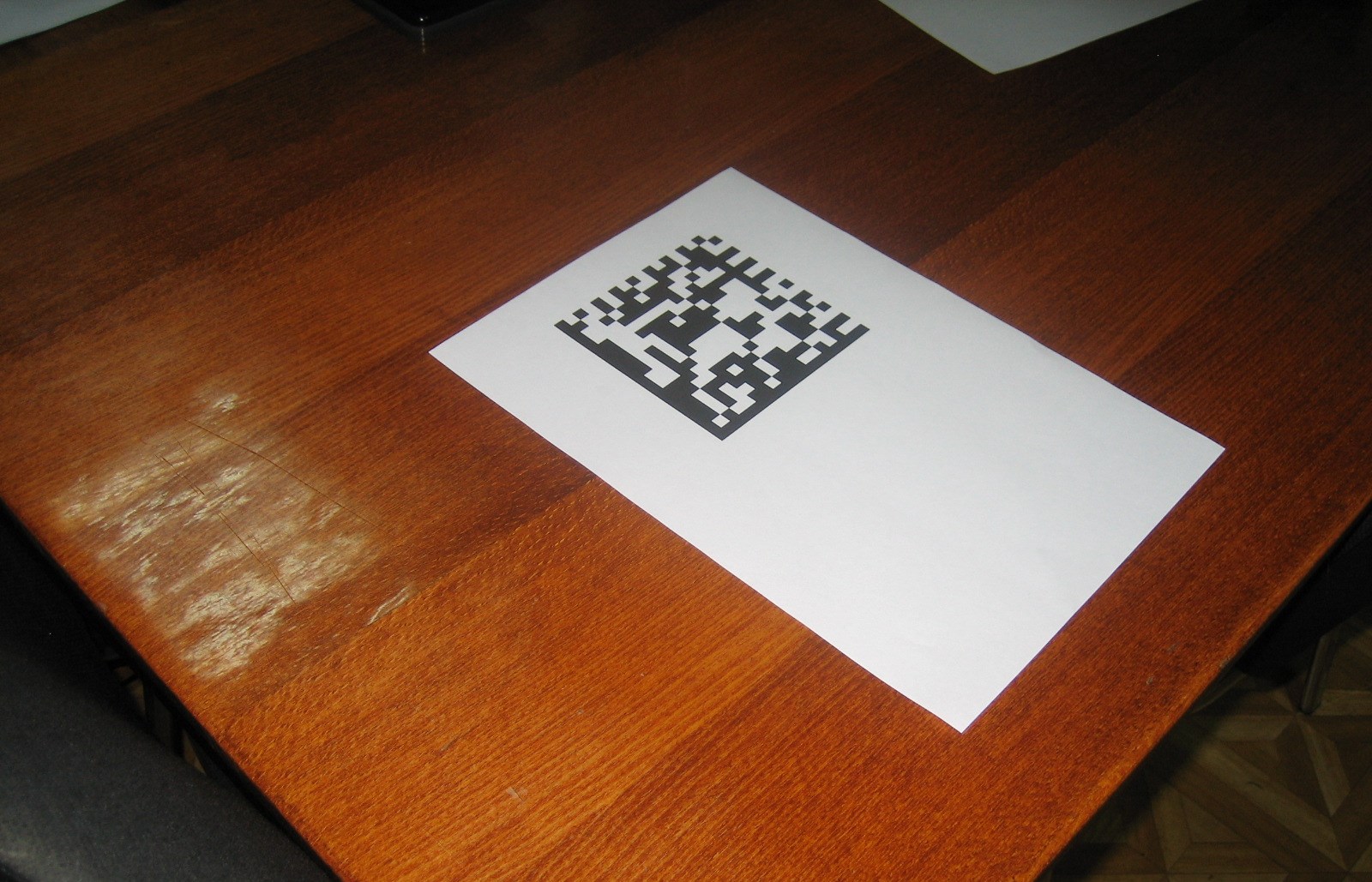
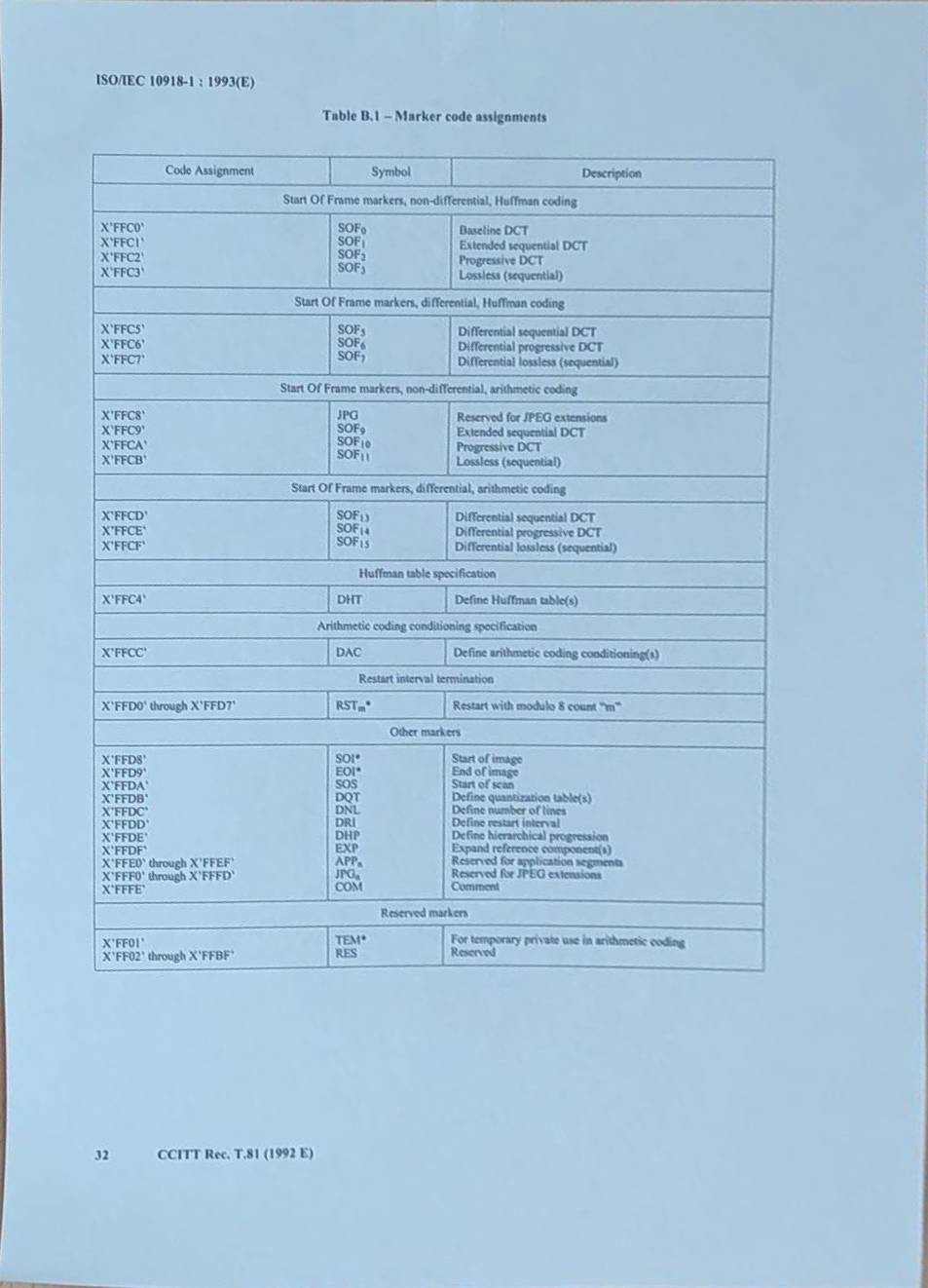
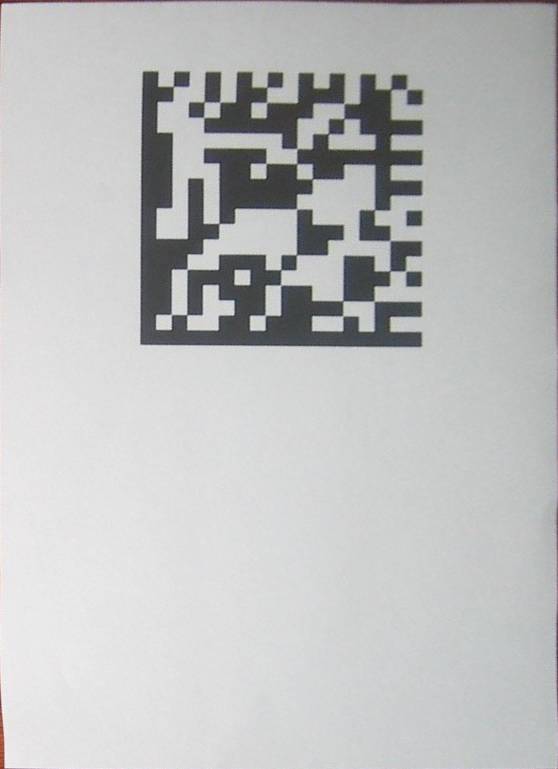
/// <summary>
/// Corrects perspective distortion of document image.
/// </summary>
/// <param name="sourceFile">Source image file.</param>
/// <param name="resultFile">Result image file.</param>
public void ApplyPerspectiveCorrection(string sourceFile, string resultFile)
{
    using (Vintasoft.Imaging.VintasoftImage image =
        new Vintasoft.Imaging.VintasoftImage(sourceFile))
    {
        // create the perspective correction command
        Vintasoft.Imaging.ImageProcessing.Document.DocumentPerspectiveCorrectionCommand command =
            new Vintasoft.Imaging.ImageProcessing.Document.DocumentPerspectiveCorrectionCommand();

        // apply the perspective correction to a document image
        command.ExecuteInPlace(image);

        // save the result image to a file
        image.Save(resultFile);
    }
}
/// <summary>
/// Corrects perspective distortion of A4 document image.
/// </summary>
/// <param name="sourceFile">Source file.</param>
/// <param name="resultFile">Result file.</param>
public void ApplyPerspectiveCorrectionA4Paper(string sourceFile, string resultFile)
{
    using (Vintasoft.Imaging.VintasoftImage image =
        new Vintasoft.Imaging.VintasoftImage(sourceFile))
    {
        // create the perspective correction command
        Vintasoft.Imaging.ImageProcessing.Document.DocumentPerspectiveCorrectionCommand command =
            new Vintasoft.Imaging.ImageProcessing.Document.DocumentPerspectiveCorrectionCommand();

        // set the document aspect ratio to the aspect ratio of the A4 paper
        Vintasoft.Imaging.ImageSize paperSizeA4 = Vintasoft.Imaging.ImageSize.FromPaperKind(Vintasoft.Imaging.PaperSizeKind.A4);
        command.DocumentAspectRatio = paperSizeA4.WidthInDip / paperSizeA4.HeightInDip;

        // apply the perspective correction to a document image
        command.ExecuteInPlace(image);

        // save the result image to a file
        image.Save(resultFile);
    }
}
/// <summary>
/// Corrects perspective distortion of document image.
/// </summary>
/// <param name="sourceFile">Source image file.</param>
/// <param name="resultFile">Result image file.</param>
/// <param name="documentImagePoints">An array of four points, which define the corner points of document image.
/// Points should be set in the following order: 0 - top-left, 1 - top-right,
/// 2 - bottom-left, 3 - bottom-right.</param>
public void ApplyQuadrilateralUnwarp(string sourceFile, string resultFile, System.Drawing.PointF[] documentImagePoints)
{
    using (Vintasoft.Imaging.VintasoftImage image =
        new Vintasoft.Imaging.VintasoftImage(sourceFile))
    {
        // create the perspective correction command
        Vintasoft.Imaging.ImageProcessing.Transforms.QuadrilateralWarpCommand command =
            new Vintasoft.Imaging.ImageProcessing.Transforms.QuadrilateralWarpCommand();

        // specify that command must use invert transform (command must work as unwarp command)
        command.IsInverseTransform = true;

        // set the corner points of document image
        command.DestinationPoints = documentImagePoints;

        // apply perspective correction to a document image
        command.ExecuteInPlace(image);

        // save the result image to a file
        image.Save(resultFile);
    }
}