.NET で特大の画像を表示しながらナビゲートする
2020/05/13

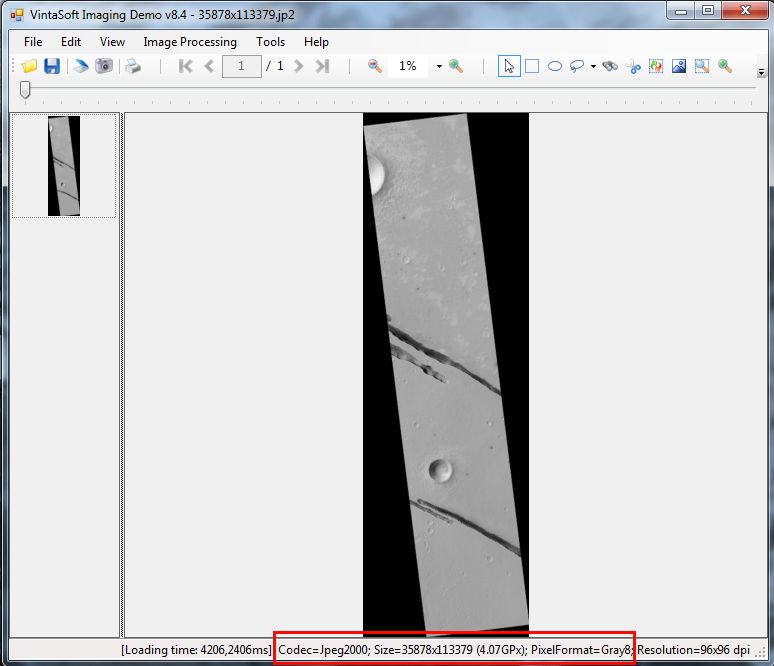
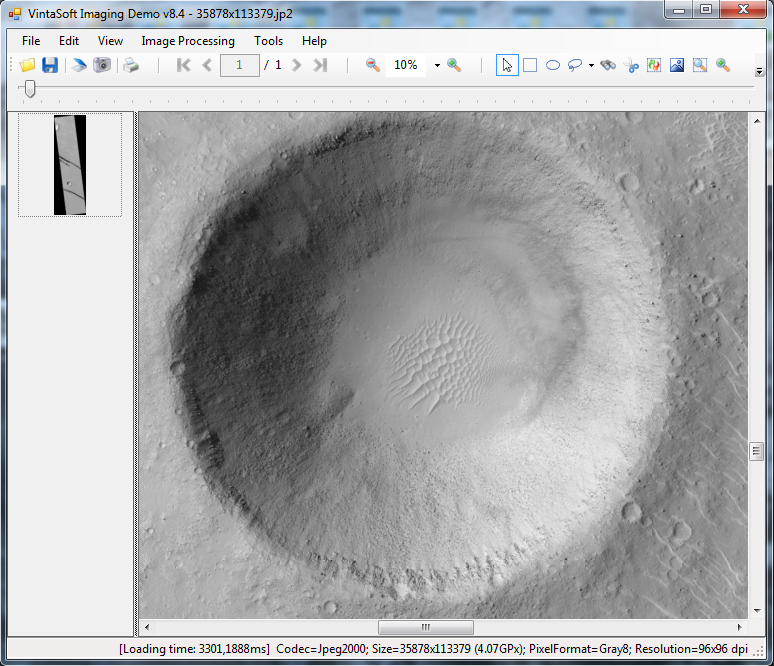
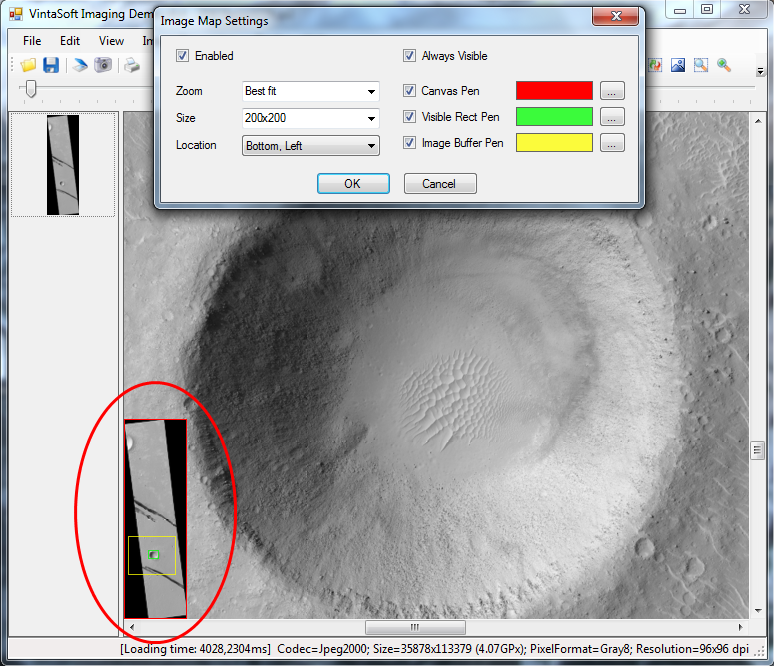
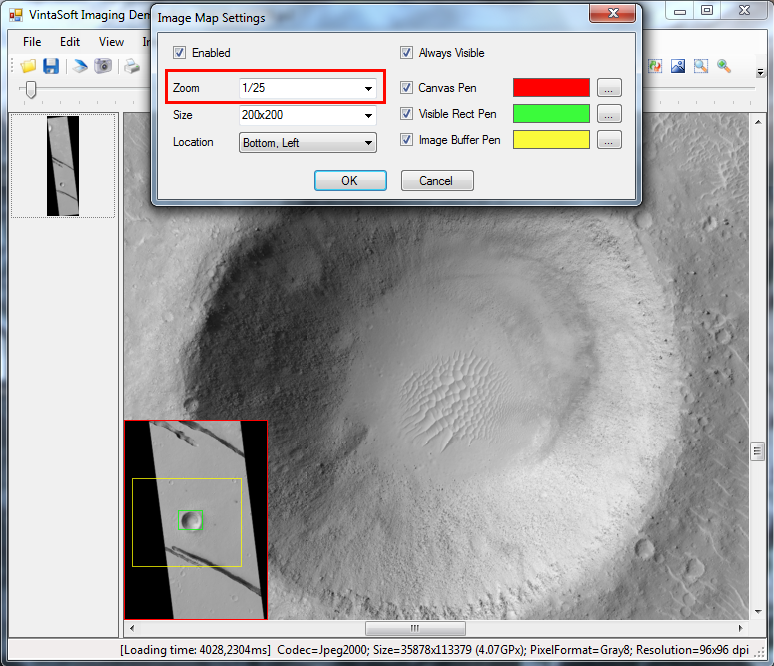
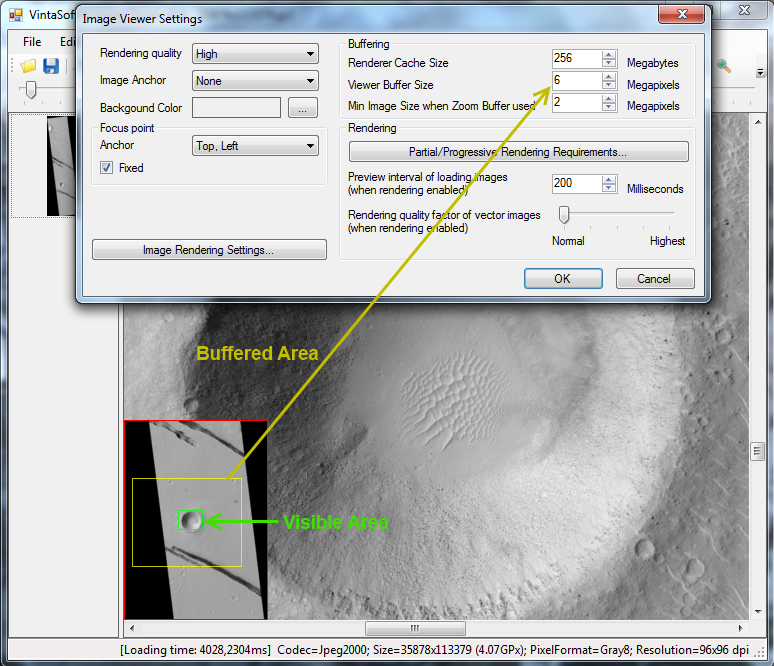
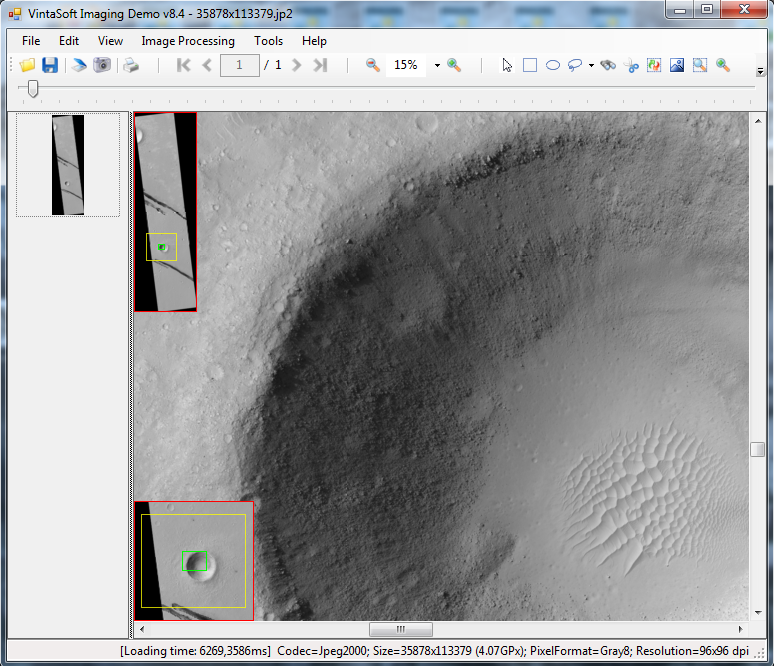
// create the first image map tool
Vintasoft.Imaging.UI.VisualTools.ImageMapTool imageMap1 = new Vintasoft.Imaging.UI.VisualTools.ImageMapTool();
// specify that image map must be enabled
imageMap1.Enabled = true;
// specify that image map tool must show image in best fit mode
imageMap1.Zoom = 0;
// specify that image map must have size 200x200 pixels
imageMap1.Size = new System.Drawing.Size(200, 200);
// specify that image map must be shown at the left-top corner of image viewer
imageMap1.Anchor = Vintasoft.Imaging.UI.AnchorType.Left | Vintasoft.Imaging.UI.AnchorType.Top;
// specify that image map tool border must have red color
imageMap1.CanvasPen = new System.Drawing.Pen(System.Drawing.Color.Red);
// specify that the border of image's visible region in image map must have lime color
imageMap1.VisibleRectPen = new System.Drawing.Pen(System.Drawing.Color.Lime);

// create the second image map tool
Vintasoft.Imaging.UI.VisualTools.ImageMapTool imageMap2 = new Vintasoft.Imaging.UI.VisualTools.ImageMapTool();
// specify that image map must be enabled
imageMap2.Enabled = true;
// specify that image map tool must show image in 1/25 scale from image viewer zoom
imageMap2.Zoom = 1 / 25f;
// specify that image map must have size 200x200 pixels
imageMap1.Size = new System.Drawing.Size(200, 200);
// specify that image map must be shown at the left-bottom corner of image viewer
imageMap2.Anchor = Vintasoft.Imaging.UI.AnchorType.Left | Vintasoft.Imaging.UI.AnchorType.Bottom;
// specify that image map tool border must have red color
imageMap2.CanvasPen = new System.Drawing.Pen(System.Drawing.Color.Red);
// specify that the border of image's visible region in image map must have lime color
imageMap2.VisibleRectPen = new System.Drawing.Pen(System.Drawing.Color.Lime);

// create composite visual tool that combines first and second image map tools
Vintasoft.Imaging.UI.VisualTools.CompositeVisualTool compositeVisualTool = new Vintasoft.Imaging.UI.VisualTools.CompositeVisualTool(imageMap1, imageMap2);

// set composite visual tool as current visual tool of image viewer
imageViewer1.VisualTool = compositeVisualTool;