VintaSoft Imaging .NET SDK는 WinForms/WPF 뷰어에서 PDF 문서를 편집하기 위한 다양한 기능을 제공합니다.
PDF 문서의 시각적 편집 기능은 데모 애플리케이션
VintaSoft PDF Editor Demo(WinForms) 및
VintaSoft WPF PDF Editor Demo(WPF)에서 시연됩니다.
이 문서에서는 WinForms/WPF 뷰어에서 PDF 문서 내용을 시각적으로 편집하는 기능에 대한 개요를 제공합니다.
WinForms/WPF 뷰어에서 PDF 페이지 콘텐츠 편집
WinForms 컨트롤
ImageViewer를 사용하면 WinForms 애플리케이션에서 PDF 문서의 페이지를 표시할 수 있습니다. ImageViewer 컨트롤은
PdfContentEditorTool 시각적 도구를 사용하여 뷰어에서 PDF 페이지 콘텐츠를 편집할 수 있습니다.
WPF 컨트롤
WpfImageViewer를 사용하면 WPF 애플리케이션에서 PDF 문서의 페이지를 표시할 수 있습니다. WpfImageViewer 컨트롤은
WpfPdfContentEditorTool을 사용하여 뷰어에서 PDF 페이지 콘텐츠를 편집할 수 있습니다.
다음은 WinForms 애플리케이션에서 PDF 페이지 콘텐츠를 표시하고 편집하기 위한
ImageViewer와
PdfContentEditorTool을 생성하는 코드입니다.
// The project, which uses this code, must have references to the following assemblies:
// - Vintasoft.Imaging
// - Vintasoft.Imaging.UI
// - Vintasoft.Imaging.Office.OpenXml
// - Vintasoft.Imaging.Office.OpenXml.UI
// - Vintasoft.Imaging.Pdf
// - Vintasoft.Imaging.Pdf.UI
// - Vintasoft.Imaging.Pdf.Office.UI

public partial class FormWithPdfEditorTool : System.Windows.Forms.Form
{
    //...
    Vintasoft.Imaging.UI.ImageViewer _imageViewer;
    //...

    /// <summary>
    /// The PDF content editor tool.
    /// </summary>
    Vintasoft.Imaging.Pdf.UI.PdfContentEditorTool _contentEditorTool;

    /// <summary>
    /// The undo manager.
    /// </summary>
    Vintasoft.Imaging.Undo.UndoManager _undoManager = new Vintasoft.Imaging.Undo.UndoManager(20);

    public FormWithPdfEditorTool()
    {
        //...
        // initialize Vintasoft.Imaging.Pdf.Office.UI assembly
        Vintasoft.Imaging.PdfOfficeUIAssembly.Init();

        // create visual tool that allows to edit content on PDF page
        _contentEditorTool = new Vintasoft.Imaging.Pdf.UI.PdfContentEditorTool();

        // specify that PDF content editor tool should add and edit content on PDF page
        _contentEditorTool.AppendMode = false;

        // specify that PDF content editor tool should highlight content figures
        _contentEditorTool.FiguresHighlight = true;

        // specify that PDF content editor tool should not render figures on PDF page when current page is changed in image viewer
        _contentEditorTool.RenderFiguresWhenImageIndexChanging = false;

        // specify that PDF content editor tool should render figures on PDF page when PDF content editor tool is deactivating
        _contentEditorTool.RenderFiguresWhenDeactivating = true;

        // specify undo manager for PDF content editor tool
        _contentEditorTool.UndoManager = _undoManager;

        // specify that PDF content editor tool should work only with content of specified types
        _contentEditorTool.InteractiveContentType =
            Vintasoft.Imaging.Pdf.Drawing.GraphicsFigures.GraphicsFigureContentType.Text |
            Vintasoft.Imaging.Pdf.Drawing.GraphicsFigures.GraphicsFigureContentType.Image |
            Vintasoft.Imaging.Pdf.Drawing.GraphicsFigures.GraphicsFigureContentType.Form |
            Vintasoft.Imaging.Pdf.Drawing.GraphicsFigures.GraphicsFigureContentType.StrokePath |
            Vintasoft.Imaging.Pdf.Drawing.GraphicsFigures.GraphicsFigureContentType.FillPath;

        // create visual tool that allows to edit text in text content on PDF page
        Vintasoft.Imaging.Office.OpenXml.UI.VisualTools.UserInteraction.OfficeDocumentVisualEditorTextTool contentEditorTextTool =
            new Vintasoft.Imaging.Office.OpenXml.UI.VisualTools.UserInteraction.OfficeDocumentVisualEditorTextTool();

        // create the composite visual tool and set it as a current tool of image viewer
        _imageViewer.VisualTool = new Vintasoft.Imaging.UI.VisualTools.CompositeVisualTool(contentEditorTextTool, _contentEditorTool);
    }

    //...

    private void drawEllipseToolStripButton_Click(object sender, System.EventArgs e)
    {
        // start building an ellipse
        _contentEditorTool.StartBuildEllipse(
            new Vintasoft.Imaging.Pdf.Drawing.PdfPen(System.Drawing.Color.Red, 5),
            new Vintasoft.Imaging.Pdf.Drawing.PdfBrush(System.Drawing.Color.Green));
    }
}
WinForms/WPF 뷰어에서 PDF 페이지 콘텐츠 편집을 위한 일반 기능
SDK는 PDF 페이지 콘텐츠를 다음과 같은 그래픽 도형으로 나눌 수 있습니다.
- 텍스트
- 이미지
- 폼
- 경로 윤곽선
- 경로 채우기
- 자르기 영역
- 패턴(그라디언트) 영역
- 개체 그룹
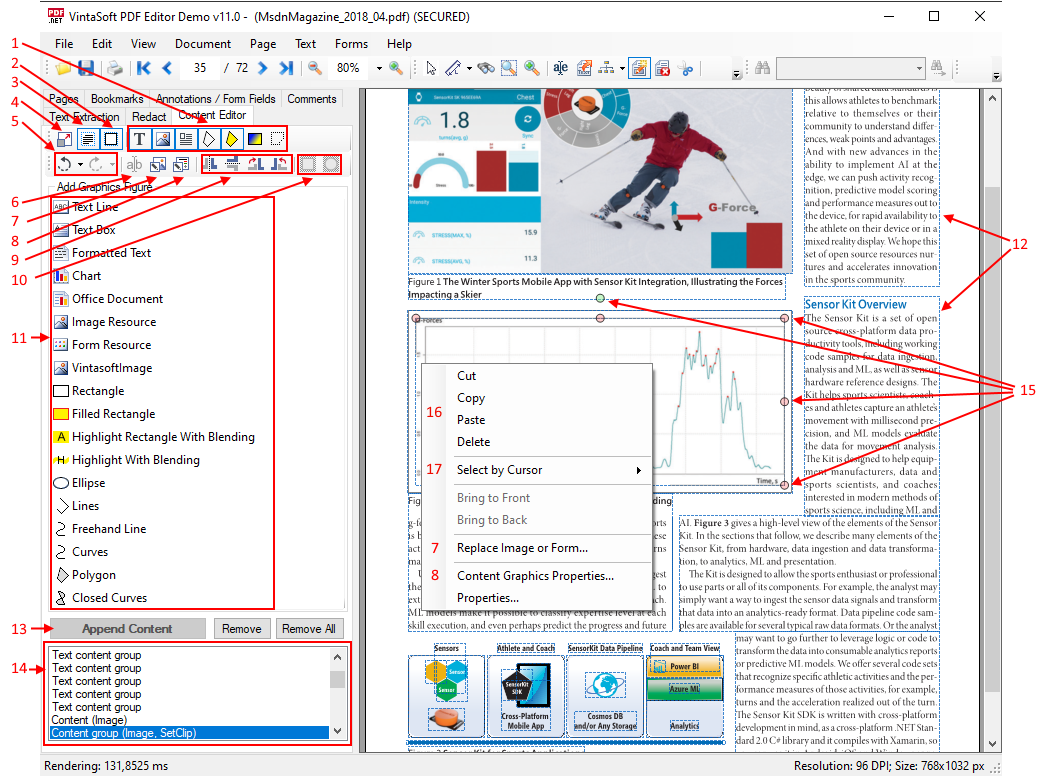
PdfContentEditorTool /
WpfPdfContentEditorTool을 사용하면 뷰어에서 PDF 페이지의 그래픽 이미지를 표시하고 편집할 수 있습니다.
PdfContentEditorTool /
WpfPdfContentEditorTool을 사용하면 다음 작업을 수행할 수 있습니다.
- 뷰어에서 PDF 페이지 콘텐츠 편집 기능 활성화/비활성화(4)
- 편집 가능한 콘텐츠 도형 그룹화(3)
- 강조 표시 뷰어의 콘텐츠 그림(2, 12)
- 편집 가능한 그림 유형 선택: 텍스트, 이미지, 도형, 채워진 경로, 패턴 영역, 자르기 영역(1)
- 편집 가능한 그림 목록 가져오기(14)
- 실행 취소 및 다시 실행 작업(5)
- 선택한 텍스트 그림의 텍스트 편집(6)
- 선택한 도형 또는 이미지 바꾸기 또는 편집(7)
- 그림 속성 설정: 펜 색상 및 두께, 채우기 색상, 투명도, 텍스트 렌더링 모드 등(8)
- 뷰어에서 선택한 그림 변형(이동, 크기 조정, 회전)(15)
- 선택한 그림을 프로그래밍 방식으로 변형(회전, 뒤집기 또는 자유 변형)(9)
- 선택한 그림의 자르기 영역 설정(10)
- 새 그림 추가(텍스트, 이미지, 그래픽, 차트 등)(11)
- 모든 유형의 그림 삭제, 복사, 붙여넣기(16)
- 지정된 위치에 있는 그림 선택(17)
다음은 PdfEditorDemo 애플리케이션의 스크린샷으로, PdfEditorDemo의 시각적 PDF 콘텐츠 편집기의 기본 화면을 나타냅니다(각 숫자는 위의 목록에 해당합니다).
WinForms/WPF 뷰어에서 PDF 페이지의 서식 있는 텍스트 편집
SDK는 WinForms/WPF 뷰어에서 서식 있는 텍스트 편집기를 나타내는
OfficeDocumentVisualEditor 클래스를 제공합니다.
PdfContentEditorTool /
WpfPdfContentEditorTool은 서식 있는 텍스트 편집기(
OfficeDocumentVisualEditor)를 사용하여 뷰어에서 PDF 페이지의 "텍스트 콘텐츠 그룹"(
ContentStreamGraphicsFigureTextGroup) 유형의 개체를 편집합니다.
선택한 텍스트 개체의 편집은 다음과 같은 몇 가지 방법으로 시작할 수 있습니다.
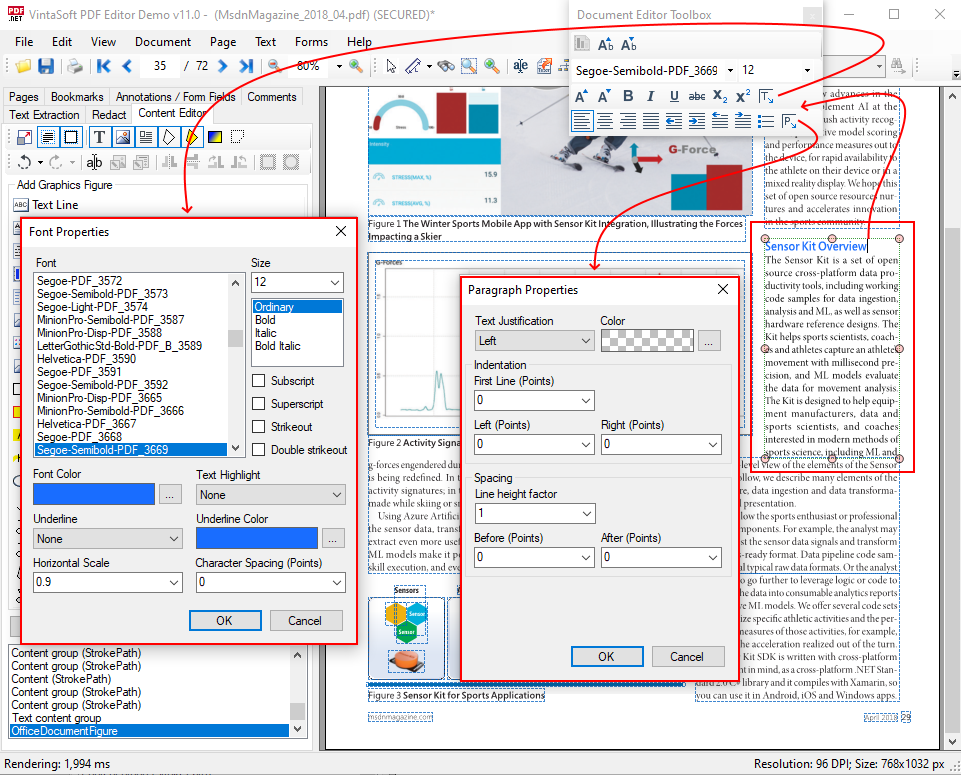
서식 있는 텍스트 편집기(
OfficeDocumentVisualEditor)는 다음을 허용합니다.
- 텍스트 영역 변형(크기 조정, 이동)
- 텍스트 변경
- 텍스트 속성 변경: 글꼴, 크기, 색상, 굵게, 기울임, 밑줄, 위첨자, 아래첨자, 가로 배율, 문자 간격
- 텍스트 가로 정렬 변경: 왼쪽, 오른쪽, 가운데, 너비
- 단락 들여쓰기 변경
- 단락 배경색 변경
- 줄 간격 변경
- 번호 매기기 목록 만들기
서식 있는 텍스트 편집 중 텍스트 및 단락 속성을 보여주는 PdfEditorDemo 애플리케이션의 스크린샷입니다.
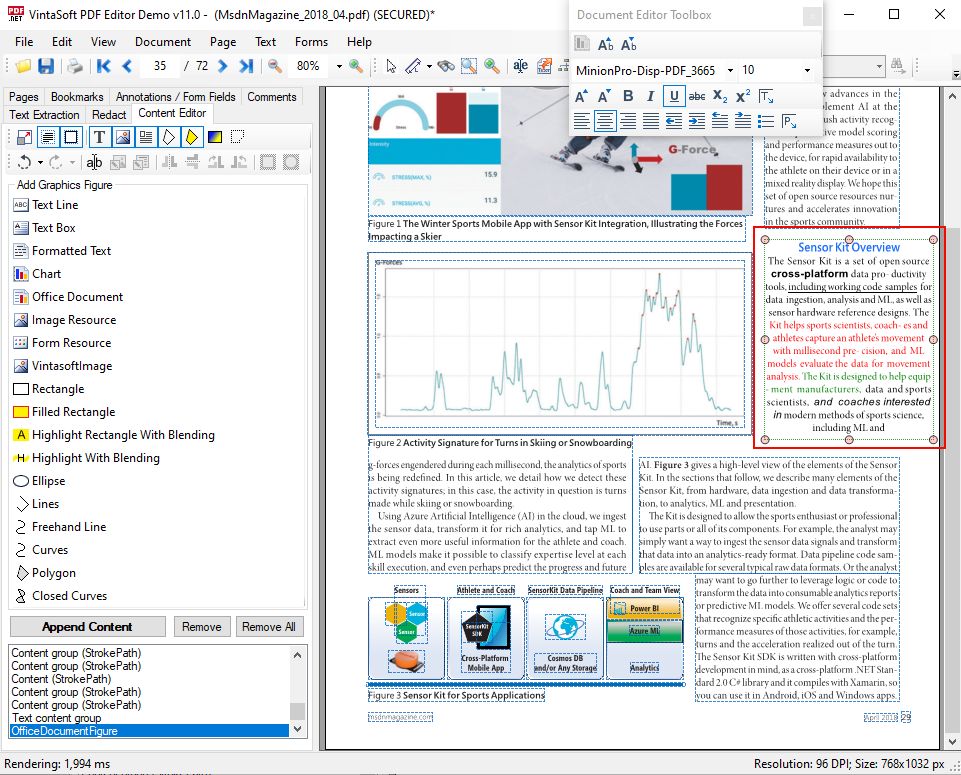
편집된 텍스트 블록을 보여주는 PdfEditorDemo 애플리케이션의 스크린샷입니다.
WinForms/WPF 뷰어에서 PDF 페이지의 벡터 그래픽 편집
PdfContentEditorTool /
WpfPdfContentEditorTool을 사용하면 WinForms/WPF 뷰어에서 마우스를 이용하여 PDF 페이지의 벡터 그래픽을 변형, 복사, 변경할 수 있습니다.
PDF 페이지에서 벡터 그래픽을 선택하고 변형하는 방법을 보여주는 PdfEditorDemo 애플리케이션의 스크린샷입니다.
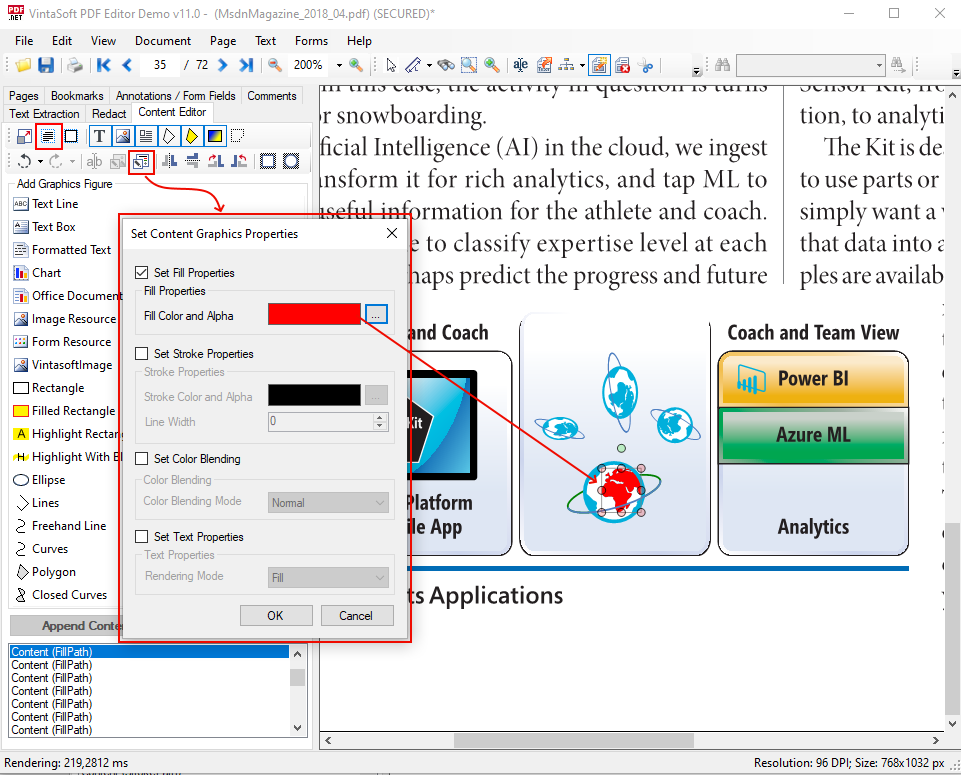
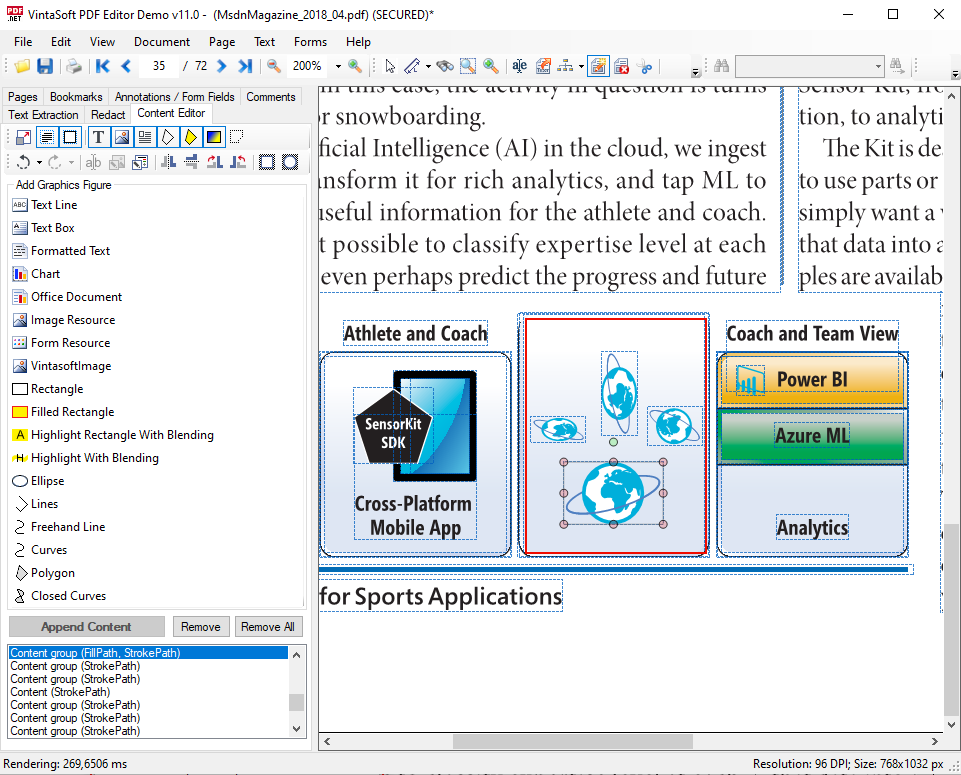 PdfContentEditorTool.SetContentGraphicsProperties
 메서드를 사용하면 그래픽 도형의 그래픽 상태를 설정할 수 있습니다.
PDF 페이지에서 벡터 그래픽의 그룹 해제 및 그래픽 상태 속성을 변경하는 방법을 보여주는 PdfEditorDemo 애플리케이션의 스크린샷입니다.
WinForms/WPF 뷰어에서 PDF 페이지의 이미지 또는 폼 바꾸기
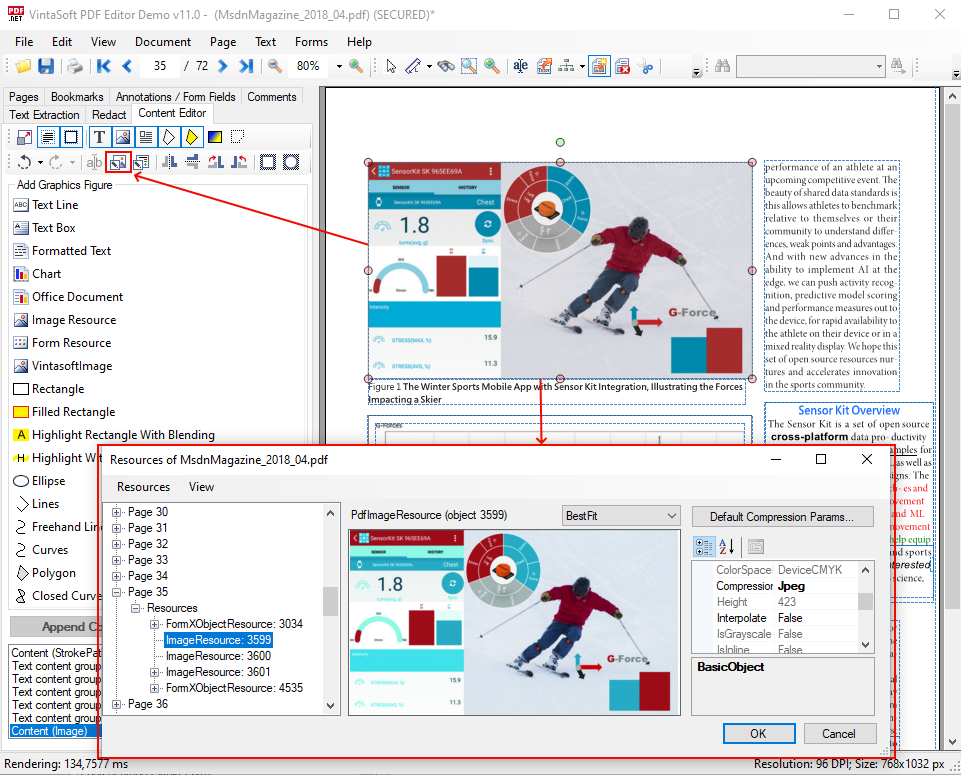
PDF에 있는 기존 이미지 또는 폼 WinForms/WPF 뷰어의 페이지는
PdfContentEditorTool.ReplaceResource 메서드를 사용하여 교체할 수 있습니다.
다음은 다음은 PDF 페이지에서 선택한 이미지의 이미지 리소스에 대한 정보를 표시하는 대화 상자를 보여주는 PdfEditorDemo 애플리케이션의 스크린샷입니다.
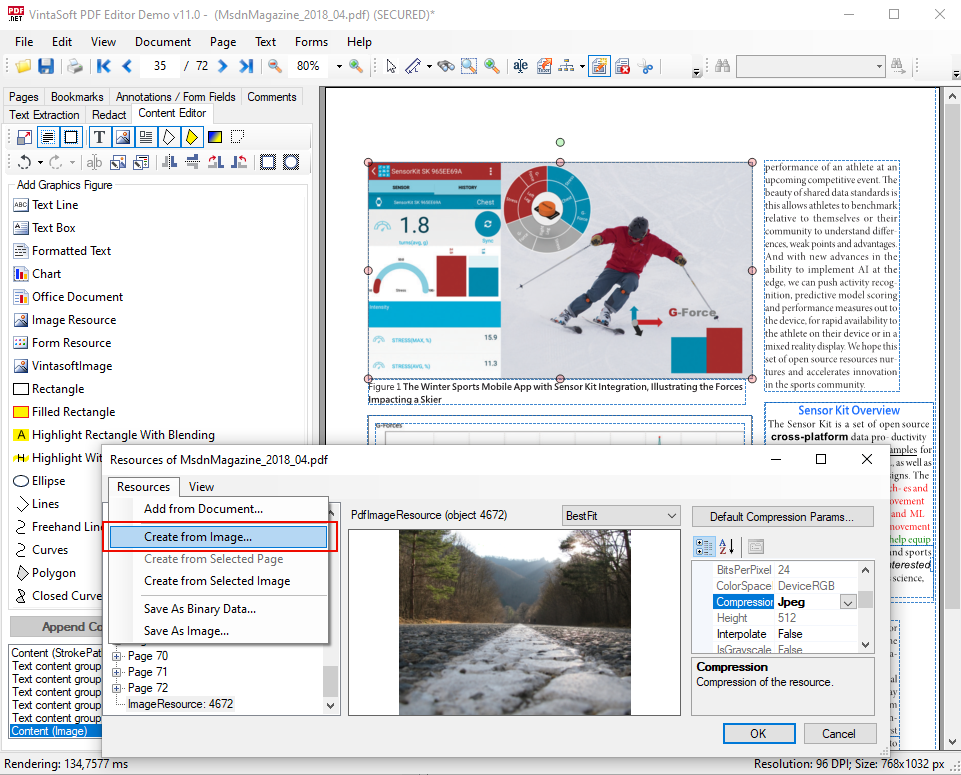
다음은 이미지 파일에서 새 이미지 리소스를 생성하고 PDF 페이지에서 선택한 이미지의 이미지 리소스로 사용하는 방법을 보여주는 PdfEditorDemo 애플리케이션의 스크린샷입니다.
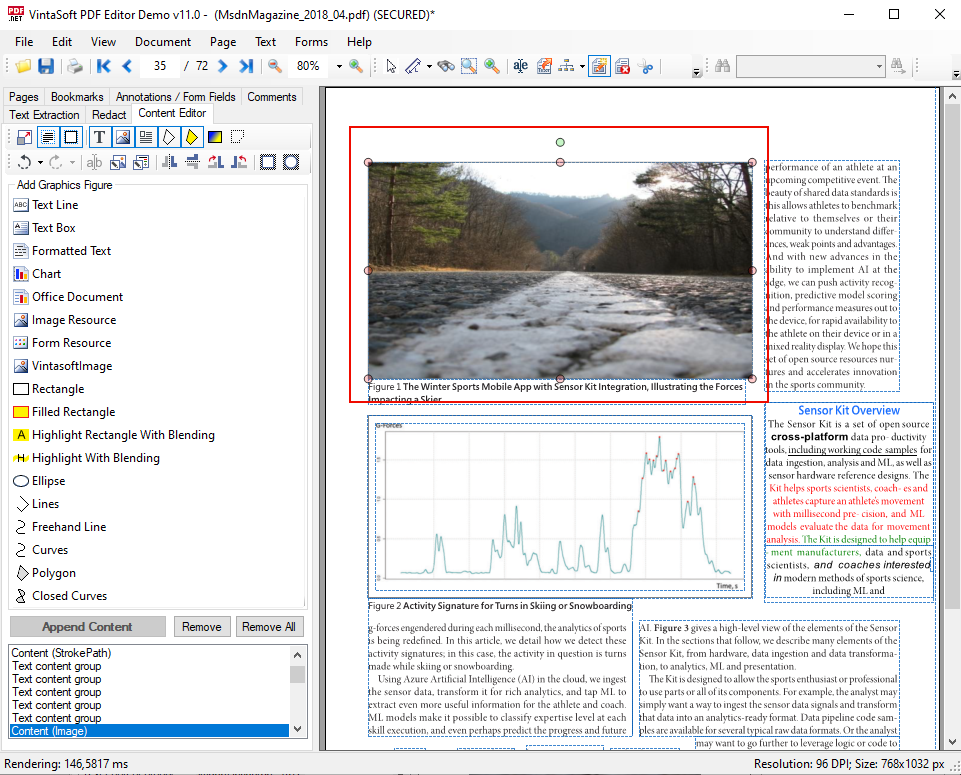
다음은 PDF 페이지에서 변경된 이미지를 표시하는 PdfEditorDemo 애플리케이션의 스크린샷입니다.
WinForms/WPF 뷰어에서 PDF 페이지의 그림에 대한 클리핑 영역을 생성, 변경 및 삭제하는 방법
PDF 페이지의 모든 그림에 새 클리핑 영역을 추가하려면
PdfContentEditorTool.AddFigureClip 메서드를 사용할 수 있습니다.
다음은 PDF 페이지의 이미지에 대한 타원형 클리핑 영역을 설정하는 방법을 보여주는 PdfEditorDemo 애플리케이션의 스크린샷입니다.
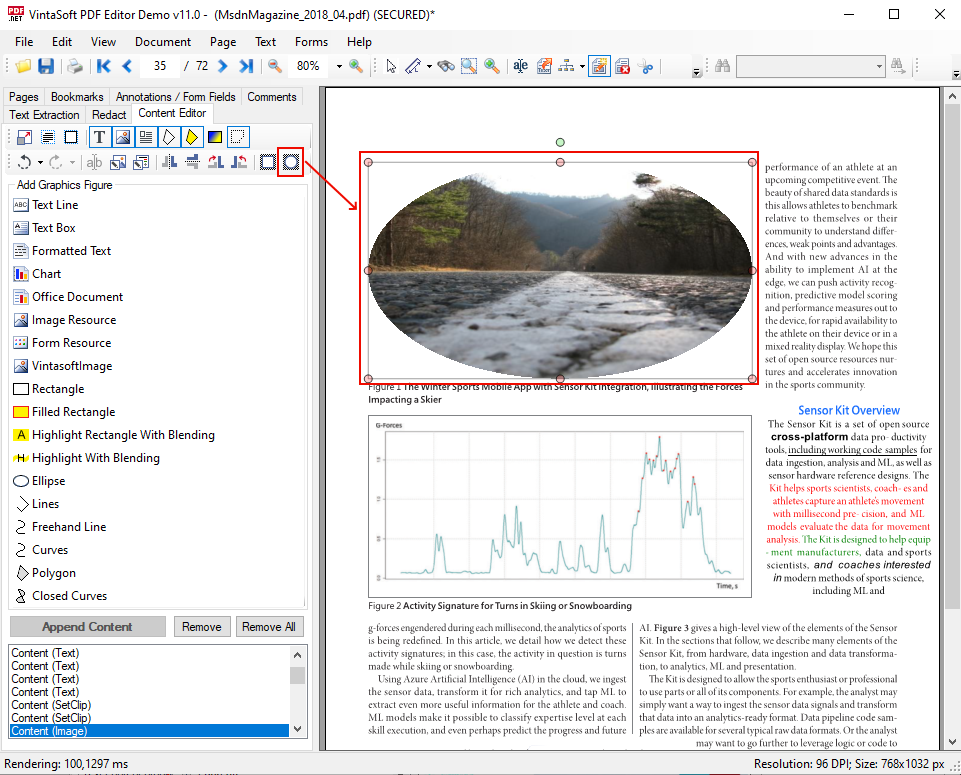
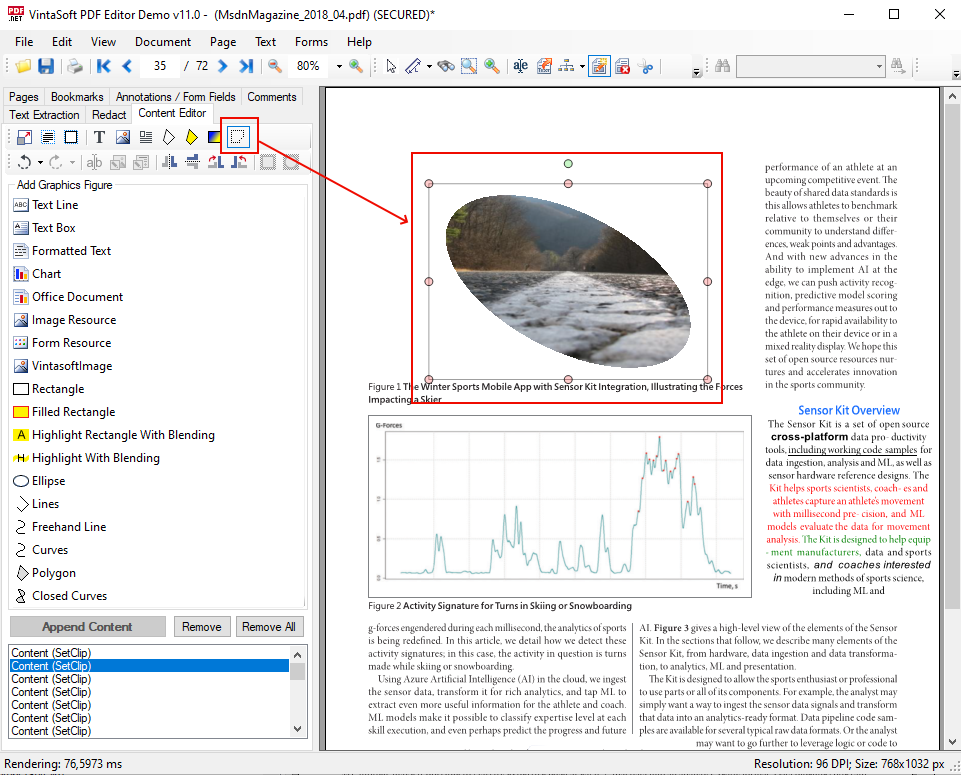
PDF 페이지의 모든 그림에 대한 기존 클리핑 영역을 마우스를 사용하여 선택, 변형 또는 삭제할 수 있습니다.
다음은 PDF 페이지에서 이미지 클리핑 영역을 변형하는 방법을 보여주는 PdfEditorDemo 애플리케이션의 스크린샷입니다.
WinForms/WPF 뷰어에서 PDF 페이지에 그래픽 추가
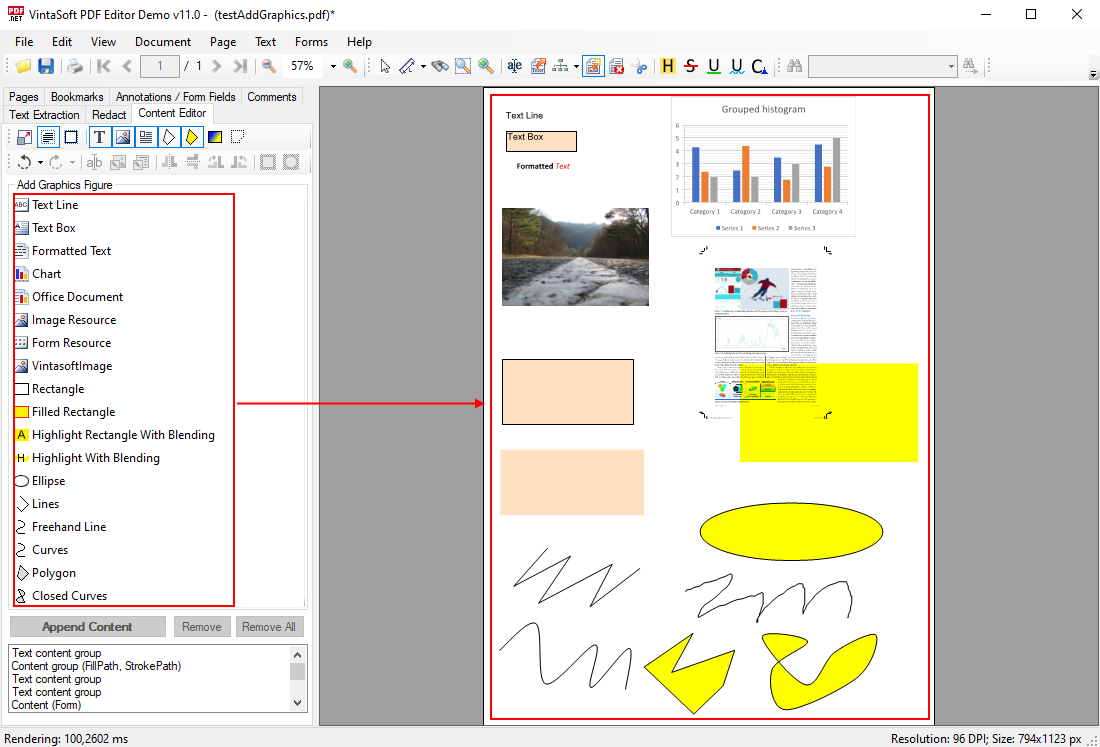
PdfContentEditorTool을 사용하면 다음과 같은 그래픽 이미지를 PDF 페이지에 추가할 수 있습니다.
- 텍스트 줄
- 텍스트 상자
- 서식 있는 텍스트
- 차트
- DOCX 문서 기반 마크업
- PDF 또는 DOCX 문서 페이지
- 지원되는 모든 형식의 이미지
- 현재 또는 다른 PDF 문서의 양식 또는 이미지 리소스
- 사각형
- 타원
- 다각형
- 폴리라인
- 곡선
PdfContentEditorTool.AddFigure 메서드를 사용하면 PDF 페이지에 그래픽 이미지를 추가할 수 있습니다.
PdfContentEditorTool.StartBuildFigure 메서드를 사용하면 마우스를 이용하여 PDF 페이지에 그래픽 그림을 그리기 시작할 수 있습니다.
다음은 PDF 페이지에 그래픽을 추가하는 방법을 보여주는 PdfEditorDemo 애플리케이션의 스크린샷입니다.
WinForms/WPF 뷰어에서 PDF 페이지에 차트 추가하기
SDK는
OfficeDocumentFigure 클래스를 제공하여 PDF 페이지에 DOCX 페이지를 그릴 수 있도록 합니다.
"PDF Editor Demo"는 차트가 포함된 DOCX 페이지를 PDF 페이지에 추가하는 방법(
OfficeDocumentFigure를
PdfContentEditorTool.AddFigure /
PdfContentEditorTool.StartBuildFigure 메서드).
다음은 PDF 페이지에 추가할 차트를 선택하는 방법을 보여주는 PdfEditorDemo 애플리케이션의 스크린샷입니다.
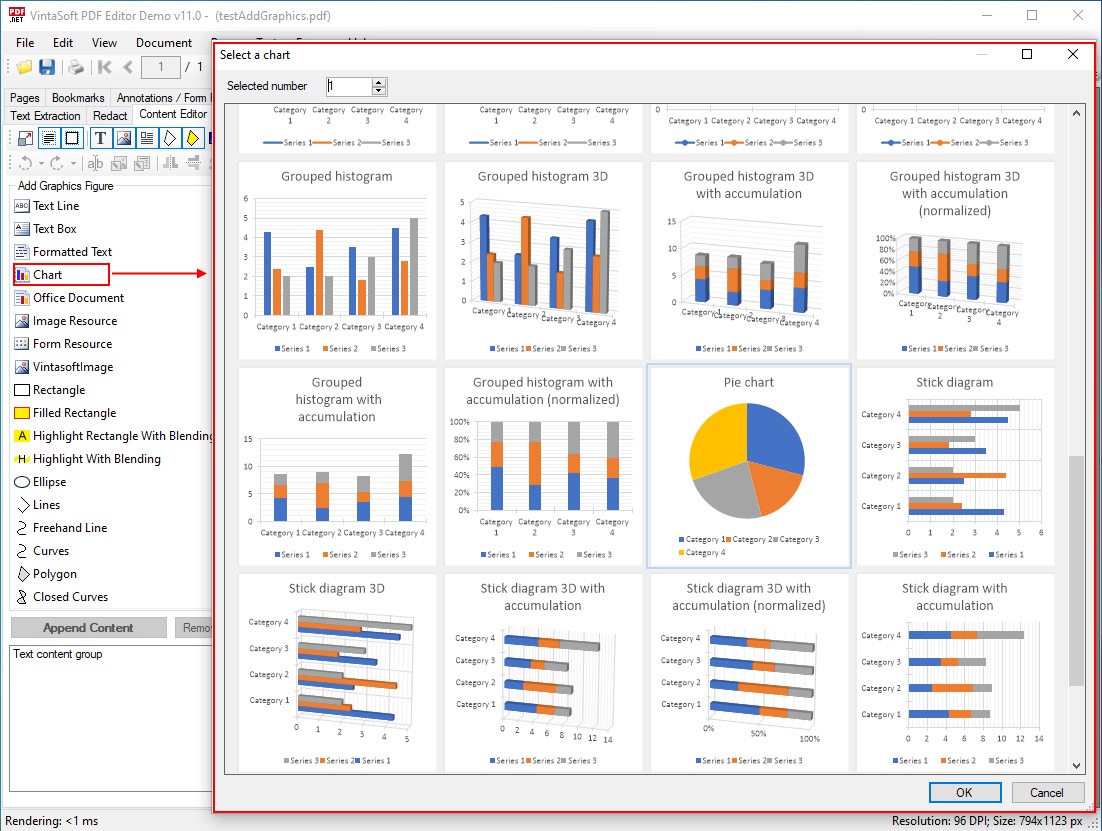
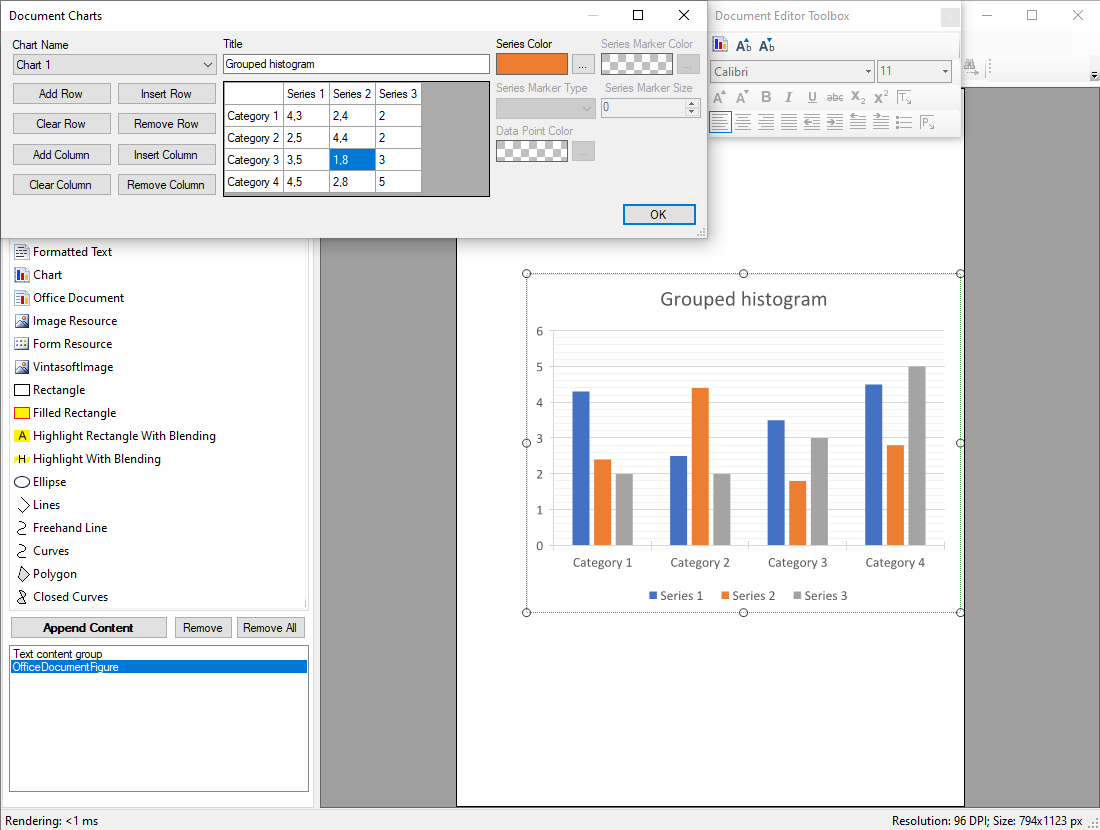
또한 PDF Editor Demo는 차트 데이터를 변경하고 뷰어에서 PDF 페이지의 차트 변경 사항을 보는 방법을 보여줍니다.
다음은 PDF 페이지에서 차트를 선택하고 차트 속성을 편집하는 방법을 보여주는 PdfEditorDemo 애플리케이션의 스크린샷입니다.
WinForms/WPF 뷰어에서 PDF 페이지 콘텐츠를 편집하기 위한 요구 사항
WinForms/WPF 뷰어에서 PDF 페이지 콘텐츠를 편집하려면 다음 VintaSoft 제품이 필요합니다.