VintaSoft Imaging .NET SDK には、WinForms/WPF ビューアで PDF ドキュメントを編集するための広範な機能があります。
PDF ドキュメントの視覚的な編集機能が実証されていますデモ アプリケーション
VintaSoft PDF Editor Demo (WinForms) および
VintaSoft WPF PDF Editor Demo (WPF)。
この記事では、WinForms/WPF ビューアで PDF ドキュメントのコンテンツを視覚的に編集するための機能の概要を説明します。
WinForms/WPF ビューアで PDF ページの内容を編集します
WinForms コントロール
ImageViewer を使用すると、WinForms アプリケーションで PDF ドキュメントのページを表示できます。ImageViewer コントロールでは、ビューアで PDF ページの内容を編集するためのビジュアル ツール
PdfContentEditorTool を使用できます。
WPF コントロール
WpfImageViewer を使用すると、WPF アプリケーションで PDF ドキュメントのページを表示できます。WpfImageViewer コントロールでは、ビューアで PDF ページの内容を編集するためのビジュアル ツール
WpfPdfContentEditorTool を使用できます。
以下は、WinForms アプリケーションで PDF ページ コンテンツを表示および編集するための
ImageViewer と
PdfContentEditorTool を作成するコードです。
// The project, which uses this code, must have references to the following assemblies:
// - Vintasoft.Imaging
// - Vintasoft.Imaging.UI
// - Vintasoft.Imaging.Office.OpenXml
// - Vintasoft.Imaging.Office.OpenXml.UI
// - Vintasoft.Imaging.Pdf
// - Vintasoft.Imaging.Pdf.UI
// - Vintasoft.Imaging.Pdf.Office.UI

public partial class FormWithPdfEditorTool : System.Windows.Forms.Form
{
    //...
    Vintasoft.Imaging.UI.ImageViewer _imageViewer;
    //...

    /// <summary>
    /// The PDF content editor tool.
    /// </summary>
    Vintasoft.Imaging.Pdf.UI.PdfContentEditorTool _contentEditorTool;

    /// <summary>
    /// The undo manager.
    /// </summary>
    Vintasoft.Imaging.Undo.UndoManager _undoManager = new Vintasoft.Imaging.Undo.UndoManager(20);

    public FormWithPdfEditorTool()
    {
        //...
        // initialize Vintasoft.Imaging.Pdf.Office.UI assembly
        Vintasoft.Imaging.PdfOfficeUIAssembly.Init();

        // create visual tool that allows to edit content on PDF page
        _contentEditorTool = new Vintasoft.Imaging.Pdf.UI.PdfContentEditorTool();

        // specify that PDF content editor tool should add and edit content on PDF page
        _contentEditorTool.AppendMode = false;

        // specify that PDF content editor tool should highlight content figures
        _contentEditorTool.FiguresHighlight = true;

        // specify that PDF content editor tool should not render figures on PDF page when current page is changed in image viewer
        _contentEditorTool.RenderFiguresWhenImageIndexChanging = false;

        // specify that PDF content editor tool should render figures on PDF page when PDF content editor tool is deactivating
        _contentEditorTool.RenderFiguresWhenDeactivating = true;

        // specify undo manager for PDF content editor tool
        _contentEditorTool.UndoManager = _undoManager;

        // specify that PDF content editor tool should work only with content of specified types
        _contentEditorTool.InteractiveContentType =
            Vintasoft.Imaging.Pdf.Drawing.GraphicsFigures.GraphicsFigureContentType.Text |
            Vintasoft.Imaging.Pdf.Drawing.GraphicsFigures.GraphicsFigureContentType.Image |
            Vintasoft.Imaging.Pdf.Drawing.GraphicsFigures.GraphicsFigureContentType.Form |
            Vintasoft.Imaging.Pdf.Drawing.GraphicsFigures.GraphicsFigureContentType.StrokePath |
            Vintasoft.Imaging.Pdf.Drawing.GraphicsFigures.GraphicsFigureContentType.FillPath;

        // create visual tool that allows to edit text in text content on PDF page
        Vintasoft.Imaging.Office.OpenXml.UI.VisualTools.UserInteraction.OfficeDocumentVisualEditorTextTool contentEditorTextTool =
            new Vintasoft.Imaging.Office.OpenXml.UI.VisualTools.UserInteraction.OfficeDocumentVisualEditorTextTool();

        // create the composite visual tool and set it as a current tool of image viewer
        _imageViewer.VisualTool = new Vintasoft.Imaging.UI.VisualTools.CompositeVisualTool(contentEditorTextTool, _contentEditorTool);
    }

    //...

    private void drawEllipseToolStripButton_Click(object sender, System.EventArgs e)
    {
        // start building an ellipse
        _contentEditorTool.StartBuildEllipse(
            new Vintasoft.Imaging.Pdf.Drawing.PdfPen(System.Drawing.Color.Red, 5),
            new Vintasoft.Imaging.Pdf.Drawing.PdfBrush(System.Drawing.Color.Green));
    }
}
WinForms/WPF ビューアで PDF ページの内容を編集するための一般的な機能
SDK は PDF ページの内容を次のグラフィック図形に分割できます:
- テキスト
- 画像
- フォーム
- パスのアウトライン
- パスの塗りつぶし
- トリミング領域
- パターン (グラデーション) 領域
- オブジェクトのグループ
PdfContentEditorTool /
WpfPdfContentEditorTool を使用すると、ビューアで PDF ページのグラフィックを表示および編集できます。
PdfContentEditorTool /
WpfPdfContentEditorTool では次のことが可能です:
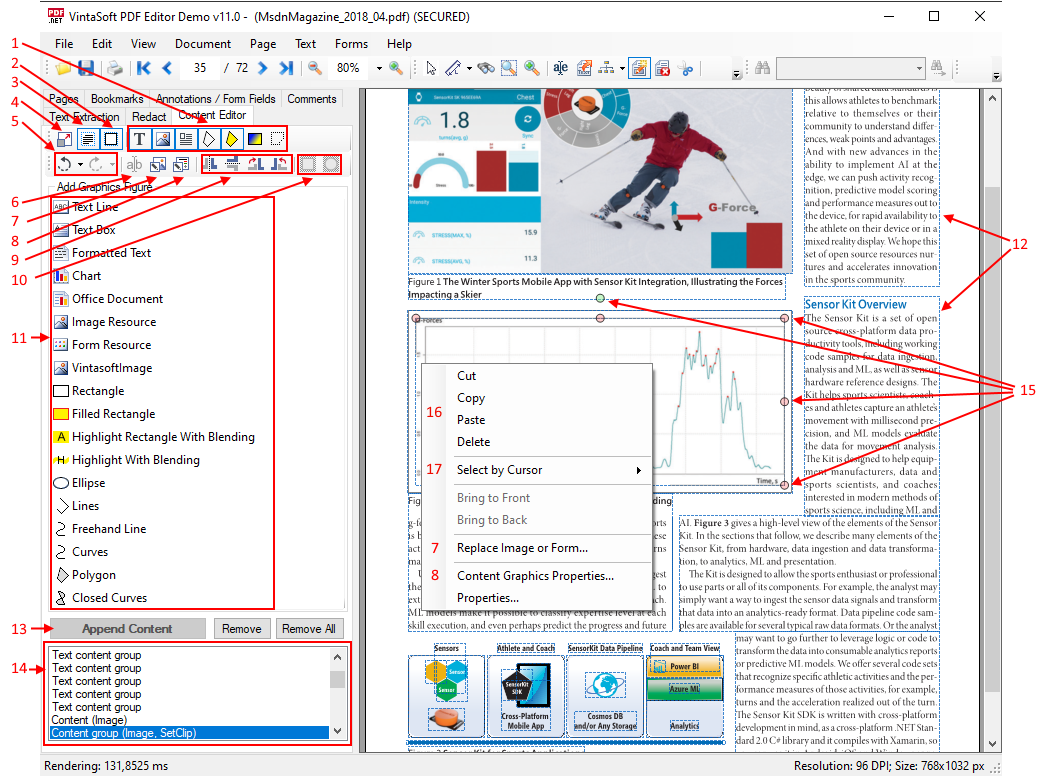
- ビューアで PDF ページのコンテンツを編集する機能を有効/無効にします (4)
- 編集可能なコンテンツをグループ化します図(3)
- ビューアでコンテンツ図をハイライト表示(2、12)
- 編集可能な図の種類を選択:テキスト、画像、フォーム、塗りつぶされたパス、パターン領域、トリミング領域 (1)
- 編集可能な図のリストを取得します (14)
- 元に戻す操作とやり直し操作 (5)
- 選択したテキスト図のテキストを編集します (6)
- 選択したフォームまたは画像を置き換えまたは編集します (7)
- 図のプロパティを設定します: ペンの色と太さ、塗りつぶし色、透明度、テキストレンダリングモードなど (8)
- ビューアで選択した図を変形 (移動、サイズ変更、回転) します (15)
- プログラムで選択した図を変形 (回転、反転、または自由変形) します (9)
- 選択した図のトリミング領域を設定します (10)
- 新しい図 (テキスト、画像、グラフィック、チャートなど) を追加します (11)
- 任意のタイプの図を削除、コピー、貼り付けます (16)
- 指定されたポイントにある図を選択します (17)
以下は PdfEditorDemo アプリケーションのスクリーンショットです。これは PdfEditorDemo のビジュアル PDF コンテンツ エディターのメイン ビューを表しています (各数字は上記のリストに対応しています)。
WinForms/WPF ビューアーで PDF ページのリッチ テキストを編集します
SDK は、WinForms/WPF ビューアーのリッチ テキスト エディターを表す
OfficeDocumentVisualEditor クラスを提供します。
PdfContentEditorTool /
WpfPdfContentEditorTool は、リッチテキストエディタ(
OfficeDocumentVisualEditor)を使用して、「テキストコンテンツ」タイプのオブジェクトを編集します。ビューアの PDF ページに「グループ」(
ContentStreamGraphicsFigureTextGroup) が表示されます。
選択したテキスト オブジェクトの編集プロセスは、いくつかの方法で開始できます。
リッチ テキスト エディター (
OfficeDocumentVisualEditor) では次のことが可能です:
- テキスト領域を変換 (サイズ変更、移動) します
- テキストを変更します
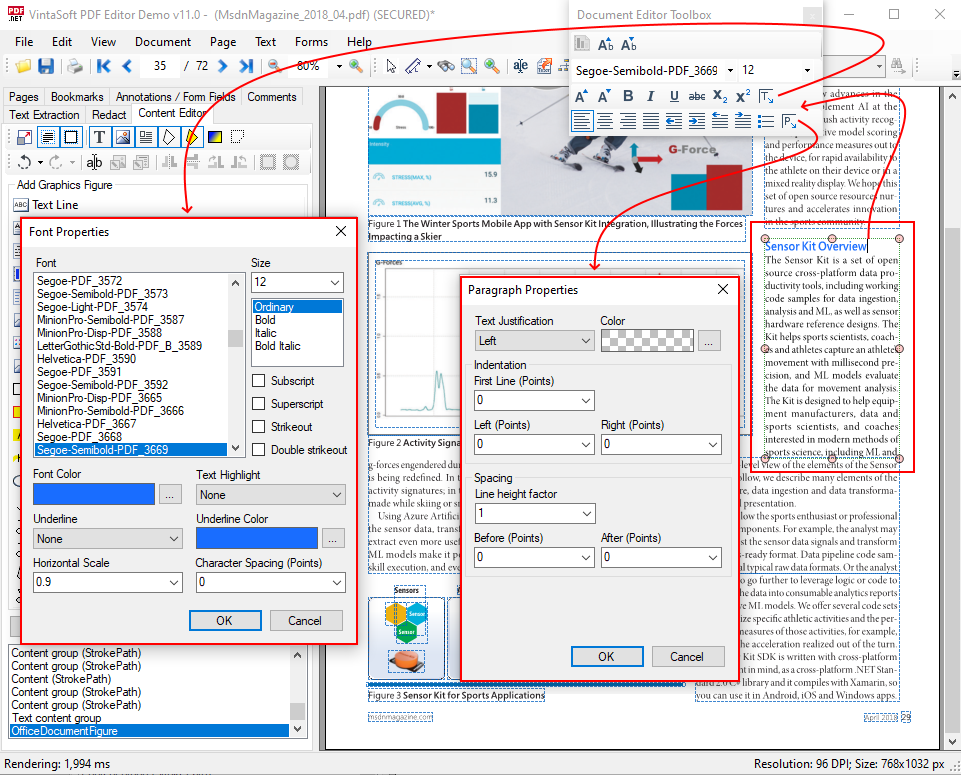
- テキストプロパティの変更: フォント、サイズ、色、太字、斜体、下線、上付き文字、下付き文字、水平スケール、文字間隔
- 水平テキスト配置の変更: 左、右、中央、幅
- 段落のインデントの変更
- 段落の背景色の変更
- 行間隔の変更
- 番号付きリストの作成
以下は PdfEditorDemo アプリケーションのスクリーンショットです。リッチテキストの編集中にテキストと段落のプロパティが表示されます。
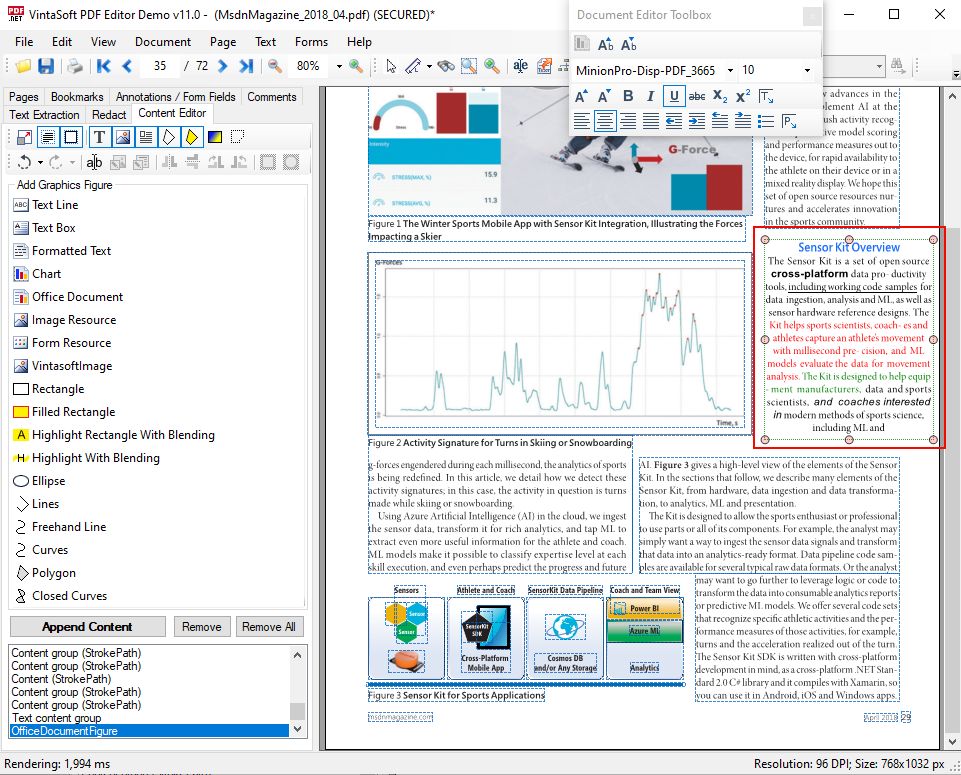
以下は PdfEditorDemo アプリケーションのスクリーンショットです。編集されたテキストブロックが表示されます。
WinForms/WPF ビューアで PDF ページのベクターグラフィックを編集
PdfContentEditorTool /
WpfPdfContentEditorTool を使用すると、WinForms/WPF ビューアーの PDF ページでマウスを使用してベクター グラフィックを変換、コピー、変更できます。
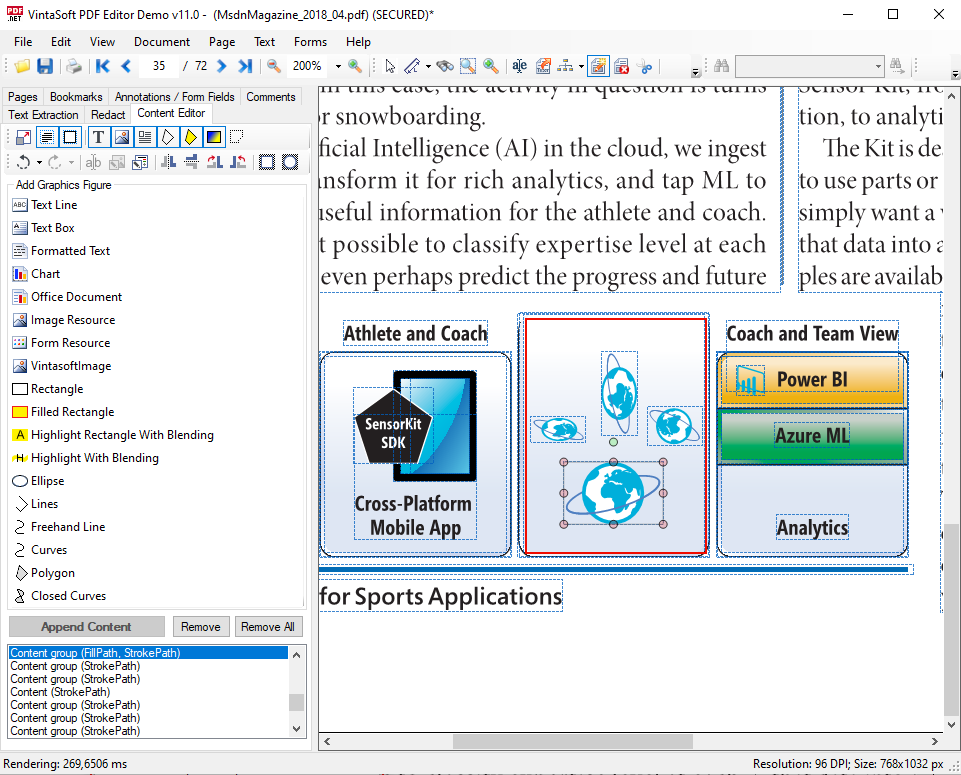
以下はPdfEditorDemo アプリケーションのスクリーンショット。PDF ページでベクター グラフィックの図を選択して変換する方法を示します。
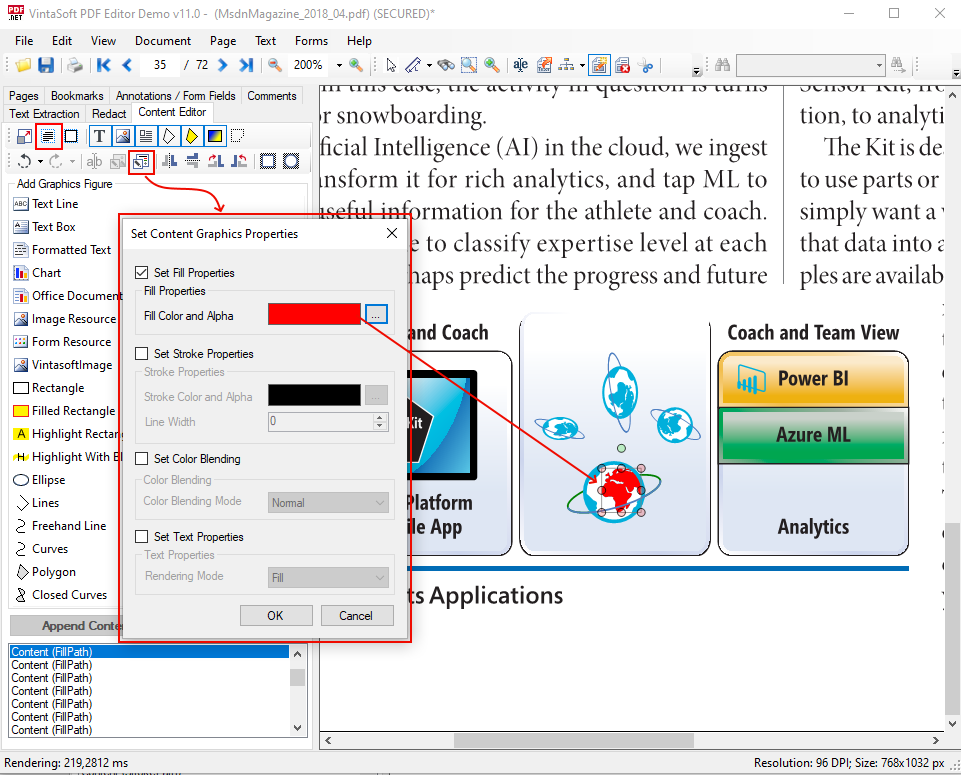
 PdfContentEditorTool.SetContentGraphicsProperties
 メソッドを使用すると、グラフィック図のグラフィック状態を設定できます。
これは PdfEditorDemo アプリケーションのスクリーンショットで、PDF ページで図のグループ化を解除し、ベクター グラフィックの図のグラフィック状態プロパティを変更する方法を示します。
WinForms/WPF ビューアーで PDF ページ上の画像またはフォームを置き換えます。
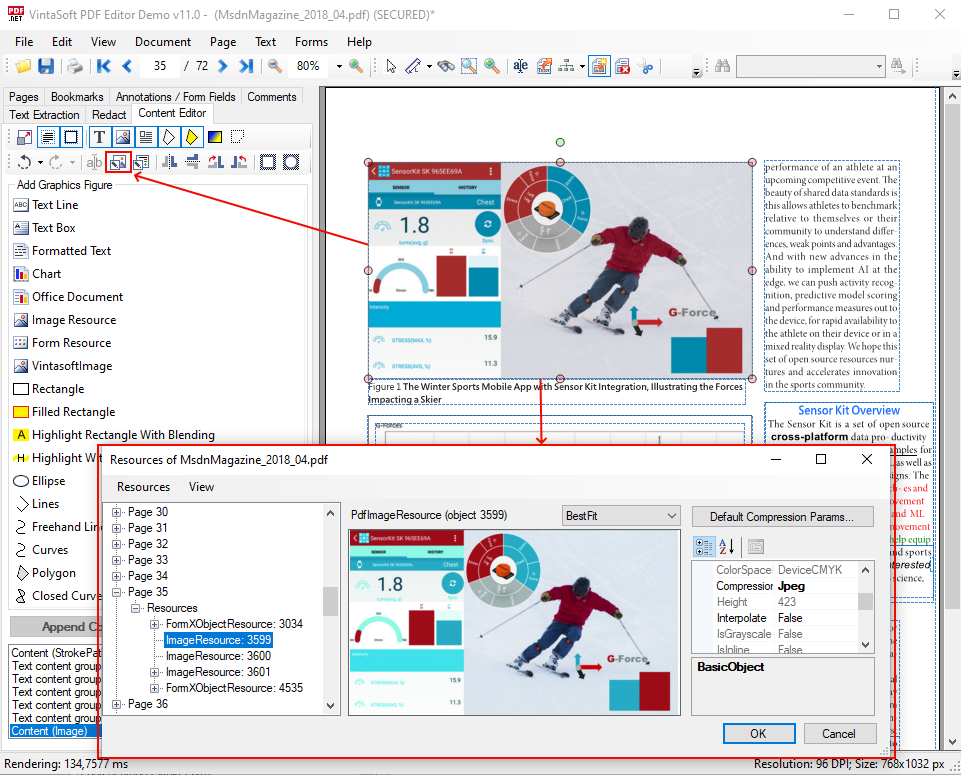
WinForms/WPF ビューアーの PDF ページにある既存の画像またはフォームは、
PdfContentEditorTool.ReplaceResource メソッドを使用して置き換えることができます。
これは PdfEditorDemo アプリケーションのスクリーンショットで、PDF ページで選択した画像の画像リソースに関する情報を含むダイアログを示します。
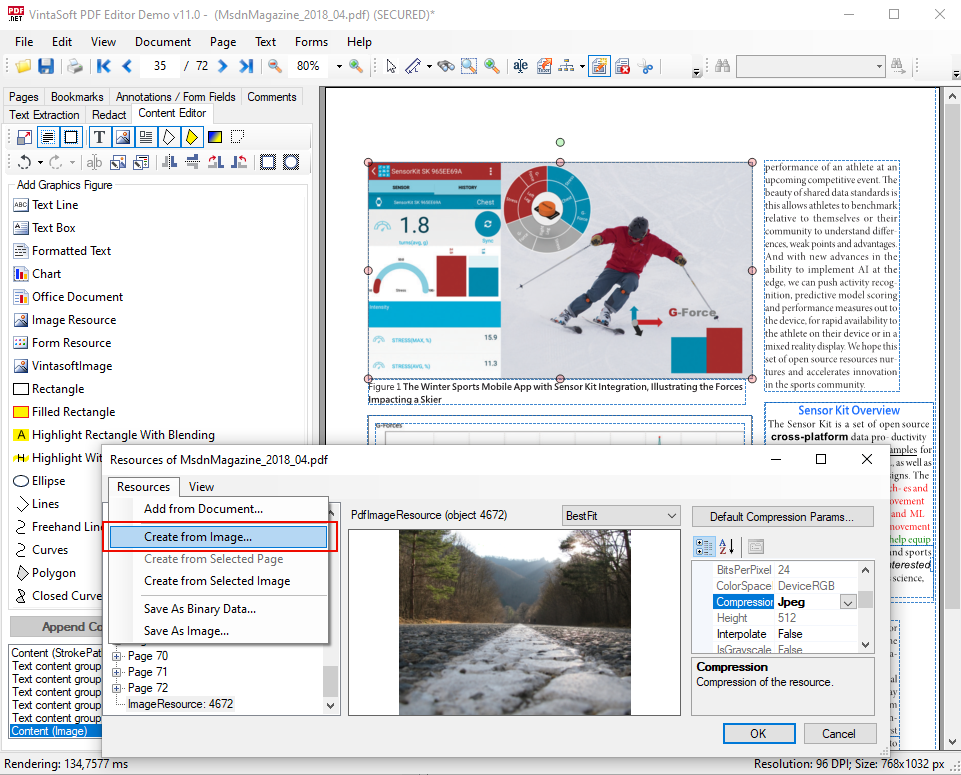
これは PdfEditorDemo アプリケーションのスクリーンショットで、画像ファイルから新しい画像リソースを作成し、それを PDF ページで選択した画像の画像リソースとして使用する方法を示します。
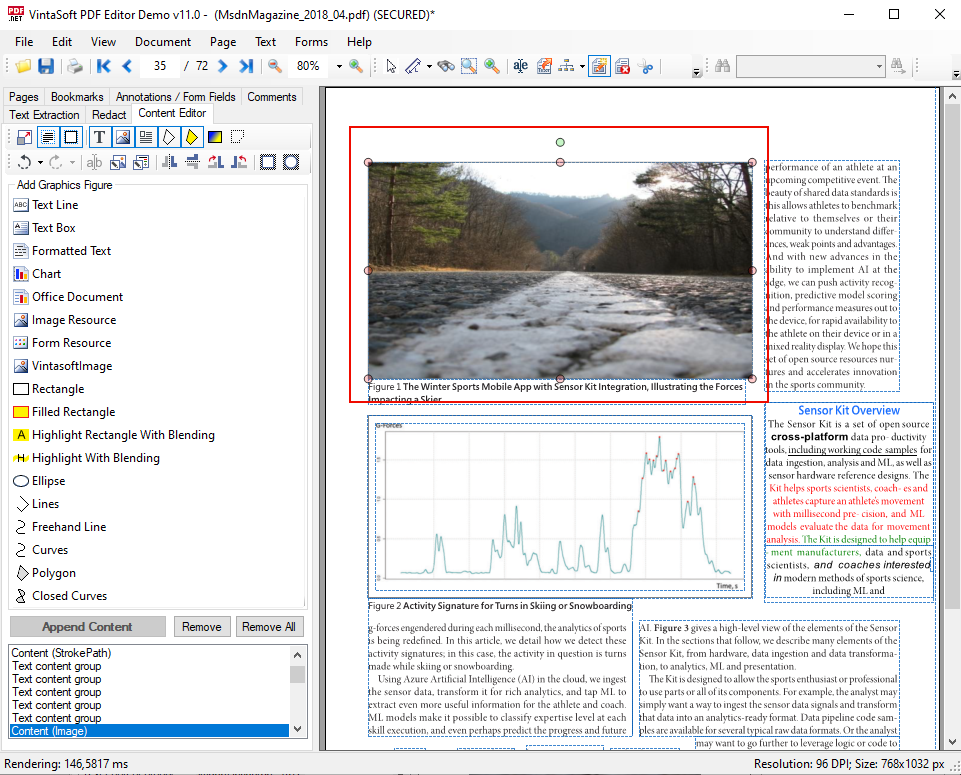
これは PdfEditorDemo アプリケーションのスクリーンショットで、PDF ページに変更された画像を表示します。
WinForms/WPF ビューアで PDF ページの図のクリッピング領域を作成、変更、削除します
PdfContentEditorTool.AddFigureClip メソッドを使用して、PDF ページ上の任意の図に新しいクリッピング領域を追加できます。
以下は PdfEditorDemo アプリケーションのスクリーンショットです。これは、PDF ページ上の画像の楕円形のクリッピング領域を設定する方法を示しています:
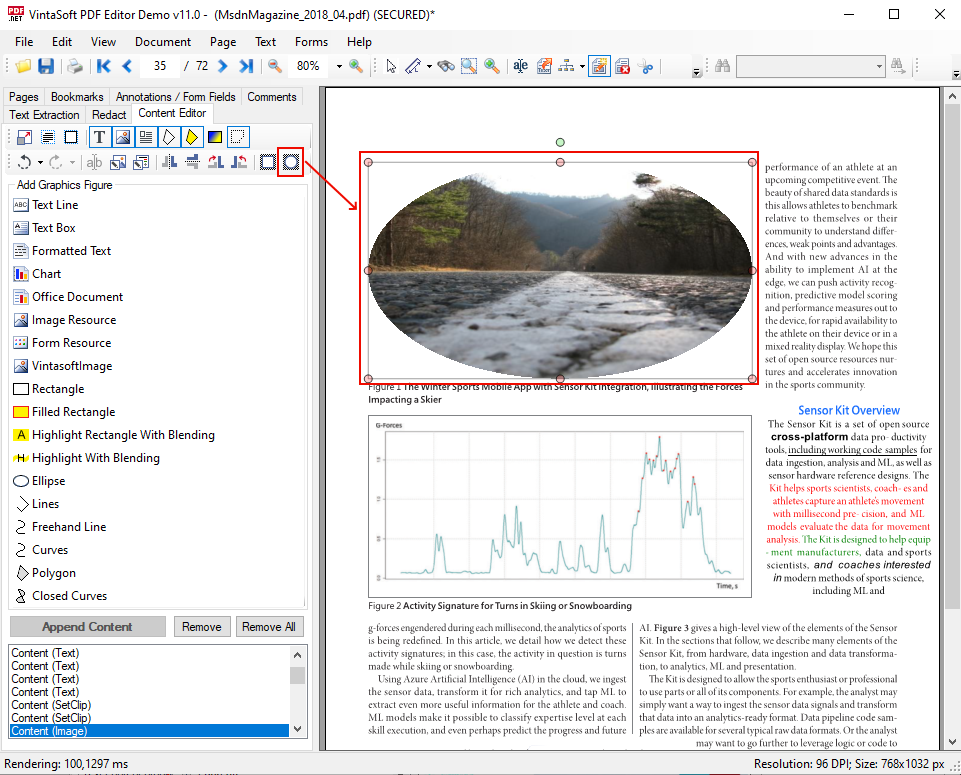
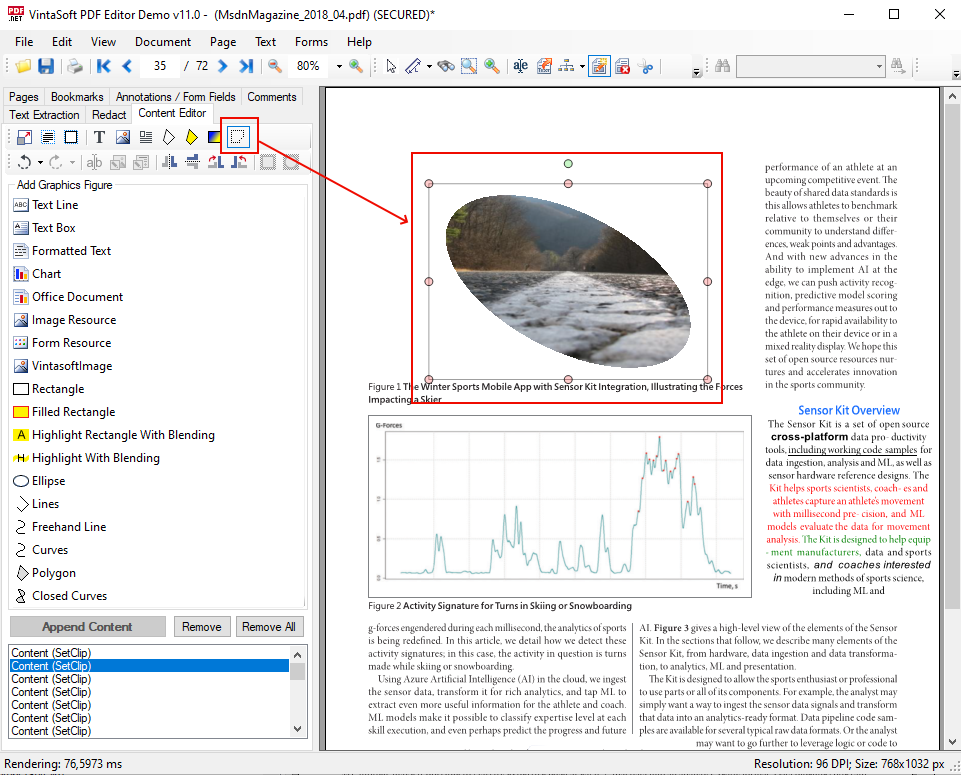
PDF ページ上の任意の図の既存のクリッピング領域は、マウスを使用して選択、変換、または削除できます。
以下は、PDF ページ上の画像クリッピング領域の変換を示す PdfEditorDemo アプリケーションのスクリーンショットです。
WinForms/WPF ビューアーで PDF ページにグラフィックを追加
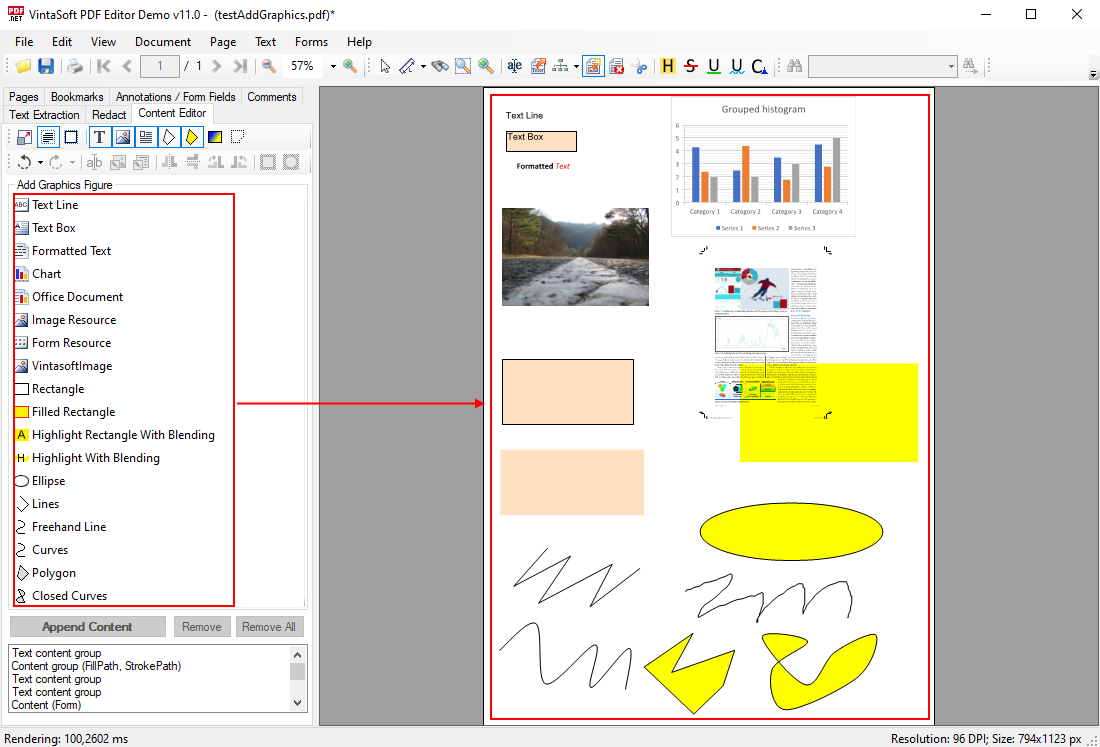
PdfContentEditorTool を使用すると、次のグラフィック図を PDF ページに追加できます。
- テキスト行
- テキスト ボックス
- 書式設定されたテキスト
- グラフ
- DOCX 文書に基づくマークアップ
- PDF または DOCX 文書のページ
- サポートされている任意の形式の画像
- 現在の PDF 文書または別の PDF 文書からのフォームまたは画像リソース
- 四角形
- 楕円
- 多角形
- ポリライン
- 曲線
PdfContentEditorTool.AddFigure メソッドを使用すると、グラフィック図を PDF ページに追加できます。
PdfContentEditorTool.StartBuildFigure メソッドを使用すると、マウスを使用して PDF ページへのグラフィック図の構築を開始できます。
以下は PdfEditorDemo アプリケーションのスクリーンショットです。これは PDF ページにグラフィックを追加する方法を示しています。
WinForms/WPF ビューアで PDF ページにグラフを追加する
SDK は、PDF ページに DOCX ページを描画できる
OfficeDocumentFigure クラスを提供します。
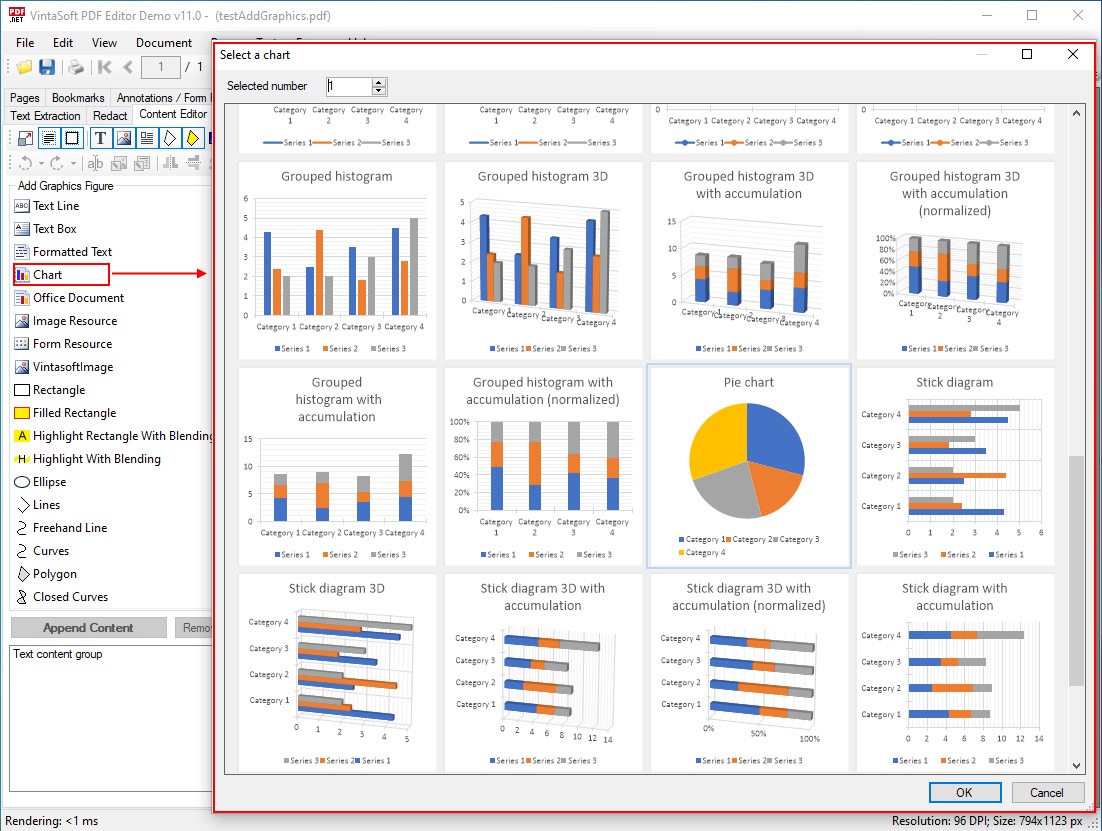
PDF エディター デモでは、グラフを含む DOCX ページを PDF ページに追加する方法 (
PdfContentEditorTool.AddFigure と
PdfContentEditorTool.StartBuildFigure を使用して PDF ページに
OfficeDocumentFigure を追加/構築) を示します。方法)。
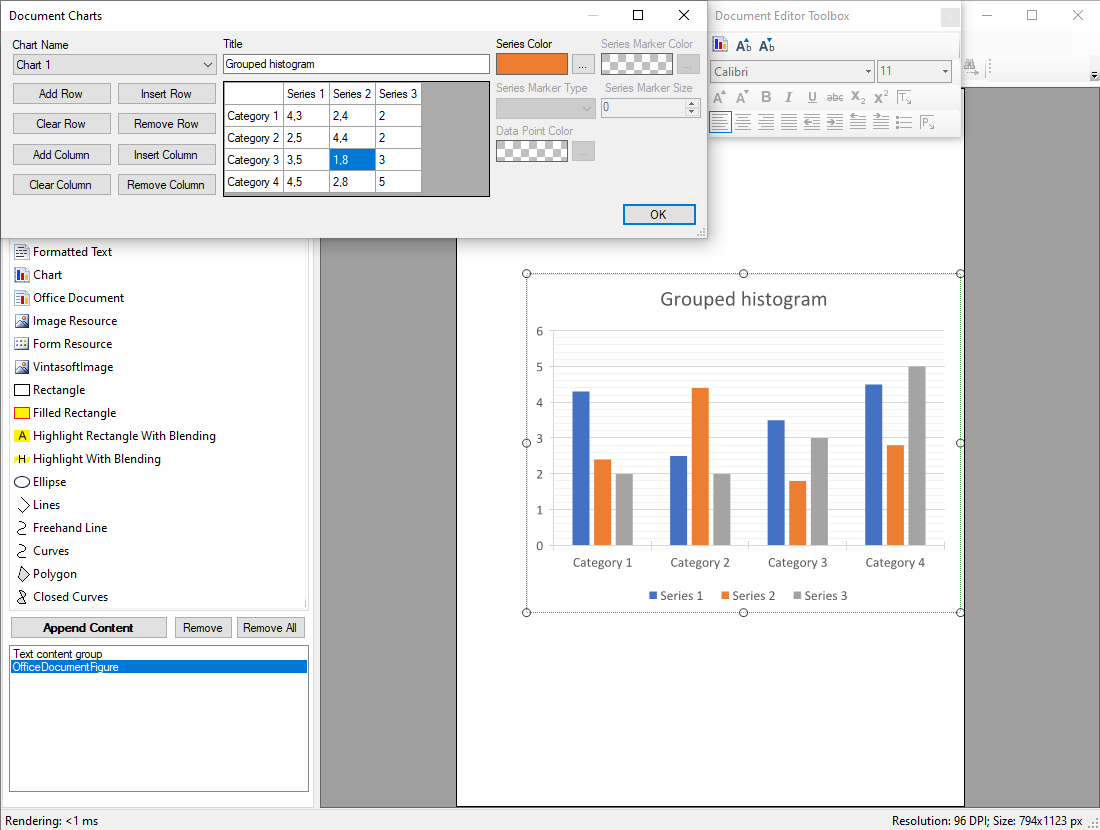
以下は PdfEditorDemo アプリケーションのスクリーンショットです。これは PDF ページに追加するグラフを選択する方法を示しています。
また、PDF エディター デモでは、グラフ データを変更し、ビューアで PDF ページでグラフの変更を表示する方法も示しています。
以下は、PDF ページでチャートを選択し、チャートのプロパティを編集する方法を示す PdfEditorDemo アプリケーションのスクリーンショットです。
WinForms/WPF ビューアで PDF ページの内容を編集するための要件
WinForms/WPF ビューアで PDF ページのコンテンツを編集する場合は、次の VintaSoft 製品が必要です。