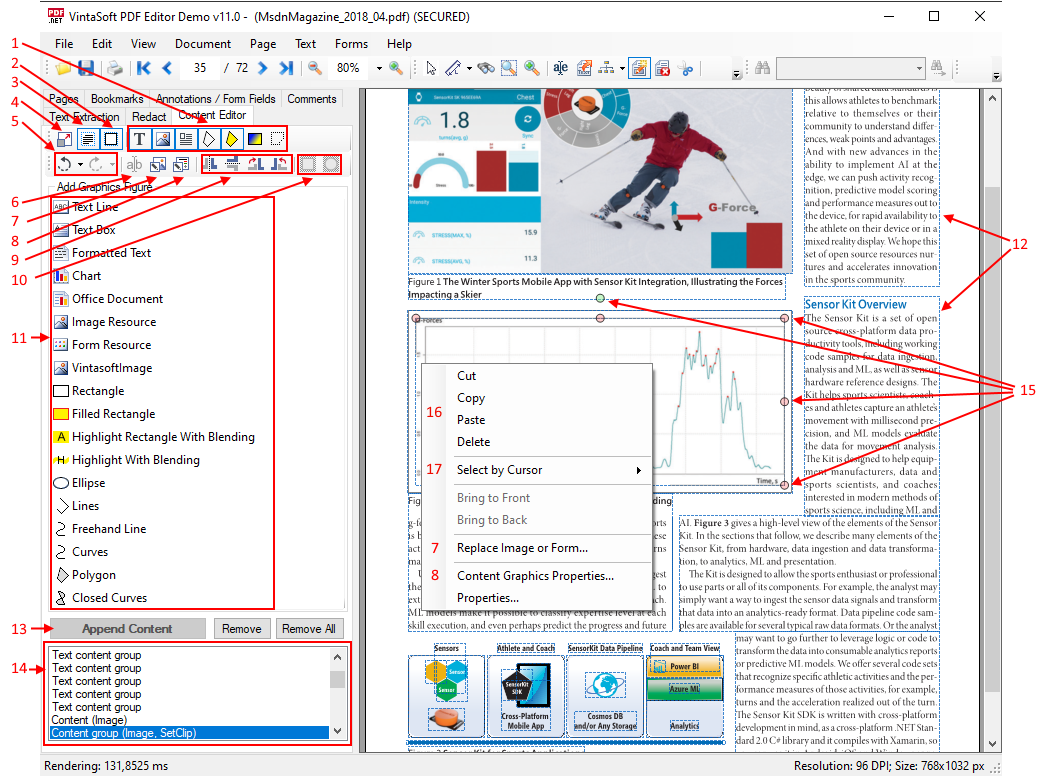
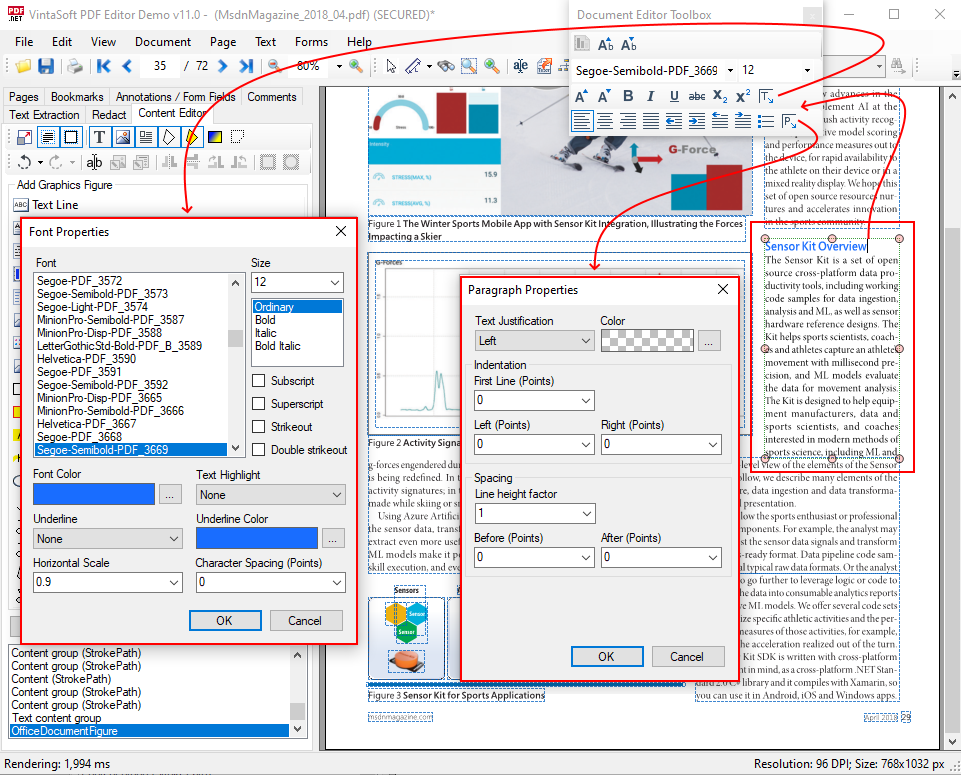
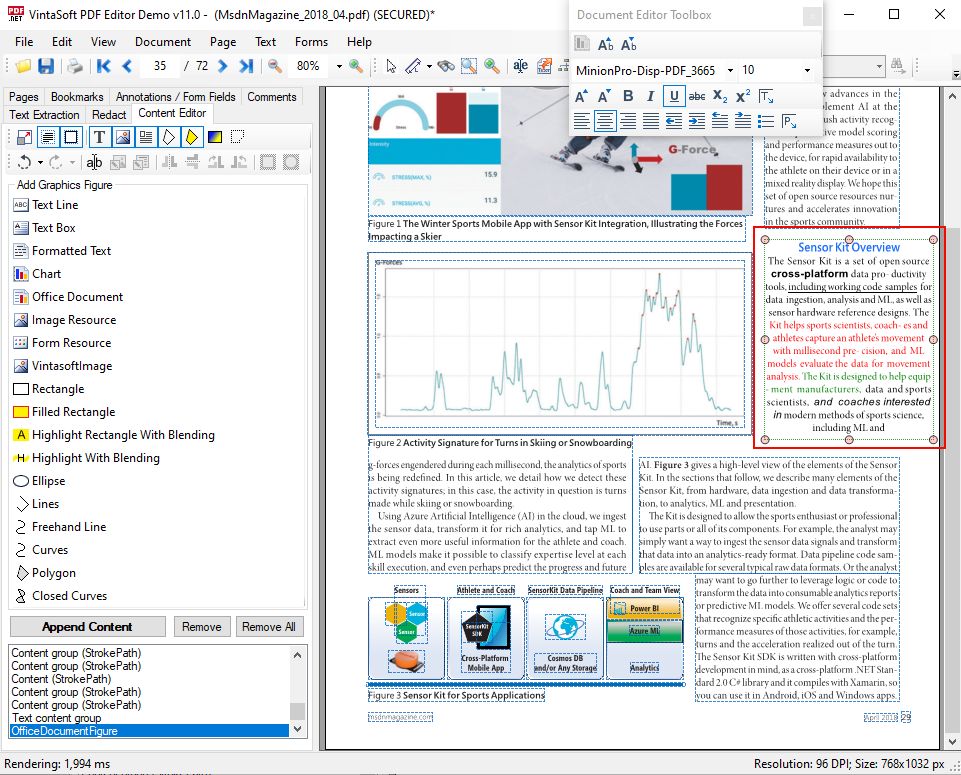
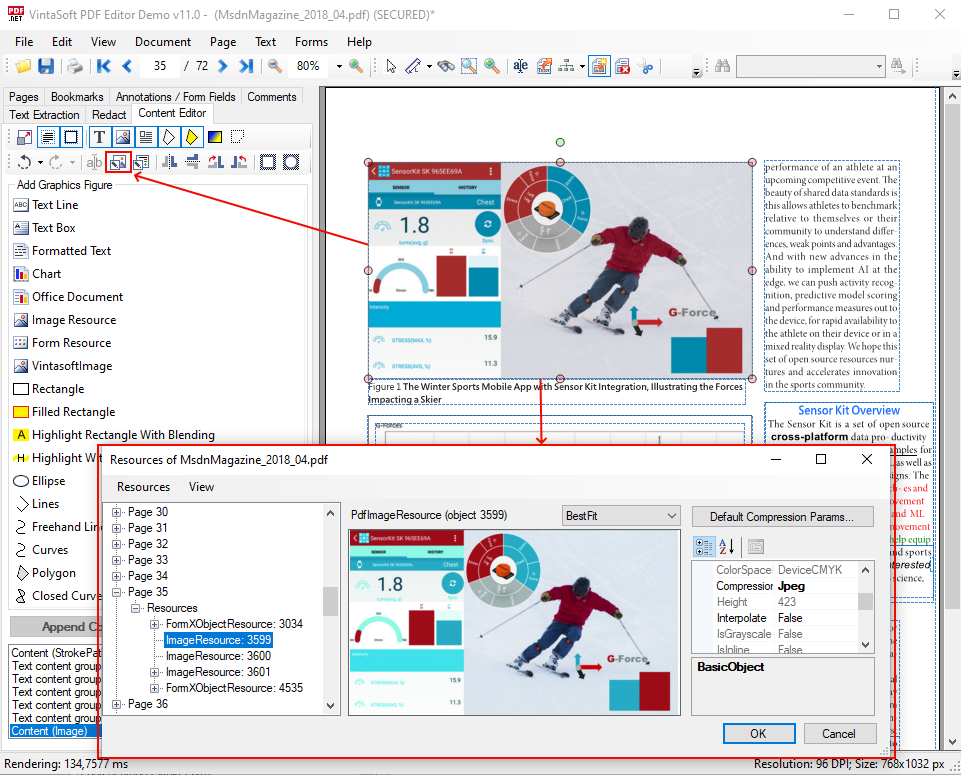
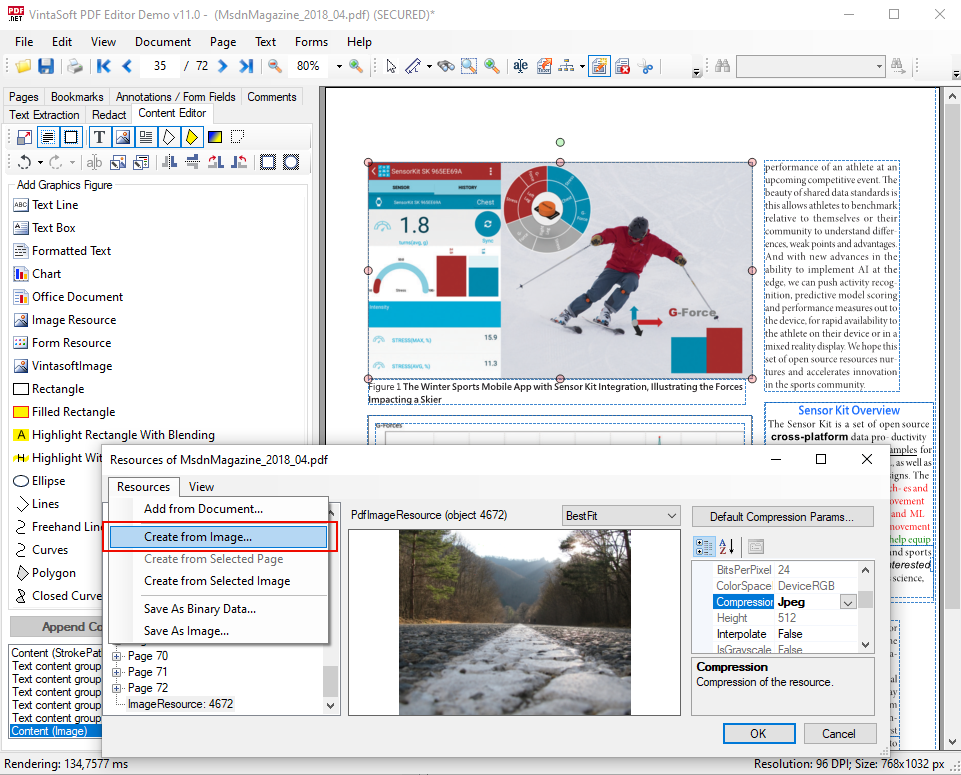
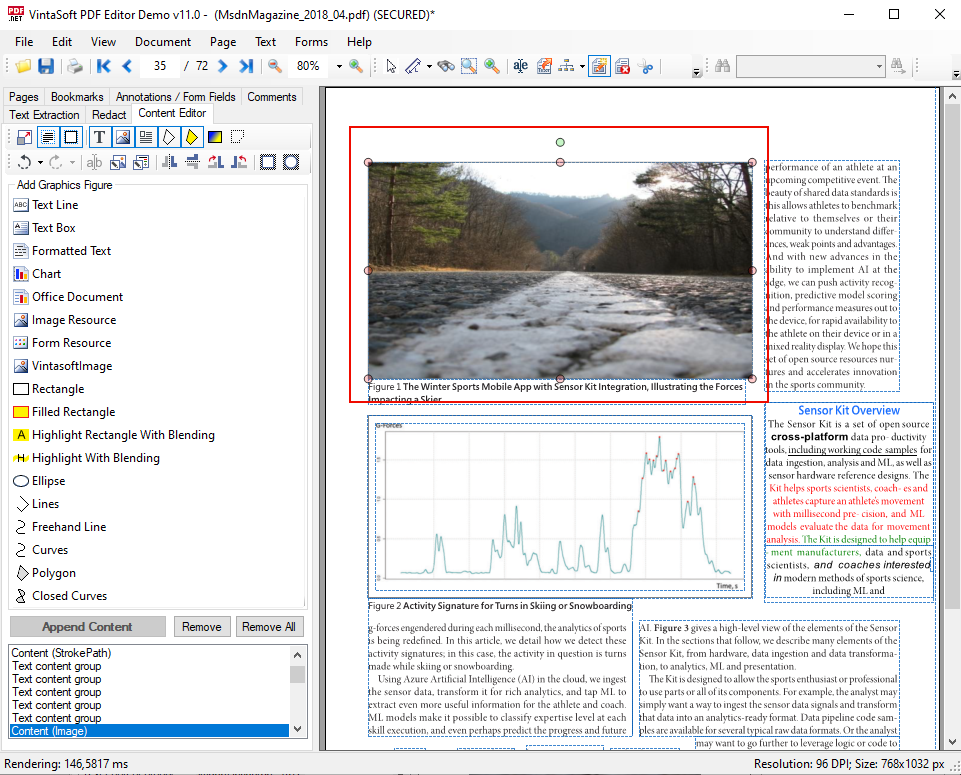
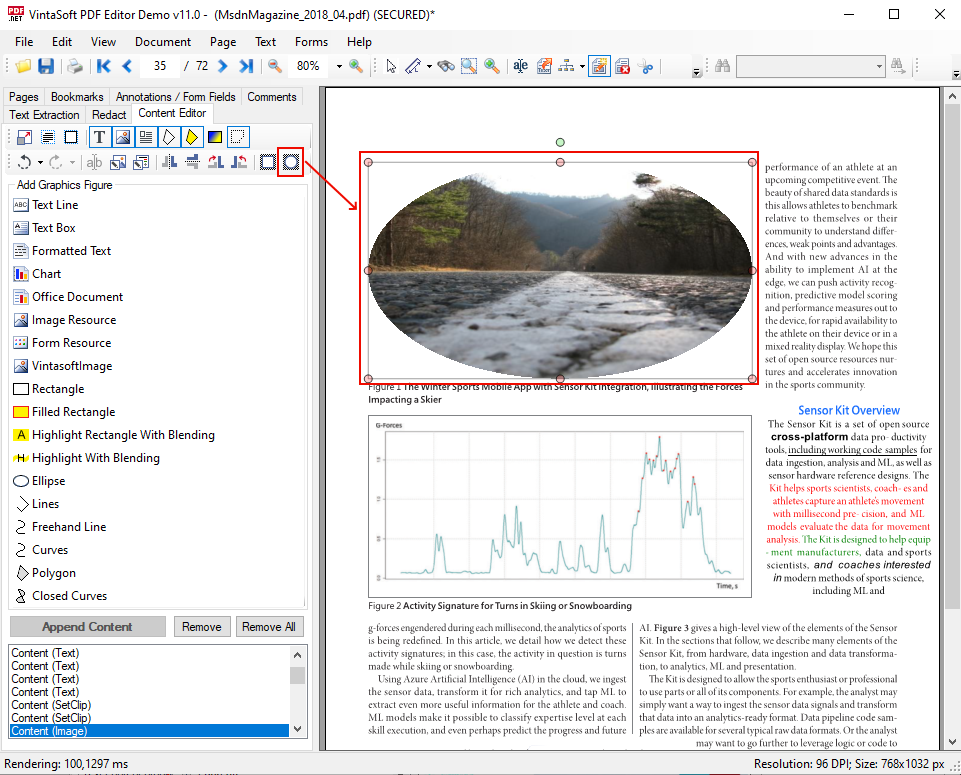
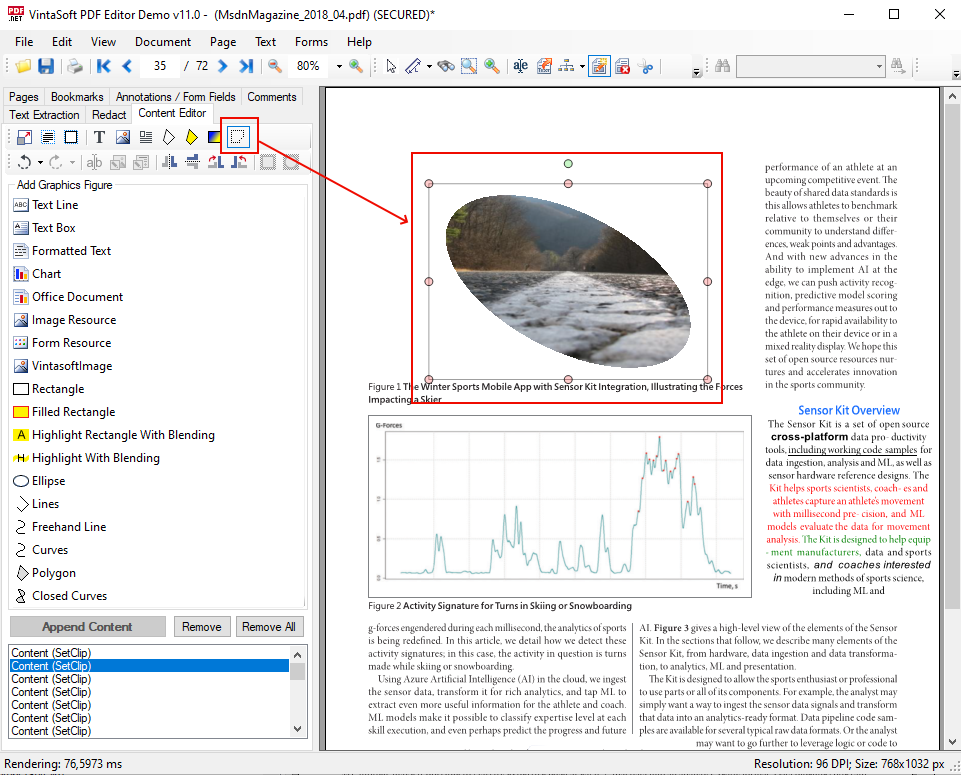
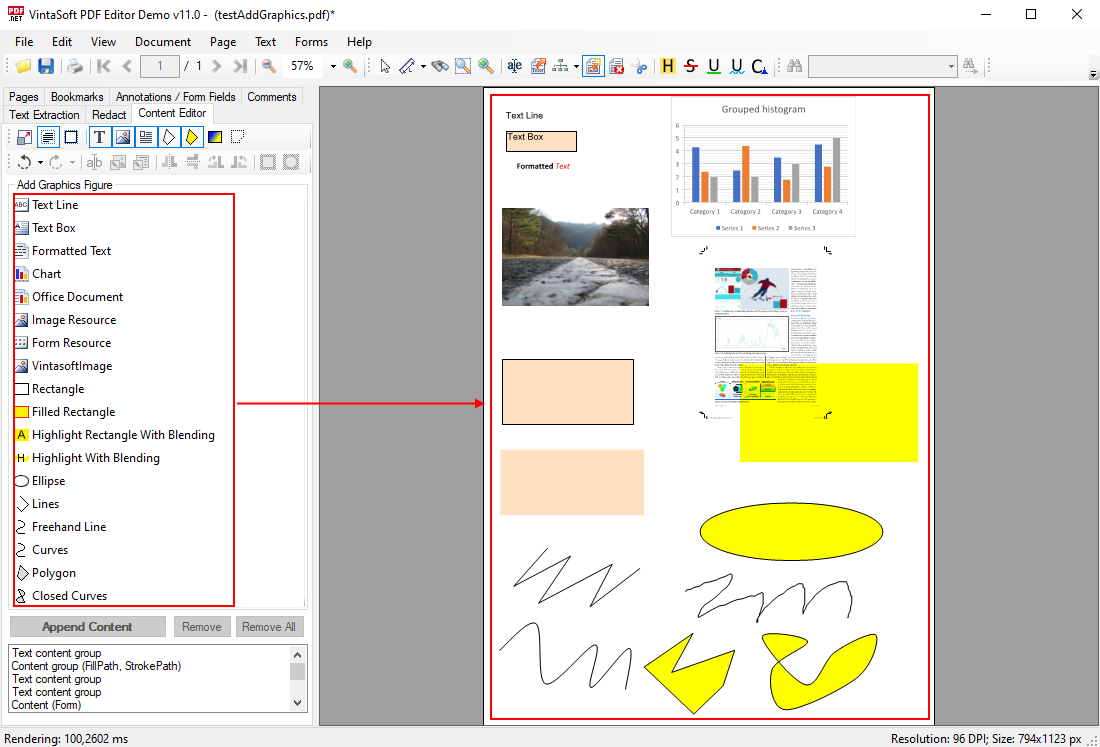
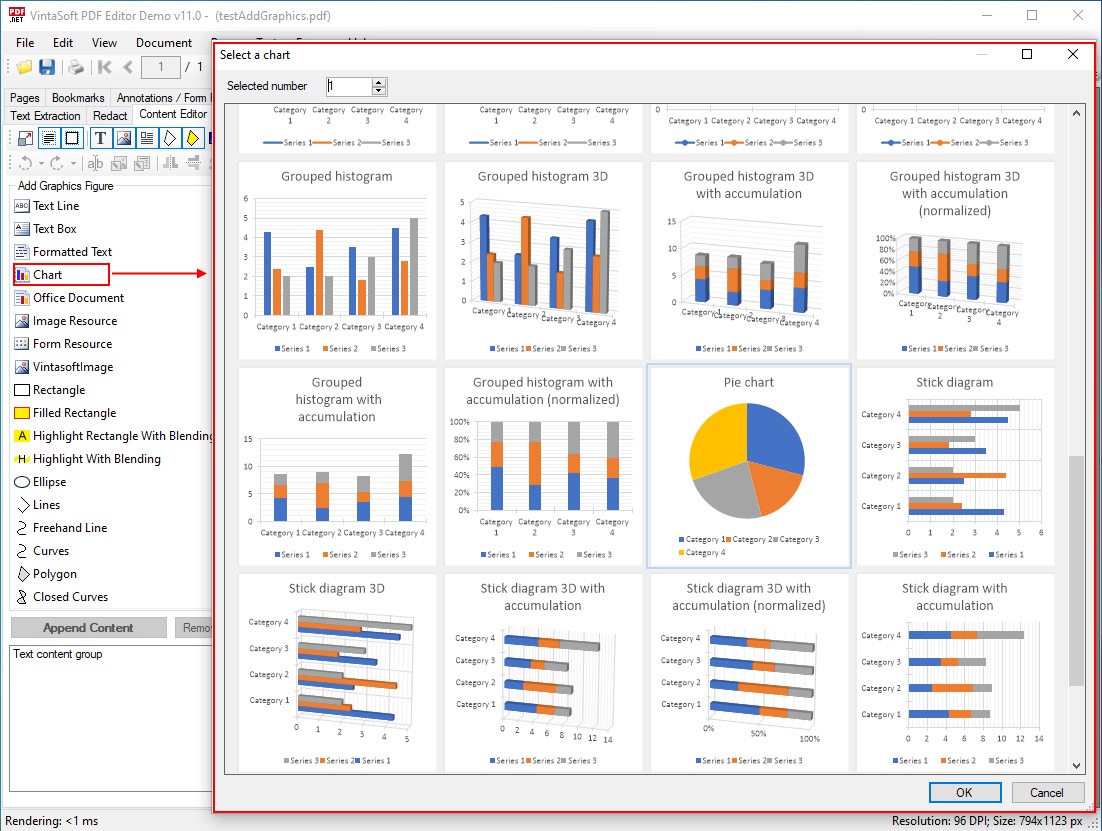
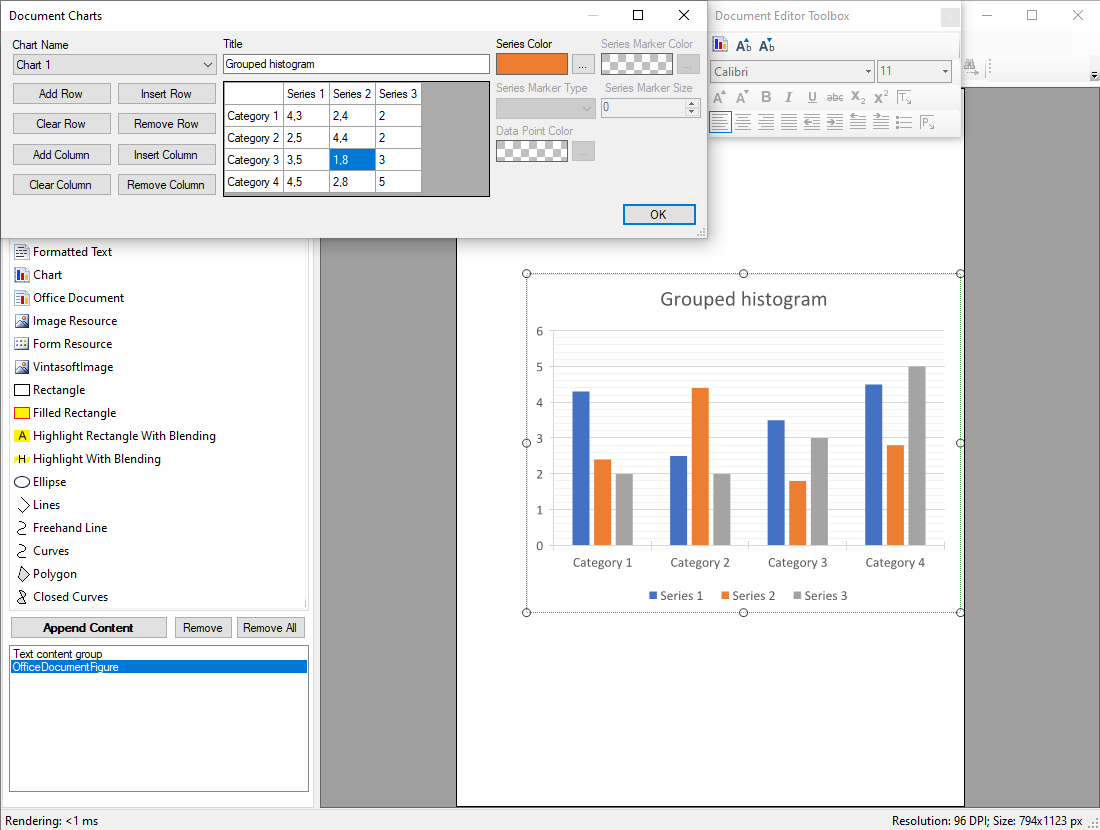
在 WinForms/WPF 查看器中编辑 PDF 页面内容。
2022/01/20

// The project, which uses this code, must have references to the following assemblies:
// - Vintasoft.Imaging
// - Vintasoft.Imaging.UI
// - Vintasoft.Imaging.Office.OpenXml
// - Vintasoft.Imaging.Office.OpenXml.UI
// - Vintasoft.Imaging.Pdf
// - Vintasoft.Imaging.Pdf.UI
// - Vintasoft.Imaging.Pdf.Office.UI

public partial class FormWithPdfEditorTool : System.Windows.Forms.Form
{
    //...
    Vintasoft.Imaging.UI.ImageViewer _imageViewer;
    //...

    /// <summary>
    /// The PDF content editor tool.
    /// </summary>
    Vintasoft.Imaging.Pdf.UI.PdfContentEditorTool _contentEditorTool;

    /// <summary>
    /// The undo manager.
    /// </summary>
    Vintasoft.Imaging.Undo.UndoManager _undoManager = new Vintasoft.Imaging.Undo.UndoManager(20);

    public FormWithPdfEditorTool()
    {
        //...
        // initialize Vintasoft.Imaging.Pdf.Office.UI assembly
        Vintasoft.Imaging.PdfOfficeUIAssembly.Init();

        // create visual tool that allows to edit content on PDF page
        _contentEditorTool = new Vintasoft.Imaging.Pdf.UI.PdfContentEditorTool();

        // specify that PDF content editor tool should add and edit content on PDF page
        _contentEditorTool.AppendMode = false;

        // specify that PDF content editor tool should highlight content figures
        _contentEditorTool.FiguresHighlight = true;

        // specify that PDF content editor tool should not render figures on PDF page when current page is changed in image viewer
        _contentEditorTool.RenderFiguresWhenImageIndexChanging = false;

        // specify that PDF content editor tool should render figures on PDF page when PDF content editor tool is deactivating
        _contentEditorTool.RenderFiguresWhenDeactivating = true;

        // specify undo manager for PDF content editor tool
        _contentEditorTool.UndoManager = _undoManager;

        // specify that PDF content editor tool should work only with content of specified types
        _contentEditorTool.InteractiveContentType =
            Vintasoft.Imaging.Pdf.Drawing.GraphicsFigures.GraphicsFigureContentType.Text |
            Vintasoft.Imaging.Pdf.Drawing.GraphicsFigures.GraphicsFigureContentType.Image |
            Vintasoft.Imaging.Pdf.Drawing.GraphicsFigures.GraphicsFigureContentType.Form |
            Vintasoft.Imaging.Pdf.Drawing.GraphicsFigures.GraphicsFigureContentType.StrokePath |
            Vintasoft.Imaging.Pdf.Drawing.GraphicsFigures.GraphicsFigureContentType.FillPath;

        // create visual tool that allows to edit text in text content on PDF page
        Vintasoft.Imaging.Office.OpenXml.UI.VisualTools.UserInteraction.OfficeDocumentVisualEditorTextTool contentEditorTextTool =
            new Vintasoft.Imaging.Office.OpenXml.UI.VisualTools.UserInteraction.OfficeDocumentVisualEditorTextTool();

        // create the composite visual tool and set it as a current tool of image viewer
        _imageViewer.VisualTool = new Vintasoft.Imaging.UI.VisualTools.CompositeVisualTool(contentEditorTextTool, _contentEditorTool);
    }

    //...

    private void drawEllipseToolStripButton_Click(object sender, System.EventArgs e)
    {
        // start building an ellipse
        _contentEditorTool.StartBuildEllipse(
            new Vintasoft.Imaging.Pdf.Drawing.PdfPen(System.Drawing.Color.Red, 5),
            new Vintasoft.Imaging.Pdf.Drawing.PdfBrush(System.Drawing.Color.Green));
    }
}