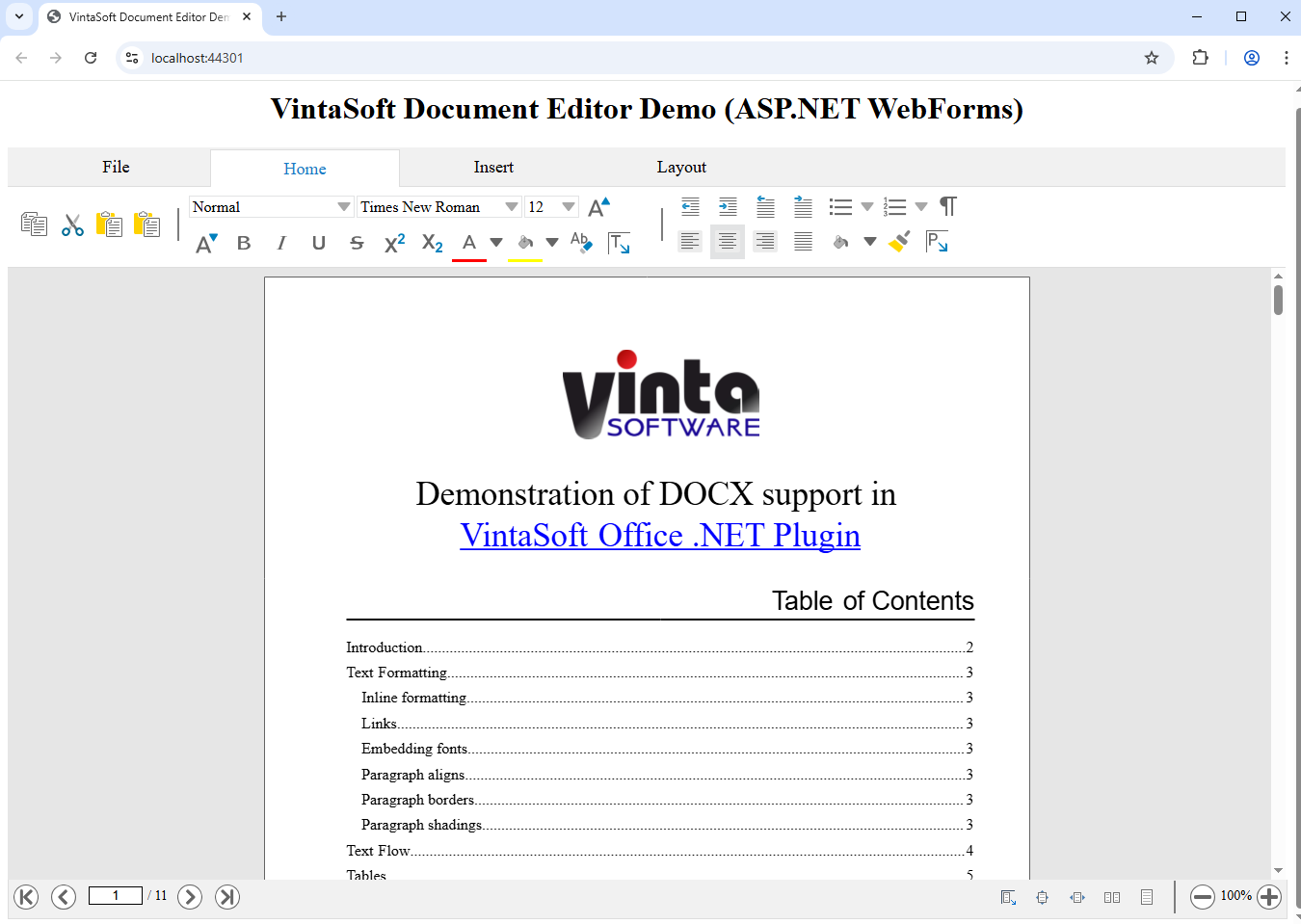
Add web document editor to an ASP.NET WebForms application
In This Topic
This tutorial shows how to create a blank ASP.NET Web application in Visual Studio .NET 2019 and add web document editor (with ability to open, edit and save DOCX document) to an ASP.NET WebForms application.
Here are steps, which must be done:
-
Create a blank ASP.NET WebForms application.
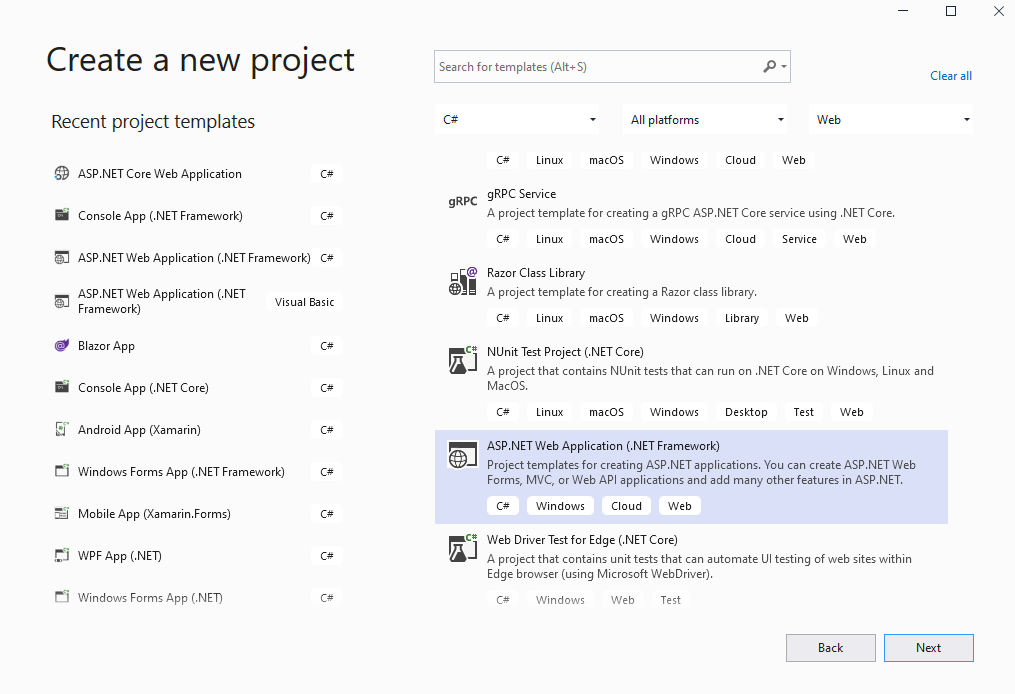
Open Visual Studio .NET 2019 and create a new project, of ASP.NET Web application type, and configure the project to use .NET Framework 4.7.2:
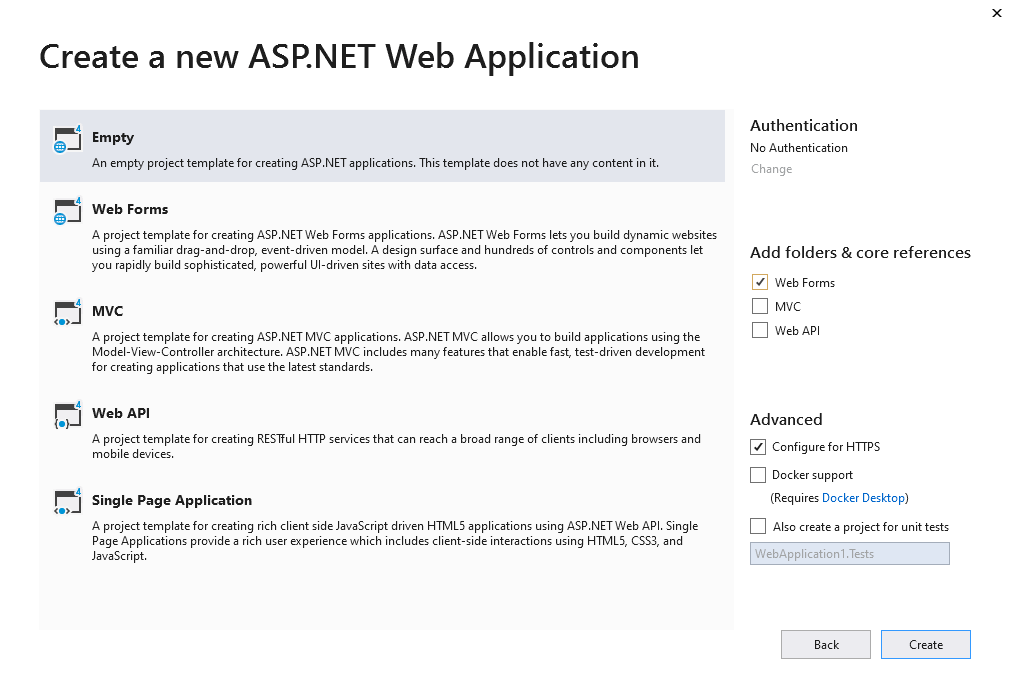
Select the "Empty" template for ASP.NET Web application and configure the project to use WebForms:
-
Server side: Add references to the Vintasoft assemblies to your ASP.NET WebForms application.
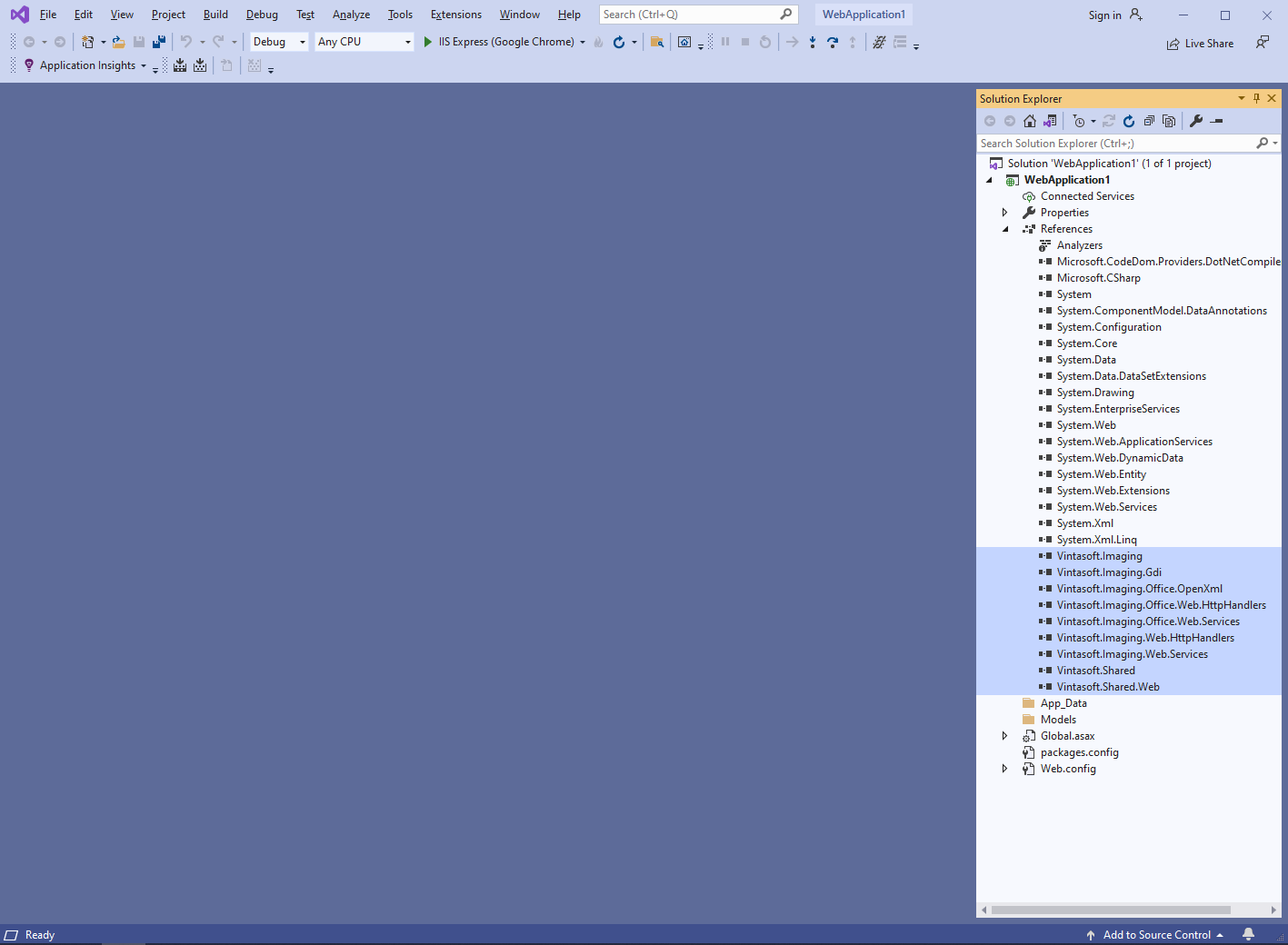
Add references to the Vintasoft.Shared.dll, Vintasoft.Imaging.dll, Vintasoft.Imaging.Office.OpenXml.dll, Vintasoft.Imaging.Pdf.dll, Vintasoft.Shared.Web.dll, Vintasoft.Imaging.Web.Services.dll, Vintasoft.Imaging.Office.Web.Services.dll, Vintasoft.Imaging.Web.Handlers.dll and Vintasoft.Imaging.Office.Web.Handlers.dll assemblies from "<SdkInstallPath>\VintaSoft Imaging .NET 15.1\Bin\DotNet4\AnyCPU\" folder in ASP.NET WebForms application.
-
Server side: Specify drawing engine, which should be used by VintaSoft Imaging .NET SDK for drawing of 2D graphics.
ASP.NET WebForms application should use System.Drawing library as drawing engine because ASP.NET WebForms application can be used in Windows only.
Here are steps, which should be made for using System.Drawing engine:-
Add reference to the Vintasoft.Imaging.Gdi.dll assembly.
- Open "Default.aspx.cs" file, add code line "Vintasoft.Imaging.Drawing.Gdi.GdiGraphicsFactory.SetAsDefault();" at the beginning of Page_Load method - added code specifies that VintaSoft Imaging .NET SDK should use System.Drawing library for drawing of 2D graphics.
-
Add reference to the Vintasoft.Imaging.Gdi.dll assembly.
-
Server side: Create web services, which allow to upload/download file and manage Office documents.
- Add the "Handlers" folder to ASP.NET WebForms application.
-
Create web service that allows to upload/download file
-
Press the right mouse button on the "Handlers" folder and select the "Add => Generic handler" menu from context menu
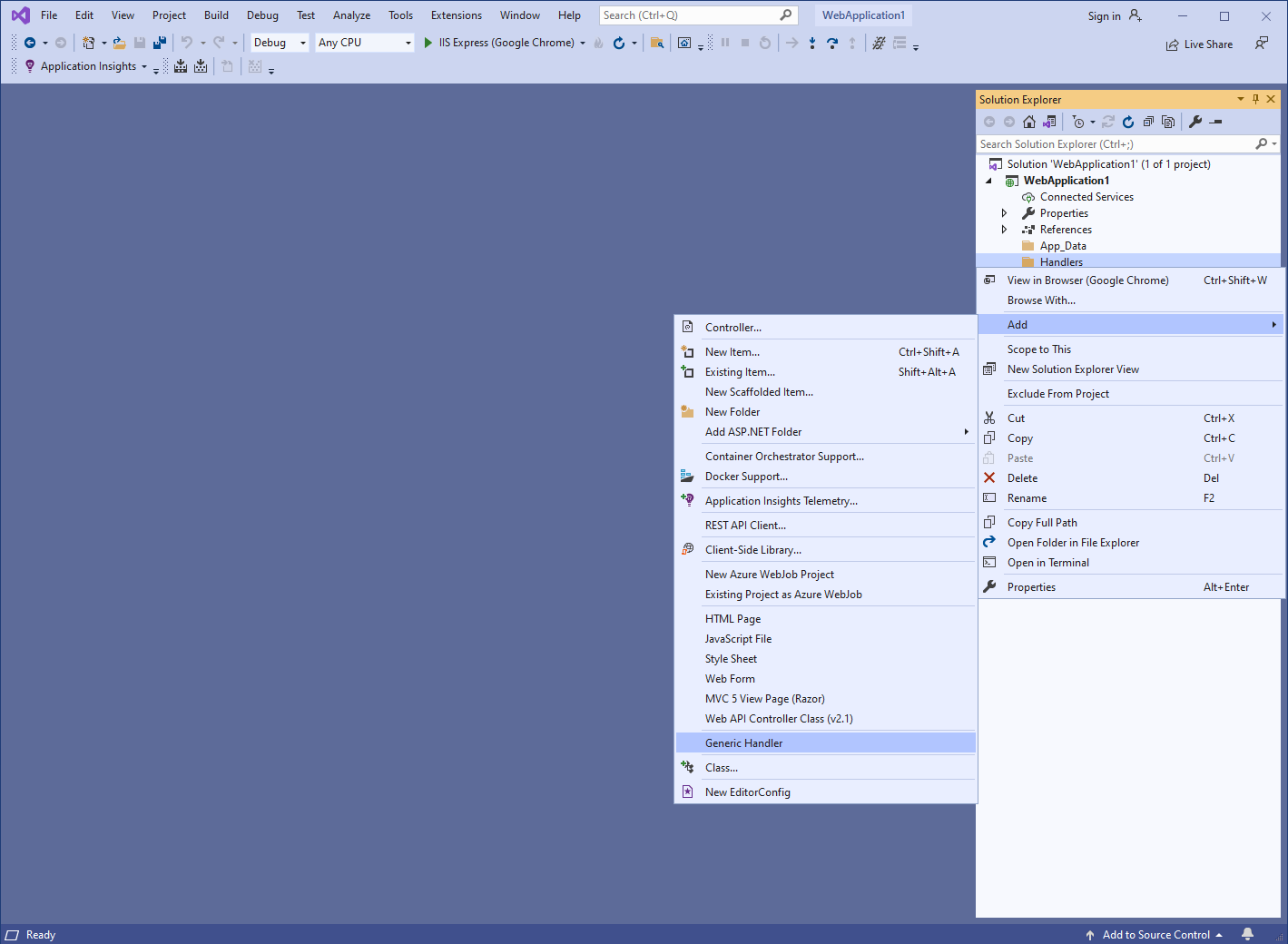
- Specify the handler name "MyVintasoftFileHandler" and press the "Ok" button
-
Specify that MyVintasoftFileHandler class is derived from Vintasoft.Imaging.Web.HttpHandlers.VintasoftFileHandler class
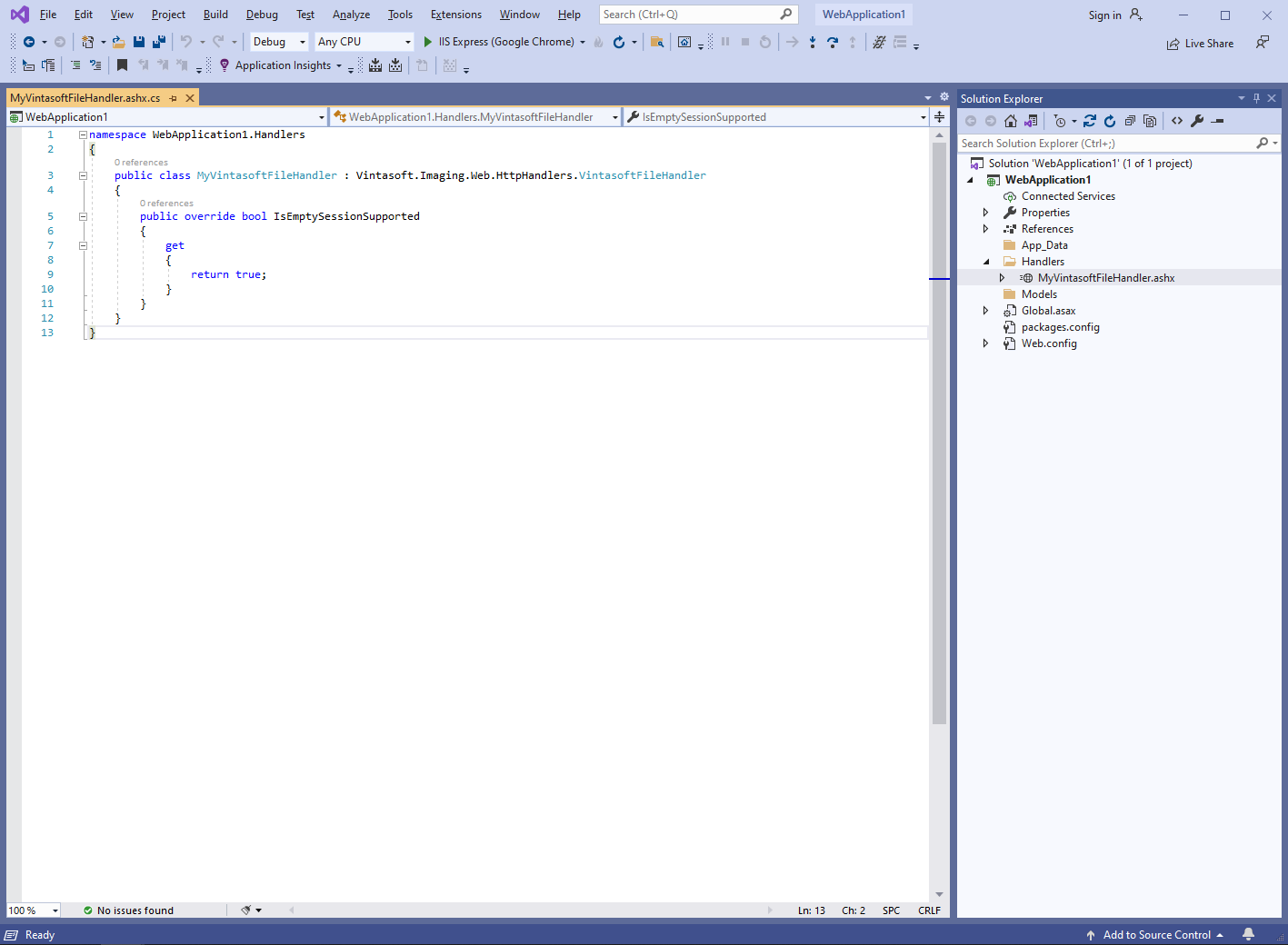
Here are C# source codes of MyVintasoftFileHandler class:
-
Press the right mouse button on the "Handlers" folder and select the "Add => Generic handler" menu from context menu
-
Create web service that allows to edit DOCX document
-
Press the right mouse button on the "Handlers" folder and select the "Add => Generic handler" menu from context menu
- Specify the handler name "MyVintasoftOfficeHandler" and press the "Ok" button
-
Specify that MyVintasoftOfficeHandler class is derived from Vintasoft.Imaging.Office.Web.HttpHandlers.VintasoftOfficeHandler class
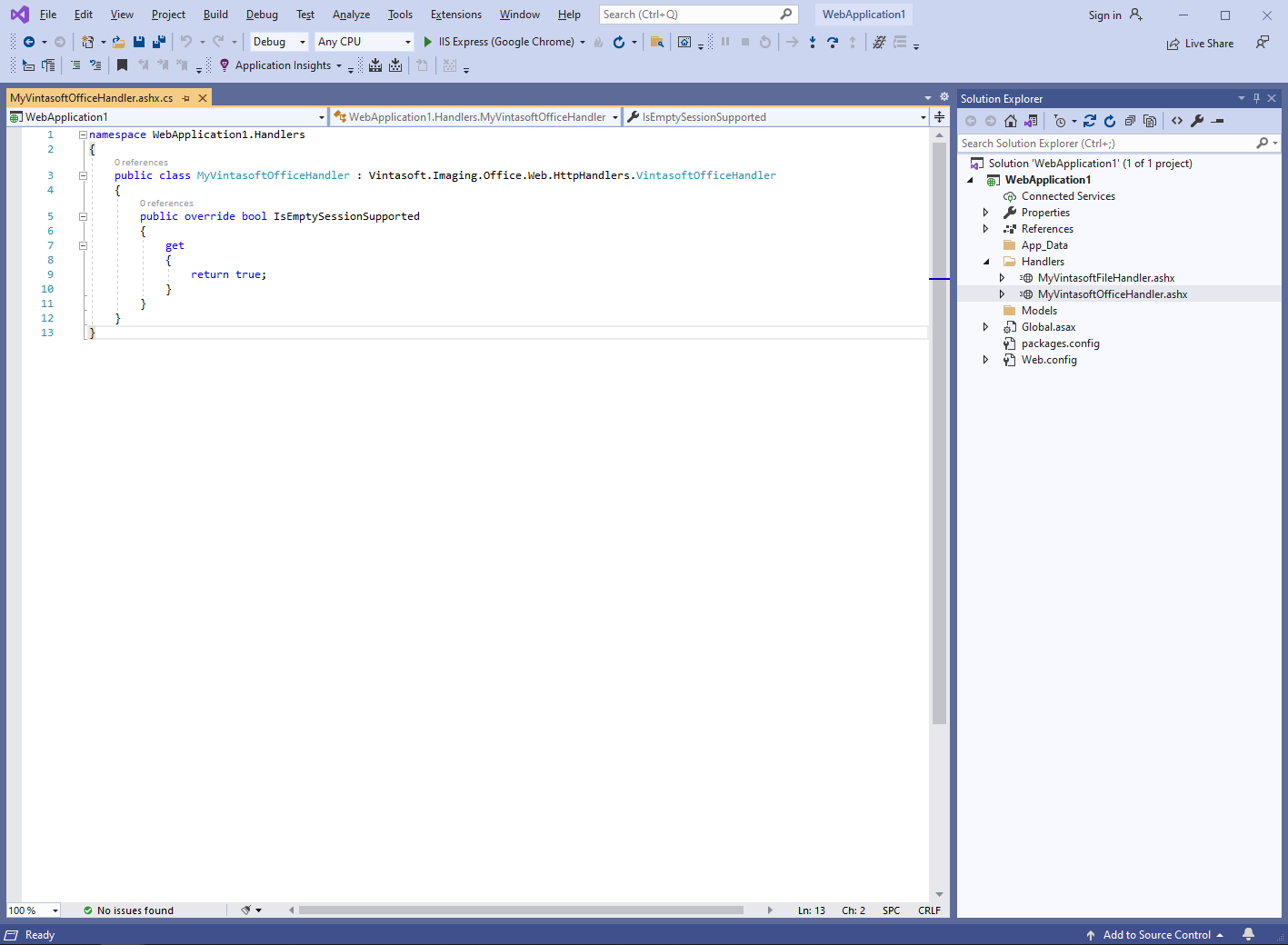
Here are C# source codes of MyVintasoftOfficeHandler class:
-
Press the right mouse button on the "Handlers" folder and select the "Add => Generic handler" menu from context menu
-
Client side: Add JavaScript libraries to the project.
-
Add the "Scripts\" folder to ASP.NET WebForms application if folder does not exist.
-
Copy Vintasoft.Shared.js, Vintasoft.Imaging.js, Vintasoft.Imaging.css, Vintasoft.Imaging.Office.js and Vintasoft.Imaging.Office.css files from "<InstallPath>\VintaSoft Imaging .NET 15.1\Bin\JavaScript\" folder into "Scripts\" folder.
-
Specify, which "standard" UI-dialogs (rename worksheet dialog, find text dialog, etc) should be used by web document editor
-
If web document editor should use ready-to-use "standard" jQuery UI-dialogs:
-
Copy jQuery file into "Scripts\" folder.
You can use "jquery-3.3.1.min.js" file from "<InstallPath>\VintaSoft Imaging .NET 15.1\Examples\ASP.NET WebForms\CSharp\AspNetDocumentEditorDemo\Scripts\External\" folder or jQuery file from any other source. -
Copy jQuery UI files and folders into "Scripts\" folder.
You can use "jquery-ui.min.js" file and "jquery-ui-css" folder from "<InstallPath>\VintaSoft Imaging .NET 15.1\Examples\ASP.NET WebForms\CSharp\AspNetDocumentEditorDemo\Scripts\External\" folder or jQuery UI files and folders from any other source. -
Copy Vintasoft.Imaging.Dialogs.jQueryUI.js and Vintasoft.Imaging.Office.Dialogs.jQueryUI.js files from "<InstallPath>\VintaSoft Imaging .NET 15.1\Bin\JavaScript\" folder into "Scripts\" folder.
-
Copy jQuery file into "Scripts\" folder.
- If web document editor should use custom "standard" dialogs, please read how to create custom "standard" dialogs here.
-
If web document editor should use ready-to-use "standard" jQuery UI-dialogs:
-
Add the "Scripts\" folder to ASP.NET WebForms application if folder does not exist.
-
Client side: Add JavaScript code, which initializes and dispalys web document editor, to the Default web form.
-
Create folder "UploadedImageFiles" and copy test DOCX document to the folder. This document will be displayed in web document editor.
-
Create the Default web form - file "Default.aspx".
-
Press the right mouse button on the project and select the "Add => WebForm" menu from context menu:
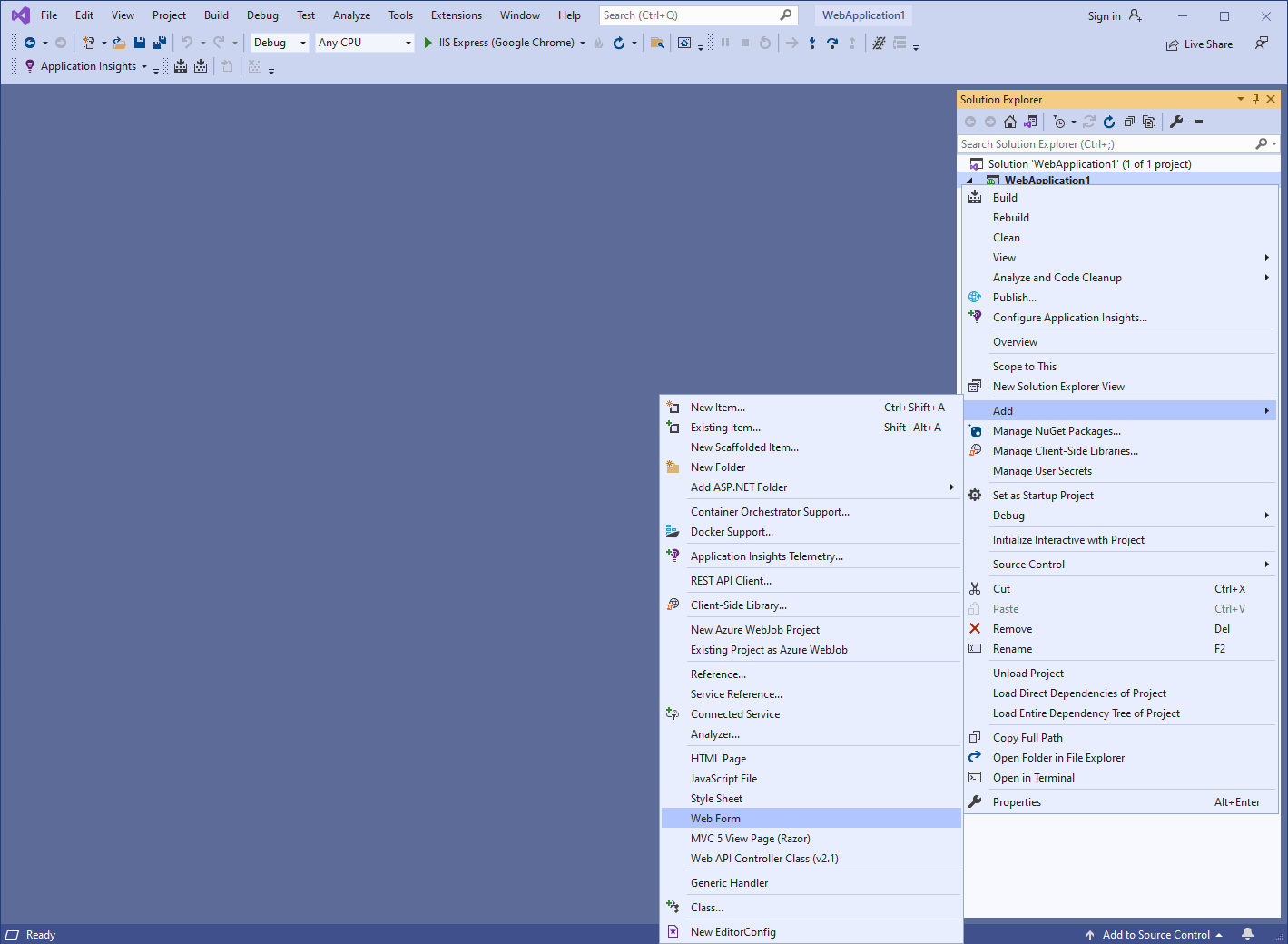
-
Specify "Default" as web form name => created web form will be opened:
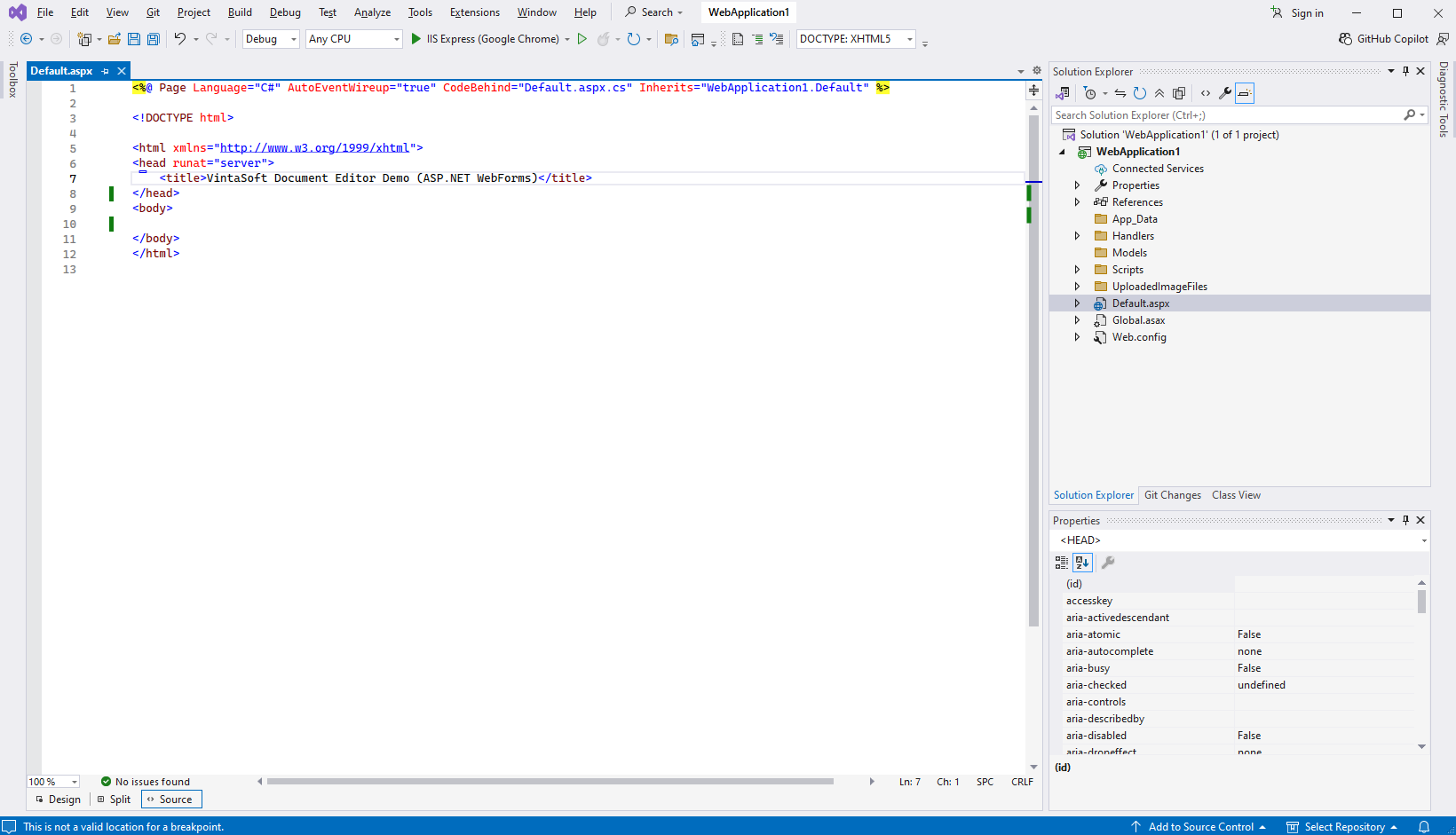
-
Press the right mouse button on the project and select the "Add => WebForm" menu from context menu:
-
Add references to Vintasoft JavaScript files:
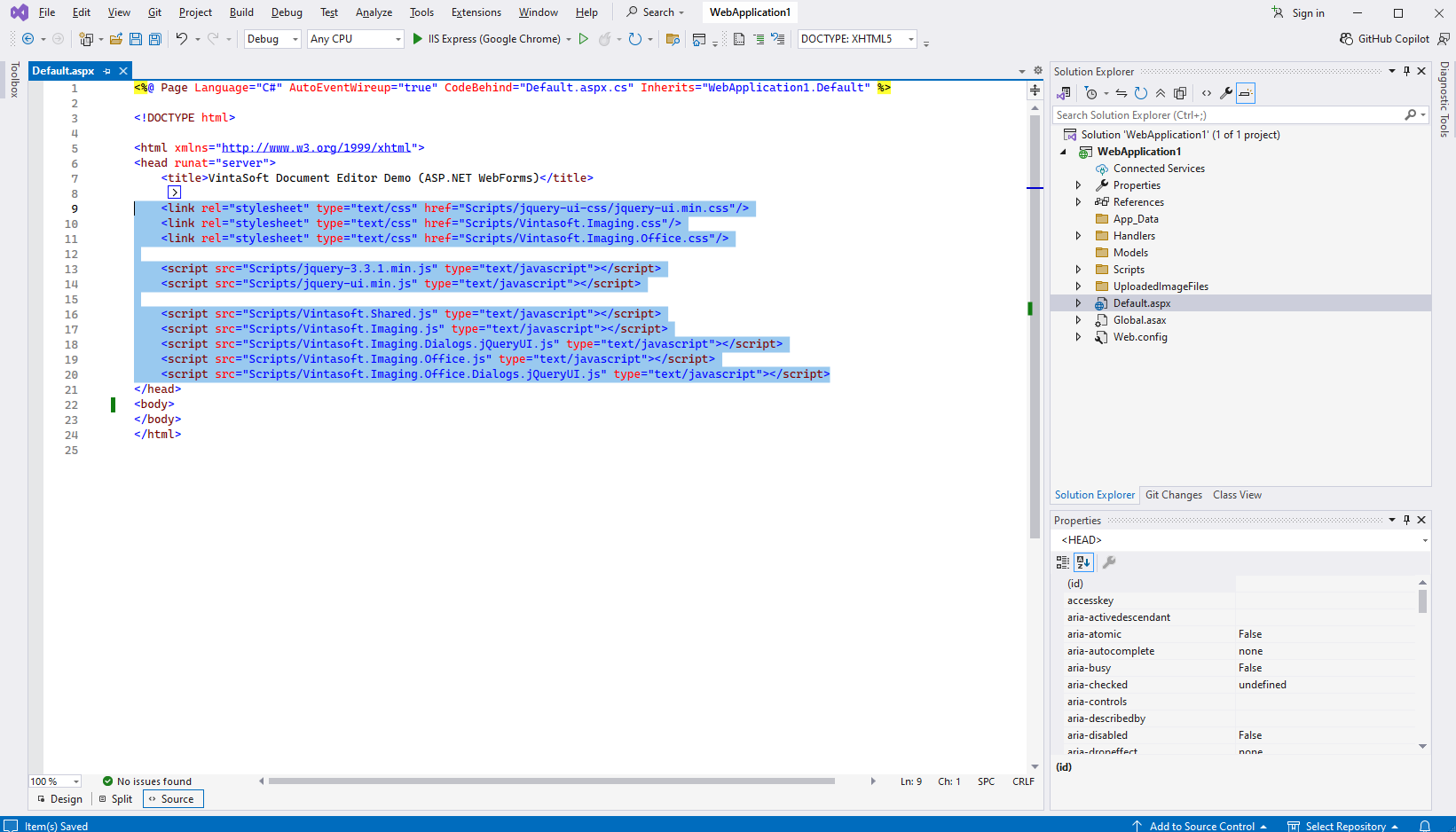
Here is HTML code that adds references to jQuery and Vintasoft JavaScript files:
-
Add HTML markup (a div-element that will display web document editor) to the web view:
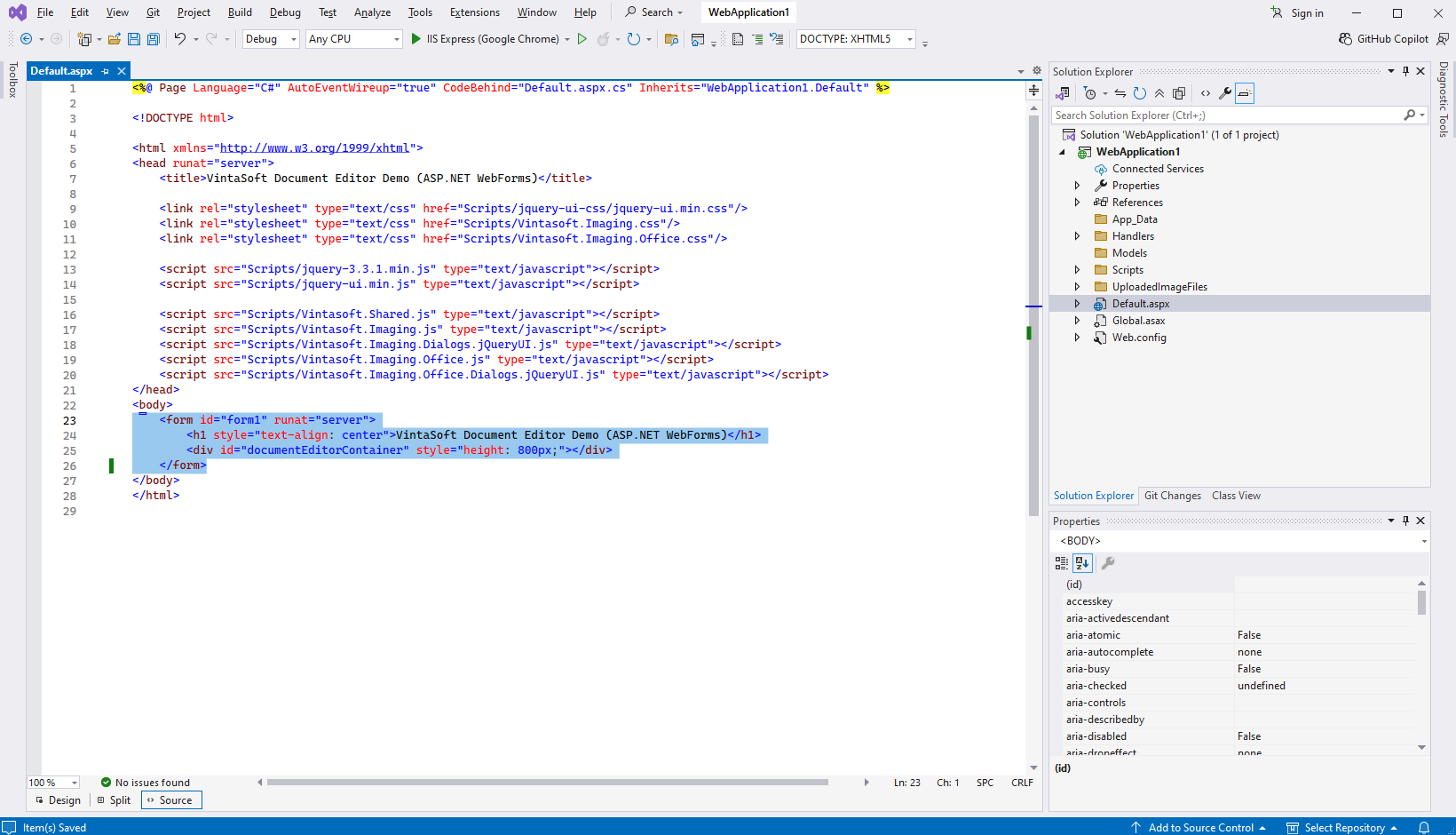
Here is HTML markup code:
-
Add JavaScript code that displays web document editor:
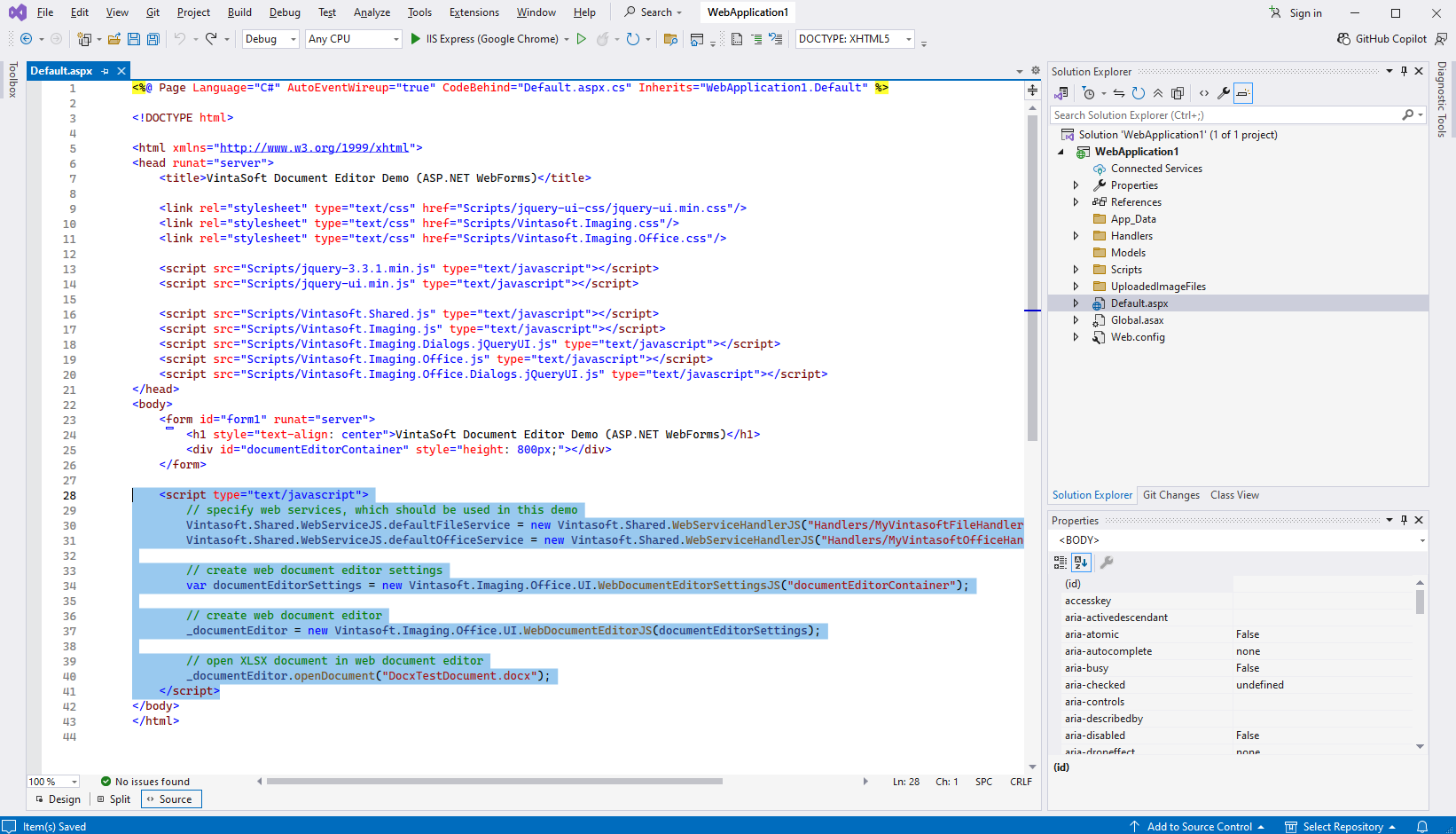
Here is JavaScript code (with page markup) that displays web document editor:
-
Create folder "UploadedImageFiles" and copy test DOCX document to the folder. This document will be displayed in web document editor.
-
Run the ASP.NET WebForms application and see the result.